live_tv
Livestream Starting Soon
00
Hours
:
00
Minutes
:
00
Seconds
Up next in 10



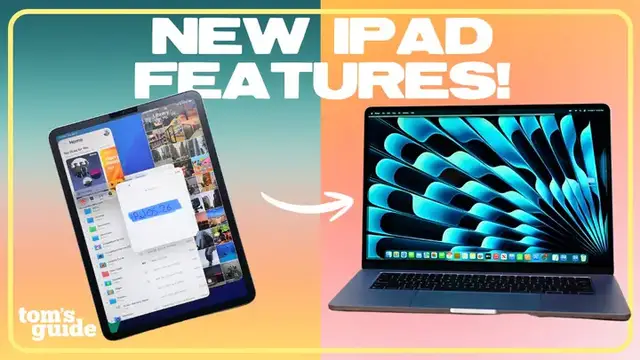
In this video, you’ll learn the ins and outs of the new iPad features in iPadOS 26. Paul takes you through how to download iPadOS 26 and the best multitasking setup for the latest software update. From all the different ways to use Windowing to the new menu bar to the Preview app on iPad, consider this your ultimate guide to making your iPad work more like a Mac.
Show More Show Less View Video Transcript
0:00
Hey, in this video, I'll be showing you how to set up the new multitasking features in iPadOS 26
0:05
including windowing, the new menu bar, and flick gestures, so your iPad starts to feel a lot more
0:10
like a Mac. Quick welcome back to the channel, but if you're new here, hey, I'm Paul, and this is
0:15
Setup Essentials, a recurring series where we help you get the most out of your favorite tech
0:20
Today's all about iPadOS 26, so let's get started. First, we've got to go over some housekeeping
0:26
Is your iPad even compatible with iPadOS 26? And if so, how do you download it
0:30
I'm going to throw a list of the compatible iPad models up on screen, but generally, as long as your iPad currently supports iPadOS 18
0:37
you should be able to install OS 26. And yes, Apple has changed the naming system to reflect years
0:44
giving us that jump from iOS 18 to 26. But yeah, the only device that lost support is the iPad 7th gen from 2019
0:53
but otherwise, you should be good to go. Now if you're watching this down the road and it's already September 2025 or later
1:01
you can skip this section because it means you should just be able to download iPadOS 26
1:05
by following the regular update steps found in general settings. But at the time that we're publishing this video, iPadOS 26 is still in public beta
1:13
which means you'll need to install the public beta profile on your device first
1:17
And it's a lot easier than you might think. First, head to beta.apple.com and sign up for the beta software program
1:24
You can do this directly on your iPad using your own Apple ID and password
1:29
Now, the iPadOS 26 public beta should be waiting for you. Just head to Settings, General, Software Update, then tap Beta Updates
1:39
From there, choose iPadOS 26 public beta from the list. Now, depending on how excited you are for this, you have two options
1:47
You can either update now if you're ready to go ahead and you want to start downloading right away
1:51
or you can click update tonight if you'd rather let the install happen while you're asleep
1:55
so it's ready the next morning. Whichever you pick, your iPad will ask you for your passcode
2:00
And if you want with update now the download will begin immediately But just a quick heads up these betas are pretty large and downloads can take a while to install So make sure your iPad has enough battery or better yet just keep it plugged in during the whole process
2:12
Once it's all downloaded, your iPad will prompt you again to install now or wait until later
2:18
Once installation is done, your iPad is going to restart. And just like that, you're on iPadOS 26 and ready to test out all its new updates and features
2:30
So the first thing you'll probably notice with iPadOS 26 is this new look called Liquid Glass
2:35
which introduces translucent icons and buttons. It might take a bit of getting used to
2:39
but hey, that's what we're here for. So if you like these kind of walkthroughs
2:43
give this video a thumbs up and subscribe for more setup essentials. I started this video off by saying iPadOS 26 features
2:50
will make your iPad feel more like a Mac, and that's largely thanks to the new windowing
2:54
and multitasking features, which are extremely useful for turning your iPad into a MacBook replacement or even your main device for work
3:02
like I've been doing for the past couple of weeks. So here's how you can start using some of these new features
3:07
From the bottom right corner of a full screen app, you're going to tap and drag or use a mouse to resize your apps freely
3:14
Some apps may also change their layout depending on how small you size them so that they're still usable
3:20
To move the window around, just tap and hold it from the top. You can also open a second app and do the same thing
3:25
And now we've got our windows. If you turn on stage manager from settings you can group and organize your windows into multiple stages
3:35
To go back to your apps or your home screen use the flick gesture to push the windows to the side
3:41
When you're ready to jump back in just tap on the app window or the middle of your screen
3:46
I mentioned the flick gesture. There's actually a few more things that you can do with it that I'll point out
3:51
So, if you have your windows open here, you can also flick your windows to the top edge to quickly make them full screen
3:57
Or you can flick them down to instantly minimize them into their app icon
4:03
You can also easily split your screen between two different windows by flicking them to the left or right edges This is called window tiling if we being formal And now you can also resize them just by clicking and dragging the gap between them
4:17
Something also really cool is that you can now control windows with the new menu bar
4:22
The iPad finally introduces a menu bar that's very similar to what you get with Mac
4:27
It's definitely most practical for apps like Notes, Files, and of course Safari
4:31
and it should look pretty familiar if you've used a MacBook before. If you don't see it right away
4:35
just swipe down lightly from the top and there you go. It's right there. I was very excited to
4:40
see this finally baked into iPad's UI. It unlocks some powerful settings while still being very
4:45
intuitive to use with a touchscreen. You can also switch to windowed apps and resize them and use
4:52
multiple apps in a single space like you would on a desktop. You even get the familiar three-button
4:57
layout for closing, minimizing, and full screening like you do in macOS. I personally love using this
5:03
feature and I've been using it so much, especially with a wireless mouse connected, but I'm curious
5:07
to hear what you guys think and how you've been using it. I already touched on some iPad apps
5:14
but there's one new app making its way to your iPad. Well, it's not new exactly, but it's definitely
5:19
new to iPad and it comes directly from macOS. I'm talking about Preview. Preview lets you view
5:24
edit, and mark up PDFs and images on your iPad using an Apple Pencil or by touch
5:29
You can access all your PDFs and images from the Files app using Preview, and that lets you create an empty page or use the Apple Pencil to draw and write on it
5:37
You can also use powerful tools like Autofill to fill in PDF forms and easily add your signature
5:42
It's pretty shocking that the iPad didn't have this before, but I think I speak for a lot of people when I say, I'm just glad it's here now
5:49
But back to the Files app for just a sec. iPad has had it for a few years now, but it's now significantly updated
5:55
There's a new list view and finally customizable folder icons where you can add custom icons and emojis
6:01
and even choose from specific colors to make them easier to identify. And what's great is these customizations
6:07
will sync across both iOS and macOS, which is great for anyone using multi devices One last thing on folders you can drag any folder into your dock from the files app and it stays there for quick access no matter where you are It such a smooth way to organize your
6:23
work files, especially if you're juggling multiple projects. Besides all the iPad OS 26 features I've
6:30
already gone over, if you really want your iPad to feel like a Mac, here are a couple accessories
6:34
you want to pick up. Let's start with the most obvious, a keyboard case. Whether you go with
6:39
Apple's Magic Keyboard or something third-party in about half the price like the ESR Rebound case
6:44
which I'll link below, having a physical keyboard instantly levels up how you can use your iPad
6:49
And I really like this case because you can quickly rotate your iPad between landscape and portrait
6:53
depending on what you're watching or working on. Next up, the Apple Pencil
6:58
It's not just for drawing, it's also great for marking up PDFs, especially in the new Preview app
7:03
writing journal entries by hand or even navigating the UI with more precision
7:07
If you really want the full desktop setup, don't forget external displays
7:12
iPadOS 26 now supports them better than ever. Just plug in via USB-C and you'll get that second screen experience with proper window management
7:20
And it's not just mirroring anymore. It's a big upgrade that I've been waiting for for years
7:27
And yeah, that's iPadOS 26. Multitasking, windowing, accessories, all of it. Honestly, this might be the biggest leap forward we've seen in iPad in years
7:36
and is starting to finally feel like the Mac alternative a lot of us, myself included, have always wanted
7:43
If this video has helped you out, give it a thumbs up and hit subscribe for more setup essentials just like this one
7:47
Let me know in the comments what you're testing out in iPadOS 26 or if there's a hidden feature
7:52
you think I should cover in a part two. You can find us everywhere at Tom's Guide and you can follow me to see
7:56
what other cool tech I'm reviewing. Until the next one, I'll catch you later. We'll see you next time
#Computers & Electronics
#Consumer Electronics
#Software