Up next in 10



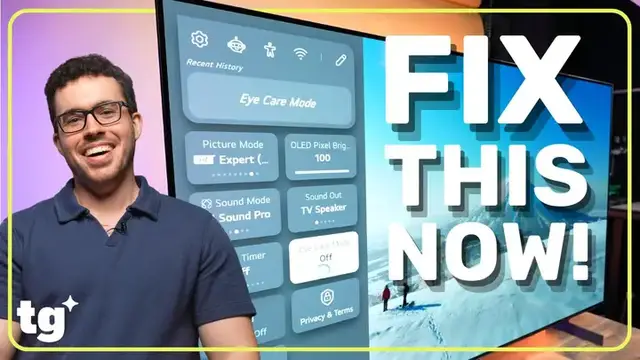
Your premium LG OLED TV has some default settings that actually make the picture worse. In this guide, we walk you through the essential changes for picture quality, including enabling Filmmaker Mode, turning off Eye Care Mode, and disabling ads for a cleaner experience.
Show More Show Less View Video Transcript
0:00
Hey guys, today I'm going to show you the best settings to change on your LG OLED TV
0:05
I'm demonstrating on the LG B6, a great pick linked below if you're interested
0:10
but you should be able to find these settings on any new LG OLED TV
0:14
Let's get right into it. First things first, we've got to clean up this homepage
0:20
The ads on LG's webOS interface are brutal. I mean, nobody wants to turn on their premium TV and get blasted by content
0:28
they don't care about, right? Go to settings, system, additional settings, home settings
0:36
turn off home promotion and content recommendations. Just like that, all those messy
0:42
annoying banners are gone. You're welcome. While we're in the hidden menus, let's lock down your
0:48
privacy and kill the rest of those ads. Go back one step in that system menu, live plus, turn that
0:56
off. If you leave it on, your viewing data gets sent directly to advertisers to target you
1:01
No thank you. Next, screensaver settings. See screensaver promotion? Turn that off too. Now
1:09
your TV won't try to sell you stuff when it goes idle. Now that we're ad-free, let's talk about
1:18
picture quality. The quickest fix to your LG OLED's performance, brightness especially, is turning
1:23
off energy saving mode. Settings, energy saving, toggle from auto to off. Out of the box your OLED
1:32
TV is restricted to achieve certain energy usage ratings that you see labeled on the box
1:38
And while I love the environment as much as the next person, this video is about getting the best
1:43
picture out of your TV Turning this off instantly unlocks the true vibrant brightness of your OLED panel And hey it easy enough to toggle back on if you prioritizing your energy bill another well setting secretly sabotaging your picture quality is eye care mode
1:59
or reduce blue light on some firmware versions it limits blue light to reduce eye strain especially
2:06
if you're watching in the dark but in reality it shifts your entire screen to a super warm
2:11
muddy tone. The fast way is to just bring up your quick settings, eye care tile, toggle it off
2:19
If you don't see the quick tile, go to all settings, picture, advanced settings
2:24
toggle reduced blue light off. Listen, if your eyes are genuinely feeling tired late at night
2:30
I get it. But instead of letting a setting turn your premium OLED yellow, just turn on a dim lamp
2:36
or add some bias lighting behind the TV. Keep those OLED colors crisp. Next up, another tip for
2:43
getting realistic colors, let's make sure movies actually look like movies. Settings, picture
2:50
advanced settings, scroll down and toggle filmmaker mode auto start to on. Now whenever your TV
2:56
detects a movie playing, it will automatically switch to the most color accurate profile pre
3:02
installed. It's exactly how the directors intended the film to look. Pretty cool
3:06
While we're here we've got to talk about motion smoothing or as some people know
3:11
it the dreaded soap opera effect. Basically the TV tries to inject fake
3:16
frames into whatever you're watching to make things look smoother. But instead of
3:21
looking natural it makes a multi-million dollar Hollywood flick look like it was shot on a cheap 90s camcorder. LG hides this under a setting
3:29
called True Motion Go to Settings Picture Advanced Settings Clarity True Motion switch it to Off You could set it to cinematic movement if you just want a tiny bit of judder control without the weird artificial smoothness
3:45
but that's your call. Either way, trust me, the second you turn this off, movies will instantly
3:51
look right again. You can play around with the rest of the advanced picture settings, brightness
3:56
and sharpness toggles, etc., until you find a formula that makes your eyes happy. Would you
4:03
guys want to see a deeper dive into calibrating an LG OLED? Tell me in the
4:07
comments and if you've learned something new in this video so far let me know by
4:10
hitting that like button. Moving on to some smaller quality of life settings
4:17
let's fix the remote. Look the LG Magic remote is solid but the default cursor
4:23
speed is hypersensitive. Sometimes it feels like you're trying to aim a laser
4:28
pointer during an earthquake. Let's fix it. Settings, system menu, additional settings, pointer options, change the speed from medium to slow. You can also
4:39
change the pointer size here and if you want to get rid of the pointer you can
4:44
temporarily disable the pointer by pressing any directional button up, down, left, or right on your remote's navigation pad. The pointer will stay
4:53
hidden as long as you use the directional buttons. Next up, let's reorganize your
4:57
home screen. For me, I want to bring the inputs to a more convenient location. Go to your home screen
5:03
scroll all the way to the end of your apps, and find your inputs. Hold down the select button on
5:09
your remote. Now you can drag it all the way to the front row. Do this for your favorite consoles
5:15
or streaming apps. While you're here, if you see bloatware apps or realize you have streaming
5:20
services download you never use just hit the little trash bin icon above them when you in mode to delete them Before we the home page move all the way to the left of the screen and then go left again to reach the widget screen
5:33
Here you can go to the top right, select the pencil icon and move, remove or add widgets
5:39
Widgets are a nice way to get easy information at a glance while you are on your home screen
5:44
but don't leave this on all the time as you won't want any burn-in
5:47
By default, your TV has a crazy complicated serial number name on your Wi-Fi network
5:55
Let's make it recognizable for AirPlay and Bluetooth purposes. Settings, Support, TV Information
6:02
Click on Device Name and change it to something like Living Room OLED or, hey, have some fun with it
6:07
It is your TV after all. Now, when you try to cast a video from your phone, you actually know which TV you're sending it to
6:13
Finally, the best thing you can do for your LG OLED TV is keep the software up to date
6:21
Even if you have auto update turned on, new LG TVs notoriously miss the first update out
6:26
of the box. Go to Settings, Support, Software Update, and hit Check for Updates Manually
6:34
Do this from time to time to make sure your TV is always optimized
6:39
And there you have it! are the first things you need to do to completely master your new LG OLED. If you found this guide
6:45
helpful, smash that like button, hit subscribe to join the finest tech community on YouTube
6:50
and as always I'm Phil Rodriguez, this is Tom's Guide, and I will see you in the next video
7:06
The TV tries to inject fake frames into whatever... Basically, the TV..
7:13
I had this, like, Trump voice in my head. Fake frames
Computers & Electronics