0:00
Want to activate Microsoft Office 2021 or Office 365 on Windows 11?
0:06
Here is how you can do it.
0:13
This is The Windows Club. Most people are moving to Office 365,
0:18
which is a cloud-based subscription product. The activation key is tied to your email
0:24
account, and you must renew the subscription according to your plan.
0:27
Here we have shown how to activate Microsoft Office 2021 or Office 365.
0:39
First, if you are not sure about the version or activation status of your copy of Microsoft
0:45
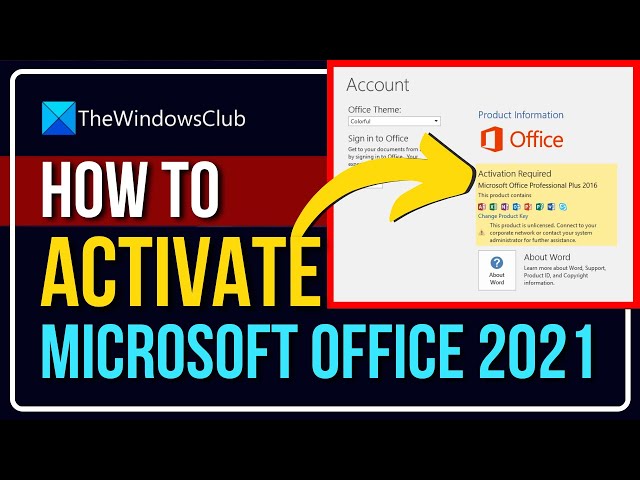
Office, then Open any Office application. Go to File and then select Account.
0:50
The program’s activation status is visible right under the Product Information heading.
0:55
If it says Product Activated, it means that you have a validly licensed copy of Microsoft Office.
1:03
But a yellow highlighted box that reads Product Activation Required signifies that you need to
1:10
activate your copy of Microsoft Office. Now to activate Office, here is what you
1:15
need to do. Method 1:
1:21
If you have already purchased a license or you are just re-installing Office on a new computer,
1:28
you don’t need any product keys. Instead, all you need to do is
1:33
sign-in using the same Microsoft Account you used to buy the license.
1:37
Office will automatically pick up the eligible license from your account.
1:42
If you have multiple Office licenses tied to your account, Office will list all of them,
1:47
and you can select which license you want to use for activation.
1:51
This is a more simple and secure way of activating your copy of Office. By following this, you need
1:58
not maintain product keys somewhere. Here are the steps to activate Office by signing in.
2:04
Open any Office application. If A pop-up will prompt you
2:08
to sign-in, click on the Sign In button. Or you can go to File, Account and then Sign-In.
2:14
Enter the credentials for the account that has an Office license tied to it.
2:19
Select one of the licenses displayed in the list.
2:22
This is only applicable if you have multiple licenses.
2:35
Method 2: If you bought Office License
2:39
from a physical or an online store, you must have received it in the form of a product key.
2:44
Office can be directly activated by the product key. But it is best recommended
2:49
to link the product key with your account first and then Sign In with the same account.
2:53
Go to office.com/setup. Sign in using your Microsoft account.
2:59
Now enter the 25 character long product key. Select your country and your
3:04
language. Click on Next. After this, you will be redirected
3:09
to Microsoft Services and Subscriptions Page. Locate the product you just activated and
3:15
click on Install Now to download the setup. Run the setup to install Office on your computer.
3:21
When prompted, Sign In using the same Microsoft Account.
3:25
This procedure is one time only, and the license is now linked with your account
3:33
Method 3: When a copy of Office has
3:36
exhausted the trial period or is not activated, the user is prompted with an Activation Wizard.
3:42
Or if you have changed some hardware on your computer,
3:45
you are going to get into activation issues that can be addressed using Activation Wizard.
3:51
Activation Wizard is very helpful, and all the instructions are
3:56
mentioned in the dialog box itself. If you want to activate Office over
4:00
the Internet, then select I want to activate the software over the Internet, and then select Next.
4:06
Or you can select the telephone option if you wish to contact Microsoft Support and
4:12
activate the product over the phone. If you are not able to activate your
4:16
product, it is best to contact Microsoft Support regarding this.
4:20
Microsoft Office activation process is very simple and secure. There are just many ways to activate
4:27
Office on Windows. Make sure you follow the right instructions as per your situation.
4:35
So, that’s it. Subscribe to The Windows Club for all
4:38
your tech solutions related to Windows. Thanks for watching.