
Extend Your Wi-Fi Range: Configuring WDS on TP-Link Router
Sep 26, 2023
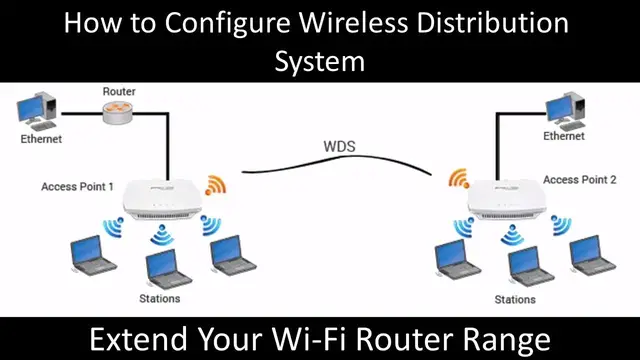
🌐 **Wireless Distribution System (WDS)** is the key to expanding your Wi-Fi network without the hassle of wires. In this comprehensive tutorial, we'll guide you through the process of configuring WDS on your TP-Link Wireless Router, helping you extend the reach of your wireless network effortlessly.
📚 **About Configuring Wireless Distribution System:**
Before diving into the hands-on part, it's crucial to check if your TP-Link router supports the WDS feature. Most TP-Link routers do, but consulting your router's setup guide is a smart move to understand this feature better and tailor it to your specific router model.
🔑 **Key Takeaways:**
- **What is WDS?**: WDS, or Wireless Distribution System, allows you to seamlessly expand your wireless network by connecting multiple access points without the need for physical cables.
- **Why Use WDS?**: Imagine having a Wi-Fi router in your home or office, but it can't cover every nook and cranny. That's where WDS comes in – you can bridge multiple access points, extending your network's range without wires.
- **Configuration Parameters**: Before you start, consider these key parameters:
1. Distinguish between the "Root Router" (your existing router) and the "Extended Router" (the new one you want to add).
2. Ensure the LAN IP of the extended router is in the same subnet as the root router.
3. Disable the DHCP server on the extended router.
4. Enable the WDS feature on either the root or extended router, not both.
📹 **Tutorial Highlights:**
- **Initial Setup**: Start by connecting the extended router to your computer via a wired connection. Once configured, you can relocate it within your existing network's range.
- **Accessing the Management Page**: Log in to the router's management page. The login instructions can usually be found in the router's documentation or on the router itself.
- **Enabling WDS**: Navigate to the Wireless Settings tab and activate WDS. Remember to enable WDS on only one router, either the Root or Extended Router.
- **Connecting to Your Current Network**: Input the details of your current wireless network or use the Survey feature to list available networks. Connect to your existing network from the list.
- **Configuring Wireless Network Name**: Customize the Wireless Network Name for the extended router. This name will be visible to devices connected to the extended network.
Show More Show Less #Networking
#Communications Equipment
#Networking Equipment