Up next in 10



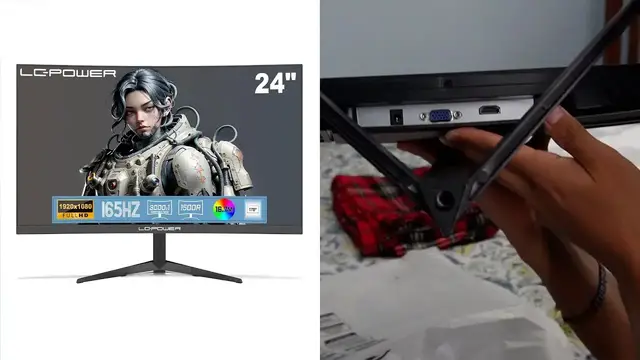
In this video, I review the LC-Power 24" Gaming Monitor.
Check it out here: https://amzn.to/3tr82cP
DISCLAIMER: This video and description contains affiliate links, which means that if you click on one of the product links, I’ll receive a small commission. This helps support the channel and allows us to continue to make videos like this. Thank you for the support!
Show More Show Less View Video Transcript
0:00
This is the LC Power M27 FHD 75Hz monitor and this is my cat Tiger and we're going to do a quick unboxing of this
0:08
So I'm really excited about this just because I've been wanting a second monitor for a while now
0:13
My old one is kind of, well, it's old. And so this is definitely going to be a good replacement for it
0:20
So everything is packed up real nice and tight over here. And here's what all the materials are going to go ahead and look like
0:26
We're going to have an HDMI cable. we're gonna have a power adapter this is gonna be the stand for the back of the monitor
0:38
and then finally the last thing is gonna be the actual stand itself so i'm gonna go ahead and
0:46
basically attach both these parts just like this and i'll put this to the back of the monitor
0:52
and this feels uh real nice there's like a rubber rubberized grip at the bottom over here
0:57
same thing on the top of the tips this is of course going to be fully metal um so it's going
1:01
to be nice and sturdy on it and this yeah i can't move this this is real tight and then finally at
1:07
the end uh it going to be the manual itself on how to go ahead and actually install everything and there actually going to be um small bits so this is just going to be like a little cover with some screws So this is probably gonna go on the back of the monitor once I go ahead and put the stand
1:23
And now finally most important part the monitor itself. And here it is
1:30
Yeah, this thing is really thin. This is one of the thinnest monitors I've ever seen
1:35
Yeah, this thing is like edge to edge. Wow. Oh yeah, he likes the styrofoam
1:42
But yeah, this thing is edge to edge. At the bottom over here, we're going to see the logo, LC Power
1:47
And then MVAE and then the power button. So there's going to be all the buttons to control it over here
1:54
There's going to be nothing I see on the side so far. And then on the back, this is where I'm going to go ahead and put the stand itself
2:04
And then if you want to go ahead and attach it to the wall, it also does have these mount brackets
2:09
So I've got a screwdriver now I can go ahead and put this stand together
2:12
I just have to push it through and then I can go ahead and put the screw right down over here
2:19
Just go ahead and make sure that's nice and tight All right, so now that this is screwed in I can put this end on the back of the monitor right over here
2:27
So I really have to do you just kind of place it just like so and there it actually just stuck over there so now all I have to do is just put the cap
2:38
right in here and lock everything into place. Alright so I just went ahead and
2:42
put everything and now I can go ahead and lift up the monitor and here it is
2:45
and of course I can go ahead and tilt it upwards tilt it down and then at the
2:50
bottom this is where I'm gonna go ahead and attach rest of the cables so this is
2:55
where the power source is going to be the hdmi and then there's a vga cable as well too all right
2:59
so i went ahead and installed the second monitor and as you can see here they match perfectly they're
3:03
both going to be 27 inches uh except the lc power is just going to be straight uh and my other one
3:09
is curved uh that's fine um one thing i like about it is that the power button is really easy to access
3:13
it's going to be underneath over here all i gotta do is just press it and then lc power just pops up
3:18
give it a few seconds and it should go ahead uh and become yep right there the second monitor now
3:24
I like this power button better just because for this one I have to go all the way on the back side over here
3:30
And there's kind of like a little wheel. Um, but yeah, this one's nice and easy There's also gonna be different options here. So this is gonna be the e button right here
3:39
This is gonna go ahead and be if you want to change it to HDMI or to VGA
3:43
And I just leave it at HDMI and if I press the M button it gonna bring up this menu I can change the brightness the contrast the eco mode the DCR overdrive
3:53
I can move on to the second page. Right here, it's going to be image setup, color setup, OSD setup, if I want to reset it
4:01
And then there's extra things as well, too. Now, as far as image quality goes, it looks real nice
4:06
My other monitor is a little bit higher in resolution. That's why this one's going to be a little bit bigger than the other one
4:12
But that's fine. the colors are still nice and I just want to bring up the window just so you can kind of see the
4:16
colors um so right here this would be on my other monitor it's an MSI and then this would be on the
4:21
LC power and then you can kind of see the differences there of course it's going to show up bigger on
4:28
this one just because it's 1920 by 1080 but regardless the color still looks real nice
4:33
a real fan of the screen because these two complement each other uh also it's like the same
4:39
thickness over here same thinness on the sidebars as well too and then I can also go ahead and tilt
4:46
this the only thing I will say that is missing is it doesn't go up or down so like this other
4:50
monitor I have can go down or can go up just like this this one just tilts back and forth
4:55
but that's fine because this is like a good height anyway but anyway yeah that's a quick
5:00
overview of the LC Power 27 inch monitor
#Computers & Electronics
#Computers & Electronics
#Shopping