Up next in 10



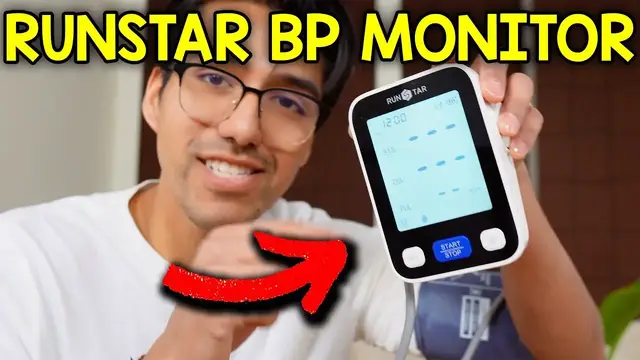
Using The RunStar Blood Pressure Monitor
Show More Show Less View Video Transcript
0:00
I just got this blood pressure monitor, so let's check it out
0:02
So inside the box we got an instruction manual, a USB-A to USB-C cable, a carrying case
0:08
the large adult cuff, four AA batteries, and the blood pressure monitor itself
0:12
Now the monitor has a pretty big screen and we have the logo of RunStar all the way on top
0:16
followed by three buttons, and there's also this protective screen cover that I'll take right off
0:22
Now on the sides we have the on-off button, the USB-C port, and some speakers
0:27
On the top side there's nothing and on the other side we have the hole and that's where we're going to attach the tube for the upper arm cuff
0:33
And there's nothing at the bottom here. Now on the back side we have a little bit more information about this unit and then some contact info
0:38
And then right here is the cover for the batteries. So before I take my blood pressure I want to go over all the different settings this has
0:46
And I'll start by turning this on by clicking the switch upwards and we reveal the screen
0:51
And on the upper left corner we have the year 2025. and if this is correct we can click set or if you want to increase it then just
0:58
press this button but in this case I'll click set and now the date so it's
1:02
currently December 15th and it currently 2 23 there and right here is the sound so if you could see this little icon that means the sound is on and if I press it like this there an x and the sound
1:16
is off and in my case I want the sound to be on so I'll set that as is and this is to clear the
1:22
data. So if we click these two buttons if we hold these two buttons at the same time it's going to
1:27
clear the entire data but in this case I'm going to leave it as is and click set and now turn it on
1:33
So this is for the units. So if we want MMHG, set, or I can change it to kilopascals
1:39
But I'll go back to this, set, and now for the users. So automatically it's going to be on user
1:44
one. And if we want to switch users, there's user two, but I'll keep it as user one
1:50
And it goes through the settings all over again. All right, now it's time to start this. But before
1:58
Before I start it, let me actually attach this here and then put this around my arm
2:03
And this is initially closed off like this, but you just open it up
2:08
and then slide your arm right through here just like so And now leaving about two to three centimeters of space we can lock this up And now before pressing start I want to make sure I calm relaxed and most importantly in the correct position
2:23
So I have this at about heart height. My arms elevated like so
2:29
And then the monitor is right here ready. And then there, now you can see what's going on on the screen here
2:37
And palms up. And now time to press start. Attention, the measurement is starting. Please relax. Do not move or talk
2:48
Systolic blood pressure 140 mmHg. Diastolic blood pressure 78 mmHg. Heart rate 51 beats per minute
2:59
Your blood pressure is high. Okay, that's all good now. It says my blood pressure is high, but what if I want to take another test
3:07
I could just press the start button and do it again. So now I'm going to sit on the couch and do it one more time
3:13
All right, so I'm definitely much more comfortable now. So now it's time for take two. Attention the measurement is starting Please relax Do not move or talk Systolic blood pressure 143 mmHg Diastolic blood pressure 75 mmHg Heart rate 50 beats per minute
3:38
Your blood pressure is high. All right, so same information. My blood pressure is high
3:43
But now if we want to switch between the data, just click this button on the bottom right corner
3:47
So here's the first one, 143, 75, 50. And the second one, 140, 78, 51
3:56
And if we want to clear everything out, start from fresh, we can turn this off, turn this back on
4:01
And I'll just skip through all this until we reach this part right here
4:07
Hold these two buttons for a couple seconds. And then when we get that two signs, we can let go
4:12
And then the data is automatically cleared. So now when I go back to start and there
4:16
Now when I go to the data, you can see that there's literally no data anymore
4:19
I can keep pressing it and nothing's there. So that's a quick look at the blood pressure monitor
4:23
It was pretty easy to use. And when it's time to store this, it's pretty easy. We could just put everything together just like so
4:29
And it'll fit inside this carrying pouch just like that
Computers & Electronics
Medical Devices & Equipment