Up next in 10

Jackery Solar Generator 300 Plus + 40W Book-sized Solar Panel | Unboxing & App Control
Jun 25, 2026


In this video, I unbox and check out the app control for the Jackery Solar Generator 300 Plus Portable Power Station with 40W Book-sized Solar Panel. Check it out here https://geni.us/xpwj6Ym DISCLAIMER: This video and description contains affiliate links, which means that if you click on one of the product links, I’ll receive a small commission. This helps support the channel and allows us to continue to make videos like this. Thank you for the support!
Show More Show Less View Video Transcript
0:00
I just got the Jackery Explorer 300 Plus so in this video I want to do a quick unboxing and give my first impressions of this
0:05
So first up we're going to have this baggie and inside is going to be these two orange cables and there's also this small adapter piece
0:13
We're also going to have a bunch of paperwork, the generator and finally the solar panel itself
0:18
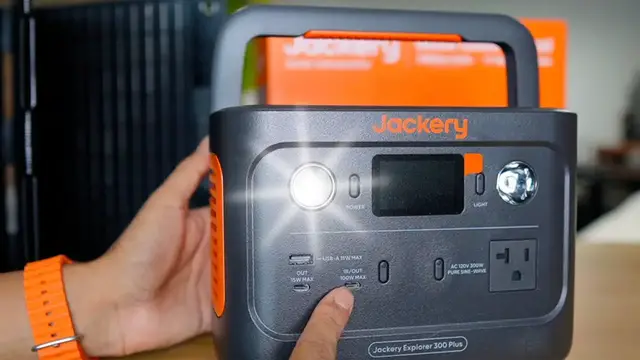
So I'm pretty excited to take a look at the Jackery Explorer 300 Plus. This generator looks really gorgeous. It's going to be like a small footprint, a little bit over eight pounds
0:28
taking a look up top is going to be the handle with another orange accent now this is going to
0:34
be plastic actually everything is basically made out of plastic except for the bottom part which
0:40
we are going to have some rubber which is going to be the feet just to prevent this from sliding
0:44
in place on the left side we're going to have the ac 100 volt to charge this now taking a look at
0:50
the front on the left here we're going to have dc on the right ac so for starters the carport
0:56
USB-A and then two USB-C. Now with this one it's going to be 100 watts which you cannot charge the
1:02
unit here itself and to turn any of these powers on we just press the button. Well right now I have
1:07
to turn it on. There now it's green and there so far we have 30% battery life and then when I press
1:16
this all this is activated and now on the right side we're going to have the 120 volt AC adapter
1:22
and then I press it press it again and then same thing happens And right here we going to have a light button so here what it like it a decent brightness it not too bright press it again it give me a strobe or
1:38
a flash press it again turns off and then turn back on so there's only going to be two modes here
1:44
and then this is going to be a plastic protector for the screen that comes right off and when it
1:48
comes time to charge the generator itself we can use the solar panel now on the side
1:53
we're gonna have this port and this rubber cap that comes right off and then right here
1:59
we can attach the cable which is going to be this end and on the other end we're actually
2:05
going to use the adapter push that in and for usbc you could charge right here make sure to use the
2:12
100 volt one just like that or we could use the other cable over here and plug it into the wall
2:18
Alright so now it's time to go over the app control. So I downloaded the Jackery app, I can press add, and here I gotta make sure the bluetooth
2:25
icon is flashing, which it just was, so I can click icon flash, allow, and then right
2:31
here, found it. Now it's binding, and there it is, bound successfully, do you want to connect to wifi
2:38
Ok, so let me just put my wifi password, and there it finished connecting
2:44
Now it gives me, I have 30% battery life, the temperature is currently 66.5 degrees Fahrenheit
2:49
We get to the input, the output, the light. See if I can turn it on from here
2:54
Oh yeah I can that pretty cool Turn it off then I can click the SOS light And there it starts flashing Now down here we can have the screen so two hours steady on two minutes shortly on or off let me turn it off and then here we can
3:10
see the screen turned off and let me turn it on and then now the screen turned on and that's
3:15
basically it for the controls that I have here. Now let me press the settings button here you can
3:21
see edit device name battery settings let's see what that is so fully use make the most out of
3:26
battery battery savings mode extends battery life to approximately by approximately 30 percent
3:32
and here's some other icons at the bottom press back energy saving mode so we can have it for as
3:39
little as eight hours to as much as never turn off auto off time so it'll hibernate after two
3:44
hours for now my device name firmware upgrade device specifications and user manual and that's
3:49
about it for that and then if i click me we can see my name my qr code share help feedback
3:55
temperature settings, language settings, and about us. So now let me go back to over here and let me
4:00
actually plug some stuff in so you can see how the interface changes. So I grabbed my MacBook Pro
4:06
and I'll plug it in right at the bottom here. And then also my GoPro. So I'll plug it into the 100 watt one. There so as you see nothing's
4:15
currently happening and that's because I didn't turn these on. So when I press the button here
4:19
it's green, it's lighting up, it's turned on and then right there we can see DC power output is zero watts currently
4:26
And then I can turn on the AC either by pressing the button or by pressing here Let me turn it on All right and I also heard like a little click go on So their output here we could see 17 watts
4:39
42 watts, 52, 63 and I'll leave that there for a sec
4:47
And here we could see we got the red light on my GoPro so it's charging
4:51
And then we got this light on my MacBook Pro so it's also charging. And there
4:56
It looks like it stood steady at 47 watts. Now let's see what happens if I take this one off
5:02
Or actually let me turn it on or turn it off just like that. It just stays at 47 and here we can see we have 1.4 hours and then the same thing
5:11
Oh, it actually changed. It changed a little bit now. Now it says 65 watts so it's giving me more power for my Mac
5:17
And now let me change that. Let me just go to DC and see what happens there
5:22
All right, so not much is going on. That might be because my GoPro is charged
5:26
So I'm going to try some headphones now. All right, so not much power is being used
5:30
Only one watt for USB-C. Let me change it to the other one now
5:40
And they're the same thing, just one watt. So I guess we don't need that much power to charge these headphones
5:46
Now let me try these other ones. All right, now a whole three watts or two watts now is being used to charge my other headphones
5:53
So I have a lot more testing to do with this generator, but I'm gonna do that once I go camping in a few months
5:58
But for now that's about it for the Jackery Explorer 300 plus with the solar panel
Computers & Electronics