
How to choose colors using the Color Picker, the Color panel, or the Swatches panel in photoshop
Aug 31, 2024

In this video we will learn how to choose colors using the Color Picker, the Color panel, or the Swatches panel in photoshop 2022 - www.easy-tutorials.com
What you learned: To use the Color Picker
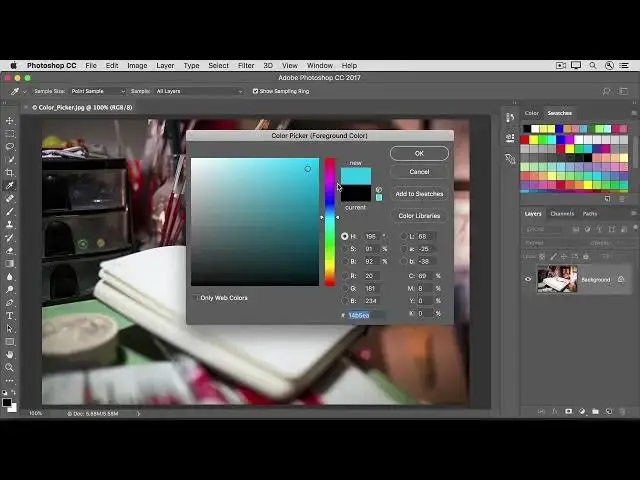
1. Click the Foreground Color box at the bottom of the Tools panel to open the Color Picker.
Option A: In the Color Picker, drag the vertical slider to choose a hue (color). Then click a spot in the large color box to choose the brightness and saturation of that color.
Option B: Enter exact color values into the HSB, RGB, CMYK, or Hexadecimal color fields.
Option C: With the Color Picker open, move your mouse over to your open image. Your cursor will turn into an eyedropper. Click anywhere on the image to sample the color under your cursor.
2. Click OK to close the Color Picker. The color you chose appears in the Foreground Color box at the bottom of the Tools panel, ready for use.
To use the Color panel
If you don’t see the Color panel on your screen, go to the menu bar and choose Window / Color.
The Color panel acts like a mini Color Picker, in which you can choose a color hue from the slider, and then adjust brightness and saturation in the color box. The color you choose appears in the Foreground Color box in the Tools panel.
The Color panel doesn’t offer as many options as the Color Picker, but the advantage of this panel is that you can leave it open on your screen for quick access.
To pick a color from preset color swatches in the Swatches panel
Show More Show Less