Up next in 10


Sign up for S25 Edge, Z Flip 7, Z Fold 7 Mystery boxes - https://sammyguru.com/preorder/
Check out Josh's One UI 8 wallpaper pack - https://bit.ly/4jgkfGi
Read more about the Samsung Internet makeover - https://bit.ly/3GtzFsa
#samsung #update #galaxy
Check out Josh's One UI 8 wallpaper pack - https://bit.ly/4jgkfGi
SammyGuru Rewards is Coming soon - https://sammyguru.com/verification/
Check out more on these updates at SammyGuru - https://sammyguru.com/breaking-major-leaks-gives-us-an-early-look-at-one-ui-8-update/
Check out the SammyGuru podcast: https://sammyguru.com/podcast/
Follow me on Twitter: https://twitter.com/jspring86az
Follow our Facebook Page: https://www.facebook.com/profile.php?id=100082984789870
Follow our Instagram: https://www.instagram.com/jspring86az/
Notification Shortcuts: https://bit.ly/3UBTekU
Shortcut Maker: https://bit.ly/40jVIXd
Lamicall Desktop stand: https://amzn.to/3TYQzkQ (USE CODE LAMICALLYT3 TO SAVE!)
Show More Show Less View Video Transcript
0:00
what's up YouTube jeff back from Sammy
0:01
Guru here and today another very
0:03
exciting Samsung video for you guys
0:04
today something incredibly interesting
0:06
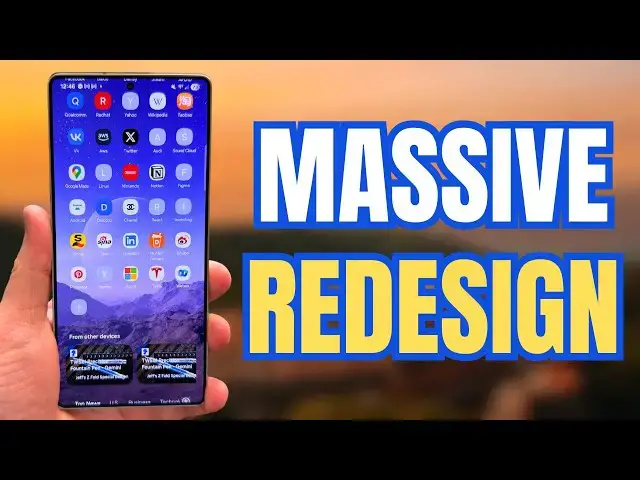
samsung is planning a massive redesign
0:09
of the Samsung Internet application for
0:11
1 UI 8.0 we got exclusive hands-on with
0:13
that late last week you've probably seen
0:15
it reported by other outlets by now but
0:17
we did break the original news this is
0:19
the redesign we're going to talk about
0:20
this i'll show you guys how you can test
0:22
it on your device running 1 UI 7.0 right
0:25
now you don't need to have an early
0:26
build of 1 UI 8.0 or anything like that
0:29
to install this redesign so we're going
0:31
to look at that today before we do I
0:33
want to remind you guys make sure you
0:34
check out samiggur.com we cover latest
0:36
Samsung news tips tricks tutorials and
0:37
reviews you can actually see how much
0:39
more beautiful Samsung Internet is with
0:41
the new design because I'm using Chrome
0:43
here for the uh show our article here
0:45
you can see Chrome doesn't look nearly
0:46
as nice as Samsung Internet in terms of
0:48
the overall UI layout in my opinion but
0:50
uh we did break this exclusive you can
0:52
bookmark the website to get your news
0:53
every day we've got it 20 articles a day
0:55
now we have a full writing team also if
0:57
you're in the US tap on the orange
0:58
banner to get another mystery box
1:00
program get a free case cleaning kit
1:02
screen protector desktop phone stand
1:04
other randomly inserted accessories when
1:05
you pre-order the next Galaxy phones we
1:07
got the S25 Edge ZFold 7 and Z Flip 7
1:10
already up tap on the phone you're
1:12
interested in put in your phone number
1:13
your email or both uh and then you'll
1:16
get that free box of goodies shipped out
1:17
to you we cover shipping and everything
1:19
all you have to do is use our affiliate
1:20
link to order that's how we fund the
1:22
program it is US only due to shipping
1:24
cost uh international would just be too
1:27
much for us to do so that's in the pen
1:28
comment description if you're interested
1:30
so Samsung Internet gets massive
1:31
redesign 1 UI 8.0 we discovered this
1:34
design using a little bit of trickery in
1:36
the debugging settings and I'll show you
1:38
guys how to turn this on in just a
1:39
second um it's pretty easy to test it in
1:42
1 UI7 i am not running 1 UI 8 on my S25
1:45
Ultra this is in fact 1 UI7.0 here so I
1:48
want to show you guys here what you can
1:50
do to get it so if we go into Samsung
1:52
Internet obviously I already have it but
1:54
the steps are the same regardless go
1:56
into your search and you're going to
1:58
type this right here you see I already
2:00
have it internet debug so you're going
2:01
to type
2:03
internet you won't already have it saved
2:05
so I'll type it out dot slash debug
2:09
right there hit go you're going to get
2:12
all these debug settings now these are
2:14
not what we want but if you go down to
2:16
the threeline menu here in the bottom
2:18
right corner and tap on this you're
2:19
going to go into the settings menu and
2:21
then scroll down to the bottom where
2:23
you'll see debug settings now that we're
2:26
in the debug options tap on this there's
2:28
a bunch of other debug settings and the
2:30
one that we want is main view so tap on
2:33
main view and then up here you will see
2:36
what we discovered and where we found
2:38
this new UI hiding in plain sight enable
2:40
new guey now this will be turned off
2:42
obviously so you'll want to turn it on
2:45
and now once you back out and reopen the
2:48
application you will have the new setup
2:50
so just back out of here go ahead and
2:53
close this and then once you reopen
2:56
internet you should have we'll hit the
2:58
home button you should have this brand
3:00
new layout now if you don't there is one
3:02
other thing you might need to do if you
3:04
go into the three lines and go to
3:06
settings go to your homepage make sure
3:08
you turn on quick access and make sure
3:10
you do not have the news feed on cuz it
3:13
doesn't seem to work with the news feed
3:15
make sure you toggle that um to most
3:17
visited pages or none right here now
3:20
down here where it says change
3:22
wallpapers in fact I'll show you really
3:24
quick if you turn on newsfeed and go
3:25
back now you see you don't get the brand
3:28
new layout but if we toggle that back
3:31
off go to quick access go to most
3:34
visited pages now we get the new layout
3:37
now a couple things to be aware of let's
3:39
just take a look at it you can see this
3:40
beautiful wallpaper like with this moon
3:42
here you can have your privacy settings
3:44
your tabs from other devices you
3:46
actually do have you see the news here
3:48
at the bottom the very bottom shows up
3:50
anyway so I guess maybe that's there by
3:52
default i also have the tab browser here
3:54
at the bottom as well recently marked
3:56
pages bookmarks and all that good stuff
3:59
now in addition to that you guys saw
4:01
you've got this brand new design here
4:03
with these five little kind of you got
4:06
some blur going on first of all there's
4:07
lots of nice blur here you got these
4:09
five little tiles history download save
4:11
pages settings you can get to some of
4:13
your other Samsung Internet stuff down
4:15
there of course you still got Galaxy AI
4:17
so if you know you visit let's go to
4:19
samigguru.com
4:22
and you can use Galaxy Eye to do all the
4:24
stuff you want like read highlights news
4:26
sandyu all this stuff so you've got all
4:29
the stuff that you had before plus this
4:31
new layout with some blur see if we can
4:33
take a look at this in dark mode if I
4:35
can show you guys how it looks that way
4:38
if we go home here there's what it looks
4:40
like in dark mode and there's what the
4:42
tiles look like in dark mode as well can
4:45
also turn on light theme sites in that
4:47
case turn it back on light mode and
4:49
there you go now one thing that you've
4:51
probably noticed here is if you go into
4:54
the settings and you go into your
4:58
homepage you see your quick access there
5:01
there's this change wallpaper option at
5:02
the bottom and so it appears that the
5:04
wallpaper that purple one that's got
5:06
like the you know galaxy theme with a
5:08
moon behind it or whatever it looks like
5:10
you're supposed to be able to change
5:11
this but from what I've seen so far I
5:14
saw a couple people on X changed it and
5:16
I've I don't know exactly how they did
5:18
it i reached out if someone knows let me
5:19
know there's like a couple of default
5:21
ones you can change it seems like though
5:23
maybe eventually the goal is to make
5:25
this where you can customize the
5:27
wallpaper but as you guys can see here
5:28
on my device it's blank right now so if
5:31
you go in there it's completely blank
5:34
but I mean obviously this purple one is
5:35
just absolutely beautiful you got your
5:37
little Samsung profile up here at the
5:39
top and of course you got your homepage
5:40
settings i don't know why I went through
5:42
there to get homepage settings cuz
5:43
they're right there with the three lines
5:45
menu at the top you can also turn
5:46
privacy report on or off you don't have
5:48
to have that on you can edit all your
5:50
shortcuts you see there I've got a whole
5:51
bunch of them there and most visited
5:53
pages and it does look like it displays
5:56
a section automatically for your news
5:58
which that could be the reason why the
6:00
news feed like I said if you turn it on
6:02
newsfeed only maybe that doesn't work
6:04
that's just speculation uh and then of
6:07
course then you've got your tab layout
6:08
you still have secret mode not
6:10
everything has changed but you've got
6:11
the various blur on the menu bar of
6:14
course you can still move you know the
6:16
address bar to the top and everything
6:17
like that customize everything like you
6:19
have before in Samsung Internet but this
6:22
looks absolutely beautiful um we were
6:24
really happy to discover this it also
6:25
has very similar design to what we've
6:27
seen in the leaked gallery design for 1
6:29
UI 8 so it's very clear that this is
6:32
going to be a 1 UI 8.0 kind of design
6:35
theme is adding blur uh adding these
6:37
like little circular cards here um with
6:40
some blur behind them i think it looks
6:42
really good it's a subtle improvement
6:43
but it's something that it should
6:45
proliferate throughout all the Samsung
6:46
apps curious to hear what you guys think
6:48
definitely try it out using the steps
6:50
I've given in the video let me know if
6:52
you guys enjoy the brand new browser and
6:54
the direction that Samsung is headed
6:55
with this particular design element
6:57
theme in their apps anyway make sure you
7:00
check out the website.com you guys want
7:02
to learn more I'll drop our article
7:03
below with the original exclusive we've
7:05
got some links to some of the other
7:06
1UI8.0 apps so you can see how similar
7:09
they are to this redesign that we have
7:11
here um the search bar that you guys saw
7:14
there at the very top search bar for the
7:15
URL all these various things of course
7:18
this is something also that Josh had on
7:20
there that you can turn on or off um or
7:22
you can have the URL at the bottom like
7:24
I had in my particular one it's it's up
7:26
to you where you want to put the URL but
7:28
you can get some different screenshots
7:30
of what it looks like depending on you
7:32
know what kind of layout you have set up
7:33
for everything anyway appreciate you
7:35
guys checking out the video and I'll see
7:37
you guys in the next one thanks so much
7:38
for watching
Science