Up next in 10

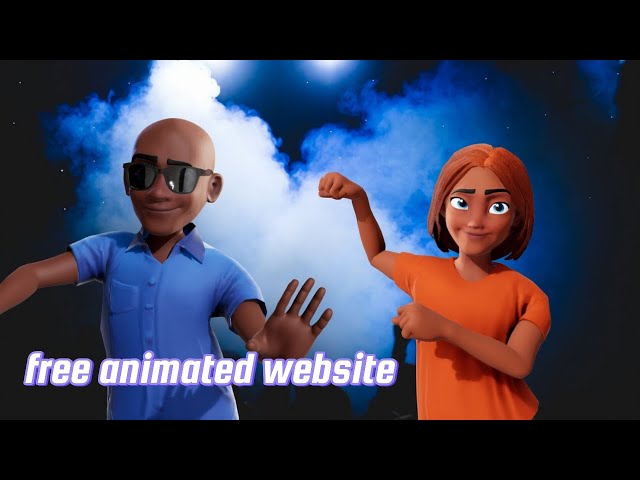
How to Create Cartoon Animation Video With Ai For FREE. Unlock your creativity and dive into the fascinating world of animation!
In this video, we reveal How to Create Cartoon Animation Video With Ai For FREE! Whether you're a beginner or a seasoned creator, you’ll learn the essential tools and tips to bring your ideas to life using AI technology without breaking the bank.
Discover the easiest platforms and techniques for crafting stunning animations that will WOW your audience! Don't miss out on your chance to be a part of the animation revolution. Hit that play button now and start your artistic journey today! 👾✨ #Animation #AI #FreeTutorials
Show More Show Less View Video Transcript
0:00
In this video, I will show you how to
0:01
design animated characters and beautiful
0:03
background to animate any type of video
0:05
using CI tools. Additionally, I will
0:08
share a method to create a consistent
0:09
design every time. If you follow to the
0:11
end of this video, I will also share
0:13
some tools to animate these characters
0:15
and background to create animated videos
0:17
step by step. Please subscribe to now if
0:19
you haven't subscribed yet and press the
0:21
bell icon to get the latest update from
0:23
this channel. Welcome to ad.com, your
0:25
number one freelance marketplace where
0:27
individual and businesses of all sizes
0:30
post their services and get hired in a
0:32
flexible manner. Design, programming,
0:34
copyrightiting, SEO, social media
0:36
marketing, and much more. There's a
0:37
professional client waiting to pay you
0:39
for your service. After you have signed
0:41
up, create a proposal describing your
0:43
product by telling clients about your
0:45
proposal. Boom, you receive messages
0:47
from interested clients and work with
0:49
them. Guess what? You can become a buyer
0:51
and purchase services with local payment
0:53
options. You are in control. Visit.com
0:56
to get started. Now,
1:00
first of all, we design animated
1:02
background and a cartoon type character
1:04
using a tool called Lando AI. You can
1:07
watch a video about account setup by
1:09
clicking here. Okay. Go to Lando AI and
1:11
click on AI image creation button.
1:13
Always divide your prompt into three
1:15
parts. Men, text, sty, and
1:17
customization. Let's start by typing the
1:19
prompt for the background design. A
1:21
small village surrounded by a beautiful
1:23
green field and swearing trees. Now add
1:26
the style and customization to this
1:28
prompt. Choose the 3D sty model and keep
1:30
all setting as they are. Then hit the
1:32
generate button. We have a beautiful
1:34
village background image. Let's make it
1:36
landscape by changing the aspect ratio
1:38
to 16x9. Now hit generate button. Here
1:41
we have a final background image of a
1:43
village with a landscape mode. Let us
1:45
scale this image. Here you can see the
1:47
difference between the original and the
1:49
upscale image. Download this image.
1:51
Let's change this fine to model to lad
1:54
diffusion. Hit the generate button and
1:56
let's see what we get. Here you can see
1:58
the result. In my opinion, the 3D
2:00
animated style model is perfect for
2:02
creating animated type image. Now let's
2:05
design a character. Here I have pressed
2:07
the simple prompt. Change the fine to
2:08
model and also change the aspect ratio
2:10
too. Hit the generate button and let's
2:13
see what we have get. Here we have the
2:14
final image. That's awesome. Let's try
2:17
with more detailed prompts. We have the
2:19
final image. This image are also good.
2:21
Now let's try to design a complete image
2:23
with a background and the character in
2:25
it. So we have combined the previous
2:27
prompt into a single prompt. Once you
2:30
are done with writing the part, hit
2:31
generate button and wait for the final
2:33
result. This image is outstanding. Let's
2:35
change it as best ratio. Hit generate
2:38
button and wait for the final result.
2:40
Here we have the final output. This
2:42
image are great for testing them.
2:44
Download this image. Now we will learn
2:46
how to create consistent image from a
2:48
reference image. First of all, we need
2:50
to turn off these options. Now upload
2:52
your reference image here. Edit the
2:54
prompt according to your story. Let's
2:56
say a boy playing with a football. Hit
2:59
the generate button and let's see what
3:01
we have get. Sometimes you cannot get
3:03
your desired result. For that we have to
3:05
add some negative prompt. Let's type
3:07
this for the image. Hit generate button.
3:09
Here we have the final image. You can
3:11
clearly see the difference. In this way
3:13
you can create consistent image for your
3:15
story. Let's jump right into the
3:17
animating part of this video. You can
3:18
use a tool called hedging. But the
3:20
downside of this to is that it only
3:22
allow 1 minute video in a free trial.
3:25
This to is excellent in terms of
3:27
personalized character animation
3:29
compared to after signing up for the
3:30
account. You can see the pre-made
3:32
template. Click on create video button.
3:34
You'll be directed to a page where you
3:36
can choose your pre-made character or
3:38
upload your own. Let's upload the
3:39
character that we created earlier. Once
3:42
upload, you can add your own voice over.
3:44
Click on the submit button to see your
3:46
final preview. Here you can see the
3:47
final preview.
3:48
Welcome to the new era of video creation
3:51
with Hey Jen. Simply type your script to
3:53
get started. As you can see, that's
3:55
amazing. Let's try this animate drawing
3:58
tools. Although it is entirely free, it
4:00
is a little bit complicated. I will
4:02
explain it later. Click on get started
4:04
button here. You can read the checklist.
4:06
First of all, change the image into P or
4:08
T pause. Let's try it in Lunado AI. As
4:11
you can see, the hand are still closed.
4:13
Let's try the pulse. The image is better
4:16
than the last one. Download this image.
4:18
Now go to this website and remove the
4:20
image background. Upload your image and
4:22
wait for some time. Click on edit button
4:24
and change the background color to
4:26
white. Now download this image. Go back
4:28
to the website and upload the image.
4:30
Click on the next button. Now adjust the
4:32
frame and click on the next button. Here
4:34
comes the most complicated part of this
4:36
video. We have to remove this white
4:38
background part. So select this eraser
4:40
and adjust this part. Once you are done
4:42
with it, click on next button. Now
4:44
adjust this point. You can clearly see
4:46
that the background is not yet fixed. By
4:49
clicking on the next button, you will
4:50
see the issues in your final animation.
4:52
After fixing it, you will see some
4:54
better animation. So it will be best if
4:56
you have some fixing for creation
4:58
animation from this website. Let's try
5:00
AI tools for animating the background.
5:02
This website is amazing and completely
5:05
free AI tools to turn your image into
5:07
depth animation. Click on this plus
5:09
button. Upload the image. Here you have
5:11
a bunch of filters. You can increase or
5:13
decrease the animation duration. Also,
5:15
you can play around with other filters.
5:18
Finally, click on this share button.
5:20
Choose MP4 to save your animation. Here
5:22
are some result that I have generated
5:24
with this tool.
5:31
VMO is another amazing tool to generate
5:33
videos from text to image. To try its
5:36
new version, we have to wait for some
5:38
times to get access. But you can try it
5:40
old version with limited credit of 200.
5:43
After signing up for this account, click
5:45
on create button. Upload your image. You
5:47
can describe your image here. Otherwise,
5:49
it will automatically detect it. You can
5:51
adjust the length and other parameters.
5:53
Once you are ready, click on this button
5:55
and wait for some time. Here we have the
5:57
final result.
6:00
Per is another amazing AI video
6:02
generation tools. You can watch a
6:04
complete tutorial about these tools by
6:06
clicking here. Simply go to the private
6:08
server and write down any prompt. Wait
6:10
for some time. And here we have the
6:12
final video. You can also upload your
6:14
own image to generate a video by
6:16
following this step. Let's take a look
6:18
at the final result. So this result are
6:21
amazing. Hi is another powerful and
6:23
amazing video generation to although it
6:26
is not completely free. You can try it
6:28
is 7 days free trial by adding a credit
6:31
card. After signing up for this account,
6:33
you'll be directed to the dashboard of
6:35
this tools. Click on this create button
6:36
and upload your image or any video.
6:38
Click on continue button here. Type the
6:41
subject of the video. Let's say a boy
6:43
running in a village. Now select the
6:45
style from this list. Let's choose this
6:47
one. Click on video setting here. You
6:48
can increase or decrease the duration of
6:51
a video. Adjust the camera movement and
6:53
other options as well. Once ready, click
6:55
on the button to generate the preview.
6:57
Here we have four different preview.
6:59
Let's choose this one. Click on this to
7:01
create a video button and wait for some
7:03
time. Let's have the final look of this
7:05
video.
7:07
Here are some more videos with these
7:08
tools. This was an overview of the to so
7:11
you can take advantage of this AI tools
7:14
to generate some cool videos. In my next
7:16
videos, we will try to create a complete
7:18
story based videos from script to the
7:20
final video. That is all for this video.
7:22
Thanks for watching. See you with more
7:24
exciting stuff. See you in the next
7:25
video. Bye.
Arts & Entertainment
Comics & Animation
Cartoons
Multimedia Software