Up next in 10


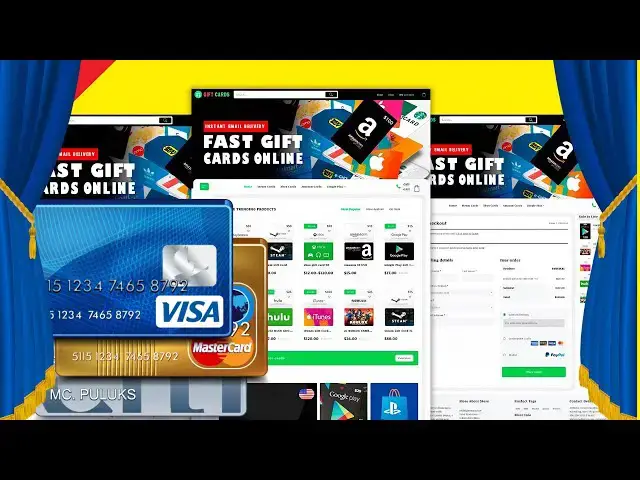
Build Virtual Card Selling Website. Unlock your entrepreneurial spirit and join us in creating a stunning Virtual Card Selling Website! In this comprehensive tutorial, you'll learn step-by-step how to develop your very own platform that enables users to purchase virtual VISA & MASTERCARD cards seamlessly.
We’ll cover essential topics such as website design, secure payment integration, and user experience best practices. Whether you're a beginner or an experienced developer, you'll find actionable tips to turn your vision into reality.
Don't forget to like, subscribe, and hit the bell icon for future updates! Let's dive in and revolutionize the way virtual cards are sold! #VirtualCards #Ecommerce #WebDevelopment
Show More Show Less View Video Transcript
0:00
it's Radell again do you want to start
0:01
selling virtual credit cards for this
0:04
you must create a professional website
0:06
in this video I will share with you the
0:08
premium source code for creating a
0:10
virtual card selling website if you
0:11
follow me to the end of this video you
0:14
can create a wonderful online virtual
0:16
card selling website like this using
0:18
this premium source code you can show
0:21
the features of important cards on the
0:22
homepage you can also see the top card
0:25
selling lists on the homepage and
0:26
everything these feature sections will
0:29
be very attractive to your website
0:30
visitors and members yes you are getting
0:33
a very powerful admin panel to manage
0:35
this website in this admin panel you get
0:38
all kinds of features and
0:39
functionalities to manage the website
0:42
you can create categories and
0:43
subcategories for each virtual card you
0:46
can add and sell unlimited virtual cards
0:48
on the website for this you have to add
0:51
the virtual card information here step
0:53
by step you can also manage the account
0:56
of each user of the website step by step
0:58
and we can control the US user deposit
1:00
section of the website we are getting
1:02
all kinds of features to control the
1:04
deposit section you can also customize
1:07
important functionalities on the website
1:09
in the system settings section for
1:11
example here we can add many automatic
1:13
International payment methods also we
1:16
can create any type of payment method as
1:18
per our requirement for this you have to
1:21
submit the information of your preferred
1:23
payment methods here also any new users
1:26
can create an account on your website I
1:28
will now introduce you to the user
1:30
dashboard panel by logging into the
1:32
account now you can see the dashboard
1:34
panel of a new user account here users
1:37
can view their account balance and
1:39
number of card purchases and transaction
1:41
history and users can see the
1:43
information of each of their virtual
1:45
cards created also users can easily
1:48
deposit into their account so let us now
1:50
learn step by step how to create a
1:52
virtual card selling website now we need
1:54
to purchase premium source code from the
1:56
Rodell store to create a virtual card
1:58
selling website check the video
2:00
description because I will provide the
2:02
discount link of the source code in the
2:04
video description if you buy the source
2:06
code once then you can use it on the
2:08
website for
2:09
Lifetime also you get a source code
2:12
update version for Lifetime and you can
2:14
take developer support for any problem
2:17
we will also support you if you have any
2:19
problem installing the source code or
2:21
any problem in customizing the website
2:23
then you can contact us you will find
2:25
all the information to contact us in the
2:27
video description now we will learn how
2:30
to purchase source code from the Rodell
2:32
store for this we need to click on the
2:34
add to cart button then proceed and go
2:37
to checkout now we need to create a
2:39
Radell account by entering our details
2:41
here we can purchase source code using
2:44
different payment gateways you can pay
2:46
by paystack or pay by PayPal and the
2:48
rest for example I will now pay by
2:51
PayPal for this we need to log into our
2:53
PayPal and pay after that we will go to
2:56
the download section and download but as
2:59
you can see I have already downloaded
3:01
all the source code information then we
3:03
need to extract the source code ZIP file
3:06
now we will purchase domain hosting to
3:09
publish virtual cards selling website
3:11
online you can purchase highquality
3:14
domain hosting from hostinger at low
3:16
cost check the video description because
3:18
I will provide the discount link of the
3:20
hostinger website in the video
3:22
description if you buy domain hosting
3:24
from hostinger you will get many
3:26
benefits I have been using hostinger
3:28
domain hosting for my personal website
3:30
for over 6 years because their domain
3:33
hosting service is very high quality now
3:36
we will learn how to purchase web
3:40
hosting you definitely get a free domain
3:42
with these packages also you get many
3:45
more features with these packages you
3:47
get a 30 days money back guarantee with
3:49
every package if you don't like your
3:52
domain hosting within 30 days you can
3:54
get your dollars back also you can get
3:57
24 hours technical support from
3:59
hostinger or you can get direct support
4:01
from us you will find all our contact
4:04
information in the video description you
4:06
can purchase any package as per your
4:08
choice from here without any problem as
4:10
an example I would now purchase the
4:12
business web hosting package we must
4:14
purchase this package for 12 months now
4:17
we need to create a hostinger account we
4:19
can easily create accounts through
4:21
Google
4:30
while we are getting over 60% discount
4:33
we have to pay a total of
4:36
$59.88 we can purchase domain hosting
4:39
using many International payment
4:41
gateways you can purchase domain hosting
4:43
using your preferred payment Gateway we
4:46
need to submit account information here
4:48
to make payment for example we will now
4:51
pay by banking card for this we need to
4:53
submit correct card information here
5:01
then we have to confirm the payment by
5:02
clicking this
5:07
button our payment is complete we will
5:10
now click on the start now button
5:43
we can now choose a domain for free you
5:46
can choose any domain of your choice I
5:48
will now choose any domain of my choice
5:51
absolutely free now we have to click on
5:54
the continue button then we have to go
5:56
to the next step now we have to submit
5:58
the domain address in information here
6:00
step by step then we have to click on
6:02
the Finish registration
6:06
button now click on the finished
6:11
setup now we will go to the hosting
6:14
control
6:15
panel wow we have successfully purchased
6:18
domain hosting from hostinger now we
6:21
will change the PHP version of the
6:23
hosting panel we will select PHP 8.1
6:26
version as per source code documentation
6:29
then we will go to the file manager to
6:31
upload the source code now we will go to
6:33
the public HTML
6:36
folder then we will go to our source
6:39
code folder now we will convert this
6:41
folder into a zip
6:43
file then we will upload the zip file to
6:46
the hosting
6:50
panel our ZIP file is uploaded complete
6:53
now we will extract the zip file we need
6:56
to choose a folder name now we will
6:58
delete the zip
7:03
file then we need to select all these
7:05
files now we need to submit these files
7:08
to the public HTML folder now we will
7:11
delete this
7:13
folder now we will search by typing our
7:15
domain into the
7:19
browser now we need to set permissions
7:21
on some folders so now we will learn how
7:24
to add permissions to fields for this
7:27
you have to follow this video step by
7:29
step
7:53
[Music]
8:06
[Music]
8:14
[Music]
8:22
now we have to submit the database
8:24
information here so now we will learn
8:26
how to create a database in the hosting
8:28
panel then we will learn how to connect
8:30
the hosting panel database to the
8:32
website for this you have to follow this
8:35
video step by step
9:13
now we have to submit the admin login
9:15
information then we have to click on the
9:17
install now button now we must delete
9:20
the install folder then we need to do
9:22
the purchase verification for this we
9:25
have to submit the purchase information
9:27
here
9:35
then we have to click on the activate
9:36
Now button wow we have successfully
9:39
installed the source code now our
9:41
website is completely ready now we can
9:44
easily customize the design and features
9:46
of the website by logging into the admin
9:48
panel because we already know that we
9:50
can manage all the features and
9:52
functionalities of the website through
9:54
the admin panel so you should study the
9:56
features section of the admin panel
9:58
without delay or if you can't customize
10:00
the website or don't understand anything
10:02
about the admin panel please contact us
10:05
we will help you how to customize the
10:07
website and we will explain the admin
10:09
panel in detail in this video we learn
10:12
how to create a virtual card selling
10:13
website if you have any questions about
10:16
this video then comment or contact us
10:18
directly via Telegram and email thank
10:21
you very much for watching this video in
10:22
full if you want to see our next videos
10:25
then definitely subscribe to Rodell
#MLM & Business Opportunities
#Credit & Lending
#Credit Cards
#Affiliate Programs