0:00
Hello welcome to my channel my name is Mark and I like to review gadgets and
0:03
technology and today we're going to review this the SOMPHY Protect indoor
0:08
camera. This is a tiny little camera you can see it's just sat on this shelf
0:13
Before we get into the details though make sure to hit subscribe and that bell
0:17
button so you don't miss a future review. My thanks to SOMPHY for sending me this
0:21
to review so you get it in a nice box which just explains the features when
0:27
you open it out you will find the instruction manual and that has a little
0:31
pin in it looks like a sim card pin but it's actually too hard reset this very
0:36
simple to set up so you've got a quick start guide you've got the main camera
0:42
unit itself and that sits on a little removable base which allows this to be
0:48
tilted forwards and backwards there's a couple of stickers in case you want to
0:51
put up that you have an alarm system and it comes with very long power cable now
0:55
Now be aware that this is quite recessed so if you lose this power cable you may not get another one to fit
1:02
But it is very long you shouldn't need to take it out once it's in place and it fits nice and snugly
1:07
Just coming back to that magnetic base you can see it only sticks on the bottom and this allows you to tilt this So if you want this high up and pointing down you can do that just by moving the base but it only works on the bottom so you can put this upside down anywhere it not for wall mounting it simply holds it in position as if it on a bookshelf which is where
1:27
I've been placing it just on the shelf looking down. If I just flip this over you'll see there's
1:32
no magnetic attraction on the top it's only on the bottom. To get this set up you'll need to
1:38
download the app and that will walk you through getting this connected to your network. It will
1:44
make sure that it's got the latest firmware and it allows you to name the camera as well. So if
1:51
you are planning on having a couple of these dotted around or if you're having them in different
1:55
locations, maybe even different houses, you can have them all set up with different names and you
2:01
can give them a generic position. So in this case garden, but then you can label it something
2:06
different so you could have a few of them in the kitchen or a few in the living room or a few in
2:10
the garden and then you could have it as in maybe you'd have it facing the door and you'd say doorway
2:15
camera for example this is going outside into an outdoor cabin one cool feature about this that i
2:21
really like is the ability to shut the actual camera off and you know it shuts off because
2:28
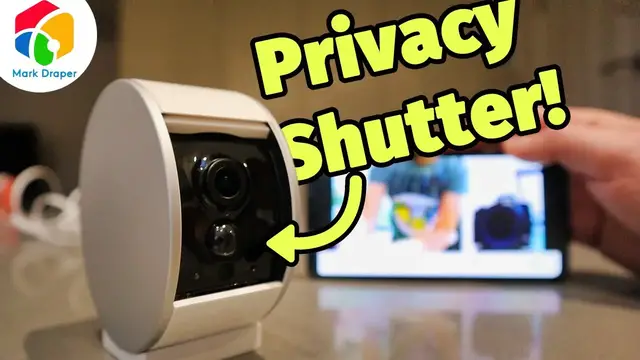
a physical shield drops down and prevents the camera from being able to see you so you may I see Mark Zuckerberg sticking bits of tape over his webcam just in case someone spying on him Well this helps you prevent that from happening because when you shut it off
2:42
there's no way it can see through the physical shield. As you just saw I opened that remotely
2:48
as well but there's a bit of a lag between opening it and then the stream coming through. It can take
2:54
say 20 seconds or so depending on your internet connection. So here we have the camera you can see
3:01
it's got a bit of a lag on it but it's not too bad it's only a couple of seconds and
3:07
it's now detecting that there's an intruder here so let's just cancel that alarm
3:13
If I turn up the volume you'll now hear the speaker playback. So that would allow you to listen in real time what was going on
3:24
As well as an app notification, you will receive an email. If you open up the app, you are able to talk back through the camera
3:31
but there is quite a lag. Excuse me, what do you think you're doing
3:48
Excuse me what do you think you doing If you happen to miss the action you can go back and have a look you get a 30
3:55
second clip recorded for free and that can be automatically saved into your
4:00
OneDrive or G drive. Pitch quality is good enough to see what's going on and
4:04
maybe capture a face. If you find 30 seconds isn't long enough you have two
4:09
options you can subscribe to seven days of video recording for $4.49 a month or
4:14
or you can go for 30 days of video recording at $8.99 a month
4:19
There's no option to store longer than 30 seconds, and the services that work are Google Drive, Dropbox, OneDrive
4:25
There's no option to record straight to a NAS drive. There are a lot of other configuration options available to you
4:31
You've got various calendar options if you want to set it on and off automatically
4:35
You've got the different storage options, and you can even link this to your smart devices
4:40
So it works with Alexa. It works with the Google Assistant. And it also works with the Tahoma Smart Platform
4:48
allowing you to integrate this with lots of other smart devices. So there you go
4:51
That's the little Somfy indoor camera. It hooks up to their other systems
4:56
So if you want to build out a full security system, you can do so. I will put a link to this in the video description below
5:03
Don't forget to subscribe to my channel. Thanks for watching. I'll see you on my next review