Up next in 10



Samsung Galaxy Tab A 2019 on Amazon: https://geni.us/galaxytaba2019
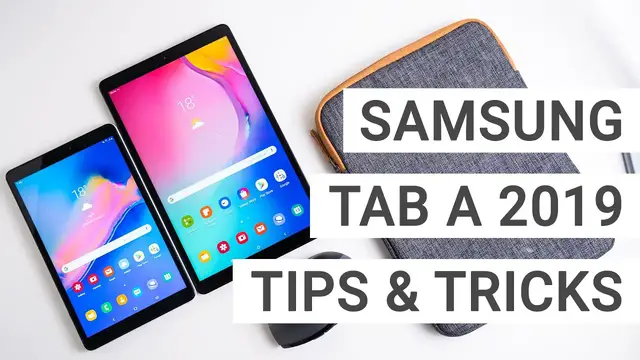
The Samsung Galaxy Tab A 10.1 2019 and Galaxy Tab A 8.0 2019 are two very interesting tablets with a good price and tons of features. Here are some tips and tricks for both tablets. You can see them as a kind of manual in video form. I demonstrate how you do multitasking with the split screen view, how to enable energy saving modes, how to take screenshots and more. These tips and tricks should be identical on other tablets with Android 9.0 Pie and Samsung’s One UI.
My website: https://mynexttablet.com
Twitter: https://twitter.com/mynexttablet
What I use for my videos:
Camera: https://amzn.to/2nXWyZd
Lens 1: https://amzn.to/2wh2tMF
Lens 2: https://amzn.to/2whLU3k
Lens 3: https://amzn.to/2BA936X
Microphone: https://amzn.to/2MKETSD
Light 1: https://amzn.to/2o2Q37f
Light 2: https://amzn.to/2wirIOK
Links might be partner links.
Show More Show Less View Video Transcript
0:00
Hey, Anjay here from MyNextTablet.com, today with a couple of tips and tricks for the Samsung
0:05
Galaxy Tab A 2019 tablet series. Alright, I have both current Galaxy Tab A 2019 tablets in front of me
0:16
The first one is the 10.1 inch Galaxy Tab A 2019 and the other one the 8 inch Galaxy
0:22
Tab A 2019 with S Pen. And in this video I want to give you a couple of tips and tricks for both tablets, because
0:29
Both tablets are very similar except for their display size, have pretty much the same internal
0:35
hardware or very similar internal hardware. Both are running Android 9 and both have the One UI running on top
0:42
The One UI is the own interface from Samsung. These tips and tricks are relatively basic but usually it's really nice to see what you
0:50
can do with the tablet and then you know if you want to do that as well or if you don't
0:55
need it. However, if you have been working with Android and especially Samsung devices a lot for the
1:01
last couple of years, then you are probably familiar with most of these features
1:05
By the way, in this video I am not talking about the S Pen for the 8 inch version, because
1:11
I've got a separate video for that online already. So if you're interested in the pen, then check out that video on mynexttablet.com and this
1:20
YouTube channel. Alright, the first tip and trick is tap to wake
1:25
Most tablets don't have a fingerprint scanner and the facial recognition of the Galaxy Tab
1:29
A 8-inch is not super secure because it's just using the front-facing camera
1:34
And yeah, but I figured I don't actually need a fingerprint scanner or anything, especially
1:39
on the 8-inch version because I'm just using it at home. And then an easier way to unlock this is tap to wake
1:46
You just double tap on the screen and then the screen gets turned on
1:51
You can see a couple of notifications already if you have any. And then it's easier, faster to unlock
1:57
And to enable it, you go into the settings. Then you go to advanced features, motion and gestures
2:05
And just go on, double tap to wake. And then it's turned on
2:10
Alright, a very common question I get is, how do you take a screenshot with a certain tablet
2:15
And that's usually pretty easy. On most Android devices, you can press the power button
2:19
and the volume down button, press them at the same time. and then a screenshot is taken as you can see here
2:26
However, with Samsung devices, you can usually also take your palm and swipe over it from the side
2:32
and then another screenshot is taken. By the way, once you took a screenshot
2:36
you can then open it in the gallery or in other apps and you can always edit it a bit
2:42
Well, to turn on this little gesture, you go to the settings, advanced features
2:49
motion and gestures, and then you can turn on palm swipe to capture and that's the screenshot feature
2:56
If it's not turned on already by default I'm not sure. Well that's where you find it
3:01
All right if you're using the tablet at night a lot it might be worth it to turn on the blue light filter
3:07
That's filtering out a blue light and apparently will make you go to sleep easier
3:13
because the blue light is not shining into your eyes. I'm pretty sure that is the case that helps with sleeping
3:19
I'm using it on my phone all the time. And I think it helps
3:23
I hope it helps. Maybe it's just the placebo effect. Anyway, you might want to turn it on
3:28
And for that you just swipe down the quick settings and turn on the blue light filter
3:33
It's very simple. Everything is then a bit yellowish. So if you're editing photos that might not be the best thing to do
3:40
But otherwise I think it is a bit more comfortable for your eyes especially at night if you in a dark room then especially if you reading white texts it probably a bit easier for your eyes Another feature Samsung built in is a dark mode
3:55
which is called night mode and once you turn that on all the white parts are turned black and that
4:01
again should save your eyes from some eye straining and the sad thing about it is that not all apps
4:10
are turned dark. For example, if we go into the calendar, let me quickly find it. Where do I have it
4:18
There we go. The calendar is nice and dark, so it's easy to read, especially at night. However
4:24
if we go into the browser, for example, that one is not turned dark. And the same goes for YouTube
4:33
for instance. Then it won't be dark either, as you can see. Now, YouTube has their own dark mode
4:39
and you can turn it on if you want. But yeah, it's not as nicely implemented
4:43
as on some other systems. However, if you want, and especially if you're using the Samsung apps a lot
4:50
then it might be worth it. You can go to display, and then you can go to night mode
4:55
and then you can schedule it, and then the night mode is turned on automatically
4:59
when the sun is setting. All right, let's take a look at the split screen view
5:05
That is a feature that has been a part of Samsung tablets for many years now, even before Google officially introduced it with
5:14
Android Nougat. It has been a part of Samsung tablets really for a very long time
5:18
However, with this generation, they changed it and I got questions about it already
5:22
How do you open two apps side by side? In the past, you could just long press the recent apps button and then you can select
5:29
them and move them to the sides. But that is not working anymore
5:34
Instead, now again you have to long press this recent apps buttons
5:38
but then you have to long press this icon above the preview screen, long press it
5:44
and then you can select open in split screen view, and then you can open two apps side by side
5:50
And that works pretty well on the Galaxy Tab A 2019 series
5:55
However, it's not as easy as it used to be. That's a bit disappointing
6:00
But you can open two apps side by side as you can see here
6:05
Another interesting feature is that you can open apps in separate windows
6:12
You do that by going to the recent apps button again, then long pressing the icon there
6:17
and then open in pop-up view. And then we are getting actually a window with the app open
6:25
similar to what you would get with a desktop operating system. And you can open several apps, not only one, not only two
6:32
really several apps in separate windows like here. That is the feature that looks very similar to Samsung DeX, that is the desktop modus for
6:41
the Galaxy Tab S series. The Galaxy Tab A series does not support Samsung DeX
6:46
However, you can still connect a keyboard and a mouse and then use these separate windows
6:52
if you need to do a lot of multitasking. So yeah, what's quite interesting as well is if you just go to the home, they are closed
7:00
to this little floating thing here, if you press on it, you can always open them up again
7:06
So we could have them closed and then we go maybe to the gallery and then we can open
7:13
them on top of the gallery. We've got two apps open on top of another app
7:20
That's quite useful, mainly if you're working, probably not for entertainment purposes, but
7:24
if you're working, you can have Word, the browser, and maybe something else open at
7:29
the same time. music player or something. Alright the battery life on both tablets is pretty decent but not outstanding but pretty good However if you want to extend the battery life you can There are several power saving modes built in and to turn them on you go to the
7:46
settings then you go down to device care you press on it then you go to battery
7:52
and then you can have the power mode here you click on it and then you can
7:58
choose between optimized which is the standard medium power saving and maximum power saving and obviously the maximum power saving saves the most of
8:08
battery life and they do that by restricting background data so the apps
8:12
in the background won't get updated that's important to note for example if
8:16
you have Facebook open the background you probably won't get that many
8:20
notifications anymore and the CPU speed is limited to a maximum of 70% so that's
8:27
That's really important to know too if you're doing some CPU intensive tasks
8:33
But that's how you can extend the battery life if you're running low and just have to
8:38
have it on for just a couple of more hours or maybe even just minutes, then you can turn
8:43
those on. All recent Samsung tablets have a microSD card slot. This one has one here
8:50
And you cannot mount them as internal storage. However, you actually can move apps and games and obviously normal data to those micro SD cards
9:02
To do that, you go into the settings and then you go to apps and then you can select an app
9:07
and maybe a game, maybe a big one like Asphalt 9. You go on there, go to storage and then you can go storage use
9:15
That's on the internal storage now. You can go to change and then you can move it to the SD card
9:20
So if you're running low on storage, that's something you can do. I'm moving Asphalt 9 to the microSD card now, and that saves up some space on the internal storage
9:32
So that's a really useful feature that's built into the Galaxy Tab A series
9:36
All right, the next feature is something that has been a part of Android for quite a while
9:42
You can connect pretty much all accessories via the USB-C port here
9:47
tablets have one. And things you can connect are keyboards, you can connect a
9:52
mouse that I've done here right now, you can connect an external hard drive
9:56
external SSD, a full-size SD card reader, what I did here, or you can connect
10:01
other USB accessories. Like here I've got the wireless transmitter for my
10:05
wireless mouse connected right now. You can also connect the mouse and keyboard
10:09
using Bluetooth and almost use those like you would with a desktop machine
10:14
usually most of these accessories are supported with Android and you can see
10:18
here right now I've got my mouse connected and I can just use it normally
10:23
and I'm in the my files app which is this one and then I can this is a file
10:29
explorer I can just go through my internal storage but I can also go
10:33
through the storage of the micro SD card that's inside the tablet right now or
10:37
the external storage with which is this one and yeah I can just scroll through
10:43
it and see everything like I would be able to see on a full working machine
10:51
I can transfer files and so on. I don't have that many on here right now
10:56
And yeah, that's something really useful that you can do with Android tablets
11:02
All right. Samsung has a multiple user feature built in, which means you can add several users
11:09
very useful if you're using this tablet as a family tablet for example at home
11:14
and maybe your partner or your kids use a tablet too then maybe you don't want to
11:19
see all their stuff and maybe they shouldn see everything that you doing and you can just open separate accounts for them For that you just swipe down the quick settings here and press this little avatar icon
11:31
Out of the box it's just a yellow blue icon. A yellow icon obviously not a blue icon
11:38
You click on it. That's my account here. First of all you can start a guest account
11:43
That's something very temporary. If you have a friend over and he wants to play with it just for a couple of hours and
11:49
they're never again, then just open a guest account for them. Or you can open a real account for them and then you're switching to a new user, what
11:58
I'm doing right now. And then they can have their own apps, their own data, and so on
12:04
And if you want, you can obviously password protect your account or pin protect your account
12:09
and then they won't be able to access it. So right now I'm really starting a new instance of Android with One UI here
12:17
the setup is completely new. You're setting it as a completely new user. So that's very interesting
12:25
if you have a family and several people are using it. All right something that's very useful if you
12:31
have kids too is the kids mode. At least it can be useful if you have very young kids. For that
12:38
you swipe down the quick settings again then you swipe over here and go to kids home and then it
12:45
get activated. If you're doing it for the first time like I'm doing here, you just have to accept some
12:50
things and then you can download a couple of apps. I tried them mainly on the bigger one in the Galaxy Tab S5e and they're really only useful
13:00
for very young kids. And there are some drawing apps and some weird games where you can design your character
13:06
But I think most kids who are a bit older, the ones who are in elementary or primary school
13:11
already, they probably want to use the apps from the Google Play Store and not this kids mode
13:17
It's really only something for very young kids, I would say. Another feature built into One UI is gesture support
13:24
You can replace those three typical Android buttons with gestures. To do that, you go into the quick settings again, you swipe over, and then you press
13:34
on navigation bar. And then it's changed into gestures. there's a little introduction here and now you can do this for the back button this for the recent
13:46
apps button and then this is the home button so basically you're just replacing those with gestures
13:53
but after a while you might be able to get used to it much faster but i'm not sure i used it for
13:59
a while and then i stuck to the buttons though so yeah you have to see what you prefer all right
14:07
These have been a couple of tips and tricks for the new Samsung Galaxy Tab A 2019 series
14:14
If there will be more tablets of the Galaxy Tab A series released this year, then I'm
14:18
sure the features will be very similar. So I'm sure they will be the same for that one too
14:25
And yeah, if you have any questions, feel free to write me below. And if there's any feature that I missed or a feature that we all should know about, then
14:33
just type it in the comments. I'm sure myself definitely and others are interested
14:39
in what features you found because there are quite a few built into the one UI
14:45
If you own this tablet, it's really worth it to go through all the settings one by one
14:49
and just see what you want to use and what not. There are some that I didn't talk about like Bixby
14:54
I just didn't find it that useful. And yeah, these are my tips and tricks
14:59
for the Galaxy Tab A series. If you liked this video, please subscribe to this channel
15:03
I'm testing pretty much all tablets that are released almost worldwide. And I'm Anjay for MyNextTablet.com
15:09
Thanks for watching and see you next time
#Computers & Electronics
#Mobile & Wireless
#Gadgets & Portable Electronics