Up next in 10


how to setup virtual desktop
Show More Show Less View Video Transcript
0:00
hello everyone today i will be showing
0:02
you how to easily set up virtual desktop
0:04
for your oculus quest device
0:06
now you want to go ahead and open up
0:08
your browser and head on over to
0:10
vr desktop.net after you have purchased
0:15
virtual desktop for your oculus quest if
0:18
you're using the device
0:20
now there is a rift version these
0:22
versions are separate from each other
0:24
so you want to make sure you purchase
0:26
the right one
0:27
for your oculus quest so we're going to
0:30
go ahead and download
0:32
the streamer app and click on save
0:35
file
0:39
you're going to go ahead and want to
0:40
install it
0:44
and click on next
0:48
i will already have it installed so
0:51
after you have installed it
0:53
go ahead and close the install after
0:57
you've finished installing
0:59
virtual desktop now you want to go ahead
1:02
and
1:02
head on over to sidequest this is
1:05
important
1:06
an important part of the steps you want
1:09
to go ahead and type in
1:10
virtual style it'll be the first one
1:12
that appears
1:14
it'll be the patch version to allow you
1:15
to play steam games
1:17
this is a necessary step if you want to
1:19
play steam games
1:20
so after you have installed you want to
1:23
go ahead and click on install
1:24
to headset inside
1:28
the app itself like so
1:33
after you have installed it you want to
1:35
go ahead and open it
1:38
xock streamer and once you have opened
1:40
this up you want to enter in your oculus
1:42
username and then you want to click on
1:44
this this will be unchecked the first
1:46
time and click on allow remote
1:48
connections
1:50
so this way it can detect it inside of
1:52
your headset
1:55
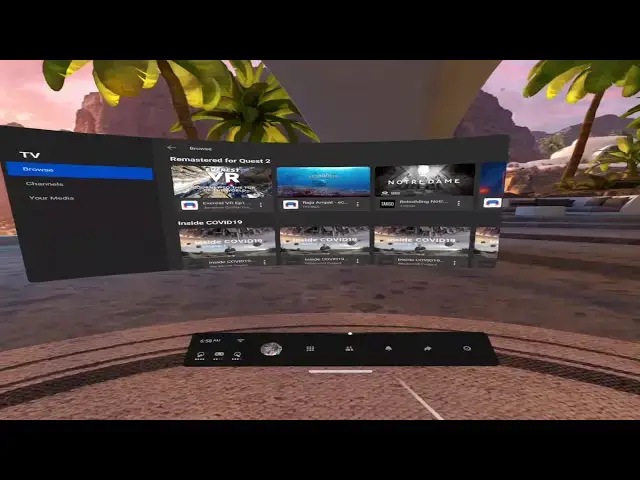
now that you're inside of your oculus
1:57
device you want to go ahead and go to
1:59
your library and open up
2:01
virtual desktop software
2:05
as you can see i have it here
2:10
this means that it's working if you see
2:13
this spacey world here as you see i got
2:15
my desktop here
2:17
and everything is all spiffy and nice
2:19
you want to make sure you have a five
2:20
gigahertz router
2:22
or an ethernet cable connected to your
2:24
computer
2:26
uh for best connections that's what i
2:29
would uh this
2:32
is how you can get virtual desktop
2:35
installed and working on your computer
2:39
and you can now use it and you can
2:42
indeed play vr games using it
2:45
after you do the uh sidequest patch
2:49
so yeah this is it in full functionality
2:52
i guess i've enjoyed
2:54
this tutorial and i will see you guys
2:56
next time
#Computers & Electronics
#Virtual Reality Devices