videocam_off
This livestream is currently offline
Check back later when the stream goes live
Up next in 10


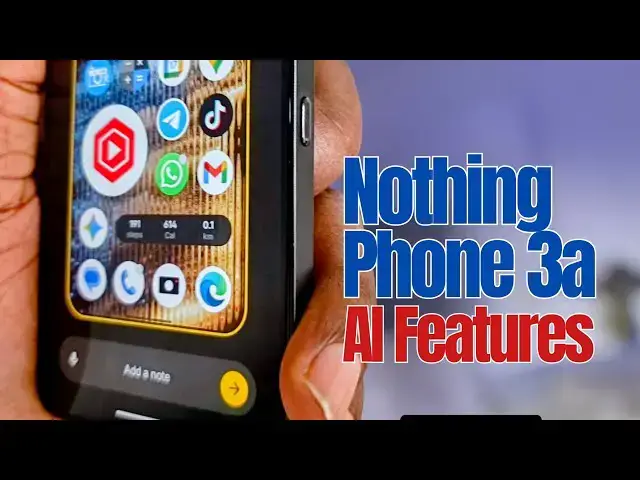
A detailed review of Nothing Phone 3a AI features.
#nothingphone3a
#nothingos
#essentialspace
#essentialkey
➡️ Buy Nothing Phone 3a on Amazon: https://amzn.to/4oXUNrj
➡️ Buy Nothing Phone 3a Pro on Amazon: https://amzn.to/4owh8N3
➡️ Get Prime For Young Adults today: https://amzn.to/45K3Ohr
Disclosure: I might earn a commission on each purchase when you use the above link.
Show More Show Less View Video Transcript
0:00
Every smartphone maker is integrating AI
0:03
into their phones, baking it into the
0:06
operating system. Nothing phone is
0:09
relatively new in the smartphone space.
0:11
Are there any AI features available in
0:14
their devices? I have the Nothing Phone
0:17
3A here and I am going to use that to
0:20
show you what's currently available by
0:23
way of AI in Nothing Phone. Come with
0:25
me.
0:27
Here
0:34
in the Nothing Phone 3A, there are no AI
0:37
tools for enhancing your photos in the
0:40
gallery like you would find in a Samsung
0:43
phone and in some other devices. I have
0:48
had to rely on Google photos AI tools to
0:52
do any enhancing of images and photos
0:55
that I want to do in the Nothing gallery
0:59
app. There is absolutely no sign of AI
1:02
in there. But there's AI everywhere in
1:05
subtle ways. Nothing says that there's
1:08
AI in battery management, in performance
1:11
optimization of apps. As you're opening
1:14
and closing apps, AI is working in the
1:16
background making sure things run
1:17
smoothly. And I tend to believe them
1:20
because this guy runs super smoothly. I
1:24
haven't used a mid-range Android
1:26
smartphone that runs this smooth in
1:27
quite a while. Nothing says that AI is
1:30
at work in the camera app to get you the
1:33
right optimization for your images, for
1:36
your photos.
1:38
There are no manual tools to fiddle with
1:41
in terms of AI. But in the background,
1:43
nothing says AI is at work. I believe
1:46
that. Are there any areas where the user
1:51
can interact with AI while using the
1:54
phone? Yes. Nothing has a unique spin.
1:57
And in this case, it's for productivity.
2:00
At the side of the nothing phone is this
2:04
small key. This is the power button up
2:08
here. There's this smaller key right
2:11
below it. It's called the essential key.
2:16
Now, the location is tricky because
2:18
sometimes you press it by mistake. I
2:20
have pressed it by mistake a few times.
2:23
But when you press it, here's what
2:24
happens.
2:27
See that?
2:29
And then it looks like a screenshot,
2:32
right? You tap on it and then it gives
2:36
you an option to type in a note, a
2:39
caption, an annotation of any sort.
2:43
And once you have done that, let me just
2:45
say AI demonstration.
2:49
All right, it's right there. And then
2:52
you tap this yellow arrow
2:56
and it saves it away into a place called
3:01
the essential space.
3:04
The essential space. Now, where's the
3:07
name essential coming from? If you've
3:09
been around for quite a while, you
3:12
remember Andy Rubin's essential phone.
3:15
It was an Android phone that was
3:16
developed pretty much along the same
3:18
lines that nothing phone is going now.
3:21
Minimalism,
3:23
fewer distractions, focus and all of
3:26
that. Well, nothing technology purchased
3:30
Essential Incorporated, the company
3:32
behind the Essential phone and pretty
3:35
much took the life and soul of the
3:37
company, the trademark
3:39
and all associated things and they are
3:42
using that going forward in the Nothing
3:45
phone. So when you hear essential key
3:47
and essential space, it has its roots in
3:50
the fact that nothing technology today
3:52
is pretty much what essential
3:54
incorporated used to be. Anyway, how
3:57
does essential space work? So, essential
4:00
space is a folder of some sort, a
4:05
library of some sort where screenshots,
4:08
voice memos, and the like are organized
4:13
to help you declutter and to help you
4:17
find things faster. So you know how you
4:20
sometimes you see an event and you take
4:22
a screenshot for future reference and
4:25
then much later you're looking for that
4:28
screenshot you have to scroll through
4:29
piles of screenshots to find it. Now
4:32
essential space like I showed you when
4:35
you take that screenshot you can leave a
4:37
note on it. That note can be as
4:39
descriptive as you want and then you
4:42
save it away. And in essential space AI
4:45
takes whatever information you have put
4:47
in there and organizes it so you can
4:50
find things faster. And also
4:54
where there are dates and appointments
4:56
and events and things to do, you can set
4:59
it up to add that event to your Google
5:02
calendar. Let me show you. So how do you
5:06
access essential space? You save a
5:10
screenshot and notes to essential space
5:12
by tapping the essential key once.
5:15
But if you tap it twice,
5:20
it takes you into essential space. If
5:23
you tap that key, that essential key
5:25
twice, it takes into essential space.
5:28
And in there, you can find all the stuff
5:31
that you have saved and that it
5:34
organizes for you.
5:36
If you go into the settings of essential
5:38
space,
5:40
you will see to-do archive, the storage
5:43
space it's used, Google calendar. Add
5:46
your to-dos to Google calendar. You can
5:48
enable it.
5:50
Once enabled, any to-dos that you create
5:54
or that essential space creates for you
5:56
gets added to your calendar. You get
5:58
notified when that time comes. If you
6:00
want to enable essential memory, you
6:02
have to create a nothing or essential
6:05
account and sign in. I haven't done
6:07
that. I'm tired of having multiple
6:09
accounts everywhere. So, I'm a little
6:12
bit slow opening new accounts once
6:14
somebody requires me to open a new
6:15
account. You know, my mind just blocks
6:18
out, but I might get to it eventually.
6:21
And then you can get tips and feedback
6:23
on how to use it there.
6:26
So, it's it's a nifty thing. If you want
6:29
to use AI for productivity, the
6:31
essential space, a nothing phone is a
6:34
good way to go about it. It makes sure
6:36
that it's not difficult to find things
6:38
that are important to you somewhere down
6:40
the line, maybe weeks after you saved it
6:43
or you typed it or you did a screenshot
6:45
of it. The essential space and the
6:47
essential key are the top AI features of
6:51
the Nothing phone. Nothing has a
6:55
collaboration or integration that allows
6:57
you to use chat GPT in a more integrated
7:00
way on your Nothing phone. It requires
7:03
that you install Chat GPT on your phone.
7:05
I already have Chat GPT installed here.
7:08
And what it does is that when you take a
7:11
screenshot, if you look at the top here,
7:14
you see a Chat GPT icon. And when you
7:17
tap it, that screenshot is directly sent
7:20
into Chad GPT. And you can ask your
7:24
question, type your prompt, whatever
7:27
you'd like to do with that image in Chat
7:30
GP. If it's a screenshot that has text,
7:33
you can ask CH GP to extract the text
7:35
for you. If it's an image, you can get
7:38
it to enhance the image. Whatever it is,
7:40
it's a third party implementation, but
7:43
it's baked into nothing else because
7:45
there's an integration.
7:47
Also because of that integration, you
7:50
can add a chute widget. Nothing has a
7:54
chip widget specially made a custommade
7:58
ch GPT widget that reflects nothing's
8:01
own design and all that. And here it is.
8:04
Other third party apps have their own
8:08
widgets here, but you can add that GP
8:13
from here and
8:18
add widget
8:20
and that's it.
8:22
So you can do voice, image, text right
8:27
from your home screen using chat GPT.
8:32
Apart from this, is there anything else
8:35
you can play around with AI? Yes,
8:37
there's one. The nothing OS allows you
8:40
to generate custom wallpaper via AI. So,
8:46
if you press on a blank screen on your
8:48
home screen, customization,
8:51
and then you come down to wallpaper,
8:54
wallpaper studio. Here you see the
8:56
create button.
8:59
Tap create and it allows you to combine
9:04
any two set of options. Up here is um
9:09
sky, terrain, still life,
9:13
iridesence, flora and below here is
9:16
graphic, painting, photograph, black and
9:19
white and you can combine
9:23
and you can combine any number of these
9:25
combinations and say create wallpaper.
9:28
So assuming I do this can create a
9:32
wallpaper.
9:36
That's it. You can tap up here to
9:38
download it. You can also ask the AI to
9:42
surprise you.
9:47
That's wallpaper. The products are nice.
9:50
I just haven't found one that matches
9:52
what I want. But it produces good
9:55
wallpapers.
9:56
All AIdriven
9:59
and of course you can download by
10:01
tapping there. These are the AI features
10:04
on the Nothing Phone 3A. Thanks for
10:07
watching this video. Do like it, follow
10:09
my channel, turn on your notifications.
10:11
I look forward to seeing you in the next
10:12
one.
#Gadgets & Portable Electronics