Up next in 10


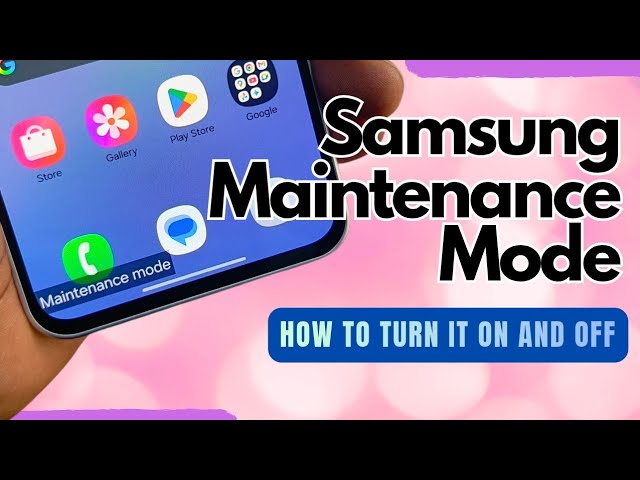
Samsung Maintenance Mode is a privacy protection feature that keeps your personal and private data and files hidden away when you need to hand your Samsung phone or tablet over to someone else - a friend on loan, or a technician for repair work.
#samsungmaintenancemode
#maintenancemode
#samsungphones
#samsungphone
Show More Show Less View Video Transcript
0:00
If you ever need to send your Samsung
0:03
phone away to a service center, to a
0:07
technician, or you need to leave it with
0:09
someone to use for a short period, of
0:13
course, you're signed into your Gmail,
0:15
you're signed into all manner of
0:17
accounts, and you don't want to disable
0:20
all of that. Samsung has a feature
0:22
called maintenance mode. Once you put
0:25
your phone in maintenance mode, it
0:27
pretty much locks away all your data
0:30
settings and gives you a second space,
0:34
so to speak, where you're not logged
0:36
into any of your accounts, and anyone
0:40
can play around with the phone, fix
0:42
issues with the phone without invading
0:45
your privacy. What you need to do is put
0:47
your phone in maintenance mode for
0:49
situations like that. How do you do
0:52
that?
1:00
Go to your settings app. Tap the search
1:04
button, the search icon, and type
1:06
maintenance
1:08
mode. There it is under device care. Tap
1:12
on it.
1:14
There's a lot of uh information up here,
1:16
but if you scroll down, you'll see this
1:19
that says maintenance mode. Protect your
1:22
privacy while your phone is being
1:23
repaired. Tap on it.
1:27
And here is the long story. Only
1:31
pre-installed apps are available while
1:33
you're in maintenance mode. So any third
1:34
party apps installed are not there. The
1:37
user or whoever it is that's handling
1:39
the phone can install third party apps
1:42
while using it. The only issue is that
1:45
once they are done, those third party
1:47
apps will be uninstalled.
1:50
you need to unlock your phone to turn
1:53
off maintenance mode. So, pretty much
1:55
it's your phone's
1:57
security, your phone's uh lock screen,
1:59
password, or whatever that you need to
2:01
turn on and turn off maintenance mode.
2:04
What happens when you turn off
2:05
maintenance mode? Everything will go
2:08
back to the way it was when maintenance
2:09
mode was first turned on. Nothing will
2:11
be saved that happens while maintenance
2:13
mode is on. Blah blah blah. Back up your
2:16
data just in case. Long story short, tap
2:20
this. If your phone has issues, you can
2:23
create a log. You can enable this to
2:25
create a log so that Samsung and
2:27
engineers will be able to use that. If
2:30
you don't need it, for example, if
2:32
you're just handing your phone over to
2:33
someone to use for a period of time, you
2:36
can uncheck that and click restart. And
2:39
then it will ask for your current pin,
2:45
which I have typed in. Now, click that.
2:48
and switching to maintenance mode. Your
2:51
phone will restart soon.
3:01
Switching to maintenance mode now that
3:04
it's restarted.
3:08
And there it is.
3:11
It looks different. The wallpaper is
3:13
different, of course, because all your
3:15
personal customizations have been put
3:18
aside, put in a locker,
3:22
in a safe space. You get something
3:25
closer to the default wallpaper, default
3:28
settings
3:30
of the phone.
3:33
You can customize it to remove apps,
3:38
remove
3:39
home screens, you know, play around with
3:42
it as you want,
3:44
but you're not logged into anything.
3:46
Gmail,
3:49
this is how Gmail looks when you just
3:52
buy a new device. You're not logged into
3:55
anything.
3:57
Play Store,
3:59
whoever is using it has to sign in.
4:02
gallery. All pictures and videos that
4:05
you had on your phone still there but
4:08
locked away.
4:10
Contacts
4:12
all gone. Your private information,
4:14
private data has been locked away. And
4:17
you'll see this notice here saying
4:19
maintenance mode.
4:26
Google messages, all my SMS, they all
4:30
they all hidden [snorts] away. I keep
4:32
wanting to say they all gone. They are
4:33
not gone. They are hidden away.
4:37
[gasps] So, this is it. This is how to
4:39
turn your phone into maintenance mode.
4:42
Being a curious person, I also wanted to
4:44
be sure what would happen if you were to
4:47
turn off this phone while it's in
4:49
maintenance mode. So, here goes.
4:55
restart.
4:58
Of course, I expect that it will boot up
5:01
back into maintenance mode. And the only
5:04
time when it will actually attempt to
5:07
leave maintenance mode is if you
5:09
actually go to exit that mode. But let's
5:15
see just to confirm because sometimes
5:18
while the technician is fixing your
5:19
phone, they do need to restart it.
5:21
They've fixed something. They need to
5:24
restart in order to confirm that it
5:25
works fine. Yes, it should boot back up
5:28
into maintenance mode without any
5:31
issues.
5:35
Yep.
5:37
Switches to maintenance mode.
5:41
Great. It definitely switches back to
5:43
maintenance mode.
5:45
The only way to exit maintenance mode is
5:49
to manually exit it. The next question
5:51
is, I haven't turned on maintenance mode
5:54
and your phone is back. How do you turn
5:56
it off? You can swipe down from your
5:58
drop in your drop-own menu and then tap
6:00
on this notice here to do that or you
6:05
can take a longer route through the
6:06
settings app similar to the way you
6:09
turned it on.
6:11
Go to the settings of the phone.
6:16
Hit the search button and type
6:19
maintenance
6:21
mode. There it is. Tap on that.
6:27
If you scroll down, you see that notice
6:30
that says maintenance mode. Your phone
6:32
is in maintenance mode. You need to
6:34
unlock your phone to turn off
6:36
maintenance mode. When you do,
6:38
everything will go back to the way it
6:39
was when maintenance mode was first
6:41
turned on. Changes made while
6:43
maintenance mode is on, such as
6:44
downloaded data, installed apps, or
6:46
settings and saved. So, the summary is
6:50
that anything that you do with your
6:53
phone while in maintenance mode is not
6:55
saved once you exit. So, if you go to
6:57
the bottom here, you see exit.
7:00
Tap on the exit button. Your phone needs
7:02
to restart to exit maintenance mode.
7:05
start and then it's going to ask for my
7:08
pin which I'm going to type off screen
7:15
and then continue
7:18
and the phone restarts.
7:39
And voila, it's back to what my phone
7:43
was before I put it in maintenance mode.
7:47
It's back to normal. Everything working
7:50
fine.
7:52
That's it, guys. Thanks for watching. Do
7:55
like the video. Do share it. Thanks for
7:57
following my channel. I look forward to
7:59
seeing you when next I publish another
8:01
video.
#Mobile Phones
#Science