Up next in 10


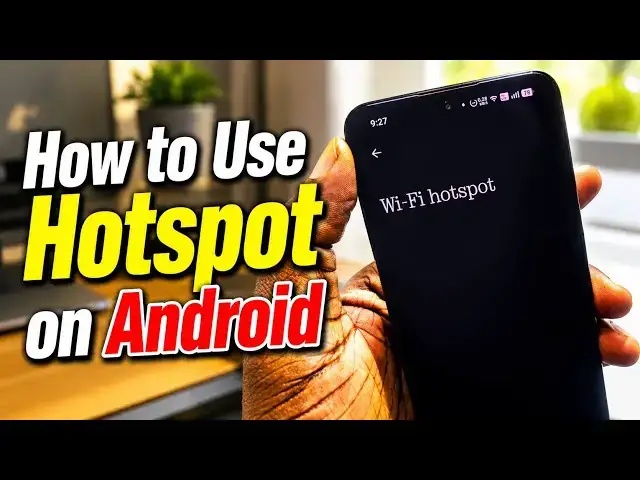
Learn how to use the Hotspot feature in your Android smartphone to share your cellular or mobile data with other devices.
#androidhotspot
Show More Show Less View Video Transcript
0:00
Being able to use your Android
0:01
smartphone as a hotspot is quite a
0:04
useful and handy feature in a number of
0:07
scenarios.
0:08
I'll walk you through how to do it.
0:18
To set up your hotspot, you're going to
0:21
your phone settings first.
0:23
Scroll down, look for settings.
0:27
And here you are.
0:31
And then under network and internet,
0:35
this phone is running Android 16.
0:38
If you have an older version,
0:41
maybe by a few years, the locations may
0:43
differ, but
0:45
it can't be difficult to find. You can
0:47
just type hotspot into the search
0:49
settings and that should help you find
0:52
it faster. So, I tap in network and
0:54
internet.
0:56
And then if you look down here, you see
0:57
hotspot and tethering.
1:01
And we step in there.
1:04
You can enable it by just tapping on
1:06
this.
1:08
But there are a number of things you
1:09
have to sort out first.
1:12
So, tap here to go into the settings.
1:15
Give it a name
1:17
so that you can recognize it when you
1:19
need to connect to it.
1:22
Then you have to choose what type of
1:25
security
1:27
you are assigning to your hotspot.
1:30
You can select none,
1:32
in which case anybody can connect to
1:34
your hotspot without needing a password.
1:38
If that's okay by you, go ahead.
1:41
WPA2 Personal
1:43
is an older security protocol for Wi-Fi
1:48
hotspots.
1:50
It's more prone to vulnerabilities and
1:52
to hacking, whether someone knows your
1:54
password or not. WPA3 is latest, the
1:58
most advanced security protocol for your
2:02
Wi-Fi hotspot at this time. The problem
2:04
is that WPA3 may not be compatible with
2:08
all available devices right now.
2:11
So, there is a middle ground, WPA2/WPA3.
2:15
That's a middle ground between WPA2 and
2:18
WPA3. And what it does is that it
2:20
provides the advanced security of WPA3,
2:24
but also allows your device to fall back
2:28
to WPA2
2:29
where devices connecting
2:32
are unable to support WPA3. So,
2:36
I'd say, unless you're absolutely sure
2:38
that all your devices are recent and
2:41
have the latest protocols and all that,
2:43
I'd say go for WPA2/WPA3,
2:46
personally.
2:48
Now, all these three
2:50
require a password for your Wi-Fi
2:53
hotspot. So, only people who have a
2:55
password or who have your password can
3:00
connect to it. Then you go back.
3:03
The next thing to set is your hotspot
3:05
password.
3:07
Now, you need at least eight characters,
3:09
a mixture of numbers and alphabetical
3:14
characters.
3:16
Pick whatever you want. I have used this
3:18
XXX only for demonstration purposes.
3:20
This is not my password. Try it at your
3:22
own risk.
3:25
Now,
3:26
it's a nice feature to be able to set
3:29
the hotspot to turn off automatically
3:32
when no devices are connected, usually
3:34
after 5 minutes or 10 minutes, and
3:36
nothing is connected, it will turn off.
3:38
That way, it saves your phone's battery
3:41
because when you have your hotspot on,
3:44
your phone actually consumes much more
3:47
battery than normal.
3:50
Next,
3:51
we're coming to speed and compatibility.
3:55
Now, this has to do with the frequency
3:59
that your hotspot functions on, and this
4:02
affects the connection speed.
4:04
2.4 GHz is highly compatible with most
4:07
devices,
4:09
but gives slower speeds.
4:12
5 GHz is a newer frequency, and while it
4:17
gives faster speeds and is compatible
4:19
with many devices,
4:21
but there are limitations. If your
4:23
device the device you're trying to
4:25
connect to is much older, an older
4:27
laptop, an older smartphone, an older
4:29
tablet,
4:31
you might have connection issues.
4:34
So, for the widest compatibility, go for
4:37
2.4 GHz.
4:39
I have 5 GHz set here because I'm not
4:41
looking for the widest compatibility. As
4:43
a matter of fact, the fewer people who
4:44
are able to connect
4:46
to my personal hotspot here, the better.
4:48
Thank you.
4:50
Now, that done, you've selected your
4:52
preferred frequency, and you can come
4:54
back and change it anytime. If you
4:56
select 5 GHz and you're experiencing
4:58
compatibility with your laptop with,
5:01
you know, devices connecting, you can
5:03
come back here.
5:04
Pretty much every setting that I'm
5:06
walking you through can be changed
5:08
later, whenever you want. So, nothing to
5:10
fear.
5:12
Go back,
5:13
and then you have to determine the
5:15
maximum number of connections, maximum
5:17
number of devices that can connect at
5:19
the same time. My phone gives me up to
5:22
16,
5:24
and I've never connected up to 16
5:26
anyway. Maybe I should just limit it to
5:27
four. I mean, why am I
5:30
allowing up to 15 people to connect?
5:33
So, that's it. Everything has been set
5:35
up. You've given your hotspot a name.
5:37
You've set the security. You've given it
5:40
a password.
5:41
And whatever you've chosen here is fine.
5:44
You've set the speed and compatibility.
5:46
You've decided how many devices get
5:48
connected. Now, you can turn it on.
5:53
All you have to do, you have to turn it
5:54
on, you tap that,
5:56
and your hotspot is on.
5:59
Take note that you can share your
6:00
hotspot credentials using a a QR code.
6:05
Just take the device you want to share
6:06
with and scan this code, and it sets up
6:11
the right settings on that device and
6:13
connects automatically. It's a nifty
6:16
feature that you might find useful
6:18
someday.
6:19
But, so,
6:21
the hotspot is on,
6:23
and here is the icon, this radiating
6:27
icon here.
6:28
That's the hotspot icon.
6:31
Also, note that you can use
6:35
your drop-down menu
6:37
to turn it on and off. Here is the icon.
6:41
Off.
6:43
On.
6:44
If you check in in this menu and you
6:47
can't find it, you can always edit it or
6:51
modify it to fix it there. You tap on
6:54
that edit button,
6:56
and you go to the list of available
6:58
icons and shortcuts.
7:00
You You select it, gets moved here, and
7:03
then you come back, and then you can
7:05
find it and enable and disable anytime
7:09
that you want easily.
7:11
The shortcut here is a superb usability
7:15
win.
7:16
That's how it works.
7:18
You set it up once, and then all you
7:20
need to do, you don't have to go into
7:21
your settings every time you need to use
7:23
it. You just need to come, swipe down
7:26
um your shortcut drawer, tap it on and
7:29
off
7:30
as needed.
7:33
Note that it's using your mobile data.
7:36
Of course, you should know that. It's
7:37
using your cellular data or your mobile
7:39
data.
7:40
If you are sharing it with a
7:42
that's doing heavy downloads or software
7:44
updates, you have to keep your eyes on
7:47
your data consumption.
7:49
Otherwise, you'll burn through your data
7:52
bundle quickly and you'll wonder what
7:56
happened.
7:57
Let me know if you have any further
7:59
questions
8:00
about how to use your hotspot on
8:03
Android. I hope this video has been
8:05
helpful to you. Thank you for watching.
8:08
Do like it. Tap on the follow button
8:12
below to follow my channel. Turn on your
8:14
notifications
8:16
and look forward to seeing you around
8:17
again.
Science