Up next in 10


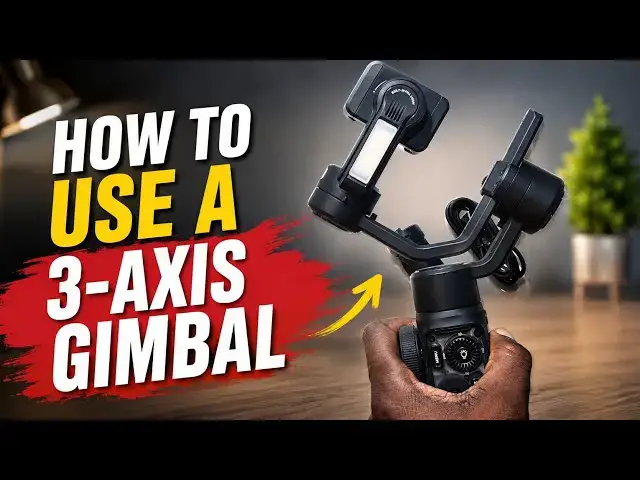
If you're looking for how to use a 3-axis gimbal for your phone, I provide a walkthrough in this video.
Learning how to use a 3-axis gimbal for your phone can completely transform your smartphone videos, from smooth walking shots to cinematic pans that used to require a full camera rig.
Why a 3-axis gimbal matters:
A 3-axis gimbal stabilizes your phone across pitch, roll, and yaw, which is why your footage stays level and smooth even while walking, running, or panning. If you've ever wondered how vloggers and content creators get that buttery-smooth footage on a phone, this is how.
If you found this helpful, hit subscribe for more smartphone gear guides and hands-on tutorials.
Looking for the best AI Tracking gimbals for phone vlogging in 2026 ? Read this detailed guide that compares options from ZHIYUN vs Hohem vs DJI: https://mobilityarena.com/best-ai-tracking-gimbals-for-phone-vlogging/
➡️ Buy the ZHIYUN Smooth 5S AI 3-Axis Gimbal Stabilizer for Smartphone: https://amzn.to/4wfiej0
➡️ Buy the DJI RS 3 Mini, Camera Gimbal Stabilizer: https://amzn.to/4xtYvgL
➡️ Buy DJI Osmo Mobile 8 Gimbal Stabilizer for Phone: https://amzn.to/4w9W2Xz
As an Amazon Associate, I may earn from qualifying purchases at no extra cost to you.
Show More Show Less View Video Transcript
0:00
It can feel a little bit intimidating
0:03
the first time you hold one of these.
0:05
There are so many controls, there are so
0:08
many knobs,
0:10
there are so many things that are moving
0:14
that you might pretty much wonder if
0:17
you're going to ever get the hang of it.
0:19
But I assure you, you will.
0:30
This is what is called a three-axis
0:33
gimbal. The first axis is horizontal.
0:38
This is the second
0:42
axis.
0:44
And this
0:45
is the third
0:47
axis.
0:48
By adjusting all three,
0:52
you can get the results that [snorts]
0:55
you need.
0:56
All you have to do is put in your phone,
0:59
turn this around, tweak this as much as
1:02
you want,
1:03
and then
1:05
this
1:06
also as much as you want. And how you do
1:09
that is largely dependent on the size of
1:13
your phone and the weight of your phone.
1:16
A heavier phone will require a lot of
1:17
tweaking to get the right positioning
1:20
than a lighter phone needs. The same
1:22
thing for a a bigger phone, it's going
1:25
to take
1:26
a little bit more of working around
1:28
to get the right positioning that you
1:30
want compared to a smaller phone.
1:32
Every gimbal has basically three
1:34
components, the gimbal itself,
1:38
>> [snorts]
1:39
>> the tripod stand,
1:42
and the charging cable. This is pretty
1:44
much all you get in [snorts] the
1:46
standard packaging of the average
1:48
gimbal.
1:49
Most of them, and I have not seen any
1:51
that the exception to this rule, do not
1:54
come with a charging brick in the box,
1:57
but this is a standard USB to USB-C
2:00
cable. So,
2:02
you can plug it into almost any
2:04
regular charging brick that you have
2:07
for charging this device, and it
2:09
[snorts] works.
2:10
Let's start with charging.
2:12
Your gimbal, if you look around the
2:15
handle, [clears throat]
2:17
will have a USB-C port somewhere. And
2:20
here is
2:22
the USB-C charging port for this one.
2:25
And all you have to do to charge it
2:28
is to open that up,
2:30
plug in your charger
2:33
into a wall socket or a power bank,
2:35
wherever,
2:37
and then plug this in, and you will see
2:42
the LED strip here
2:44
lighting up intermittently.
2:46
In this particular model,
2:49
whenever the battery is full, instead of
2:52
lighting intermittently or blinking, it
2:54
will just light up and stay there, you
2:56
know, all these characters
2:58
will be permanently on. That tells you
3:01
that this particular model is fully
3:03
charged. For some others, it might be a
3:05
change of color of an LED light or
3:08
whatever. It depends on the
3:09
manufacturer, but
3:11
plug in your charging cable, leave it to
3:13
charge.
3:14
As with any electronic device, you're
3:16
better off getting a full charge before
3:18
you start using it.
3:21
Now, let's assume that charging is done.
3:25
I didn't use this because I already have
3:27
a USB-C cable. Now, you need to set it
3:30
up.
3:32
At the base
3:33
of the
3:35
gimbal is
3:37
a connector that allows you to screw in,
3:40
and you have the tripod stand here
3:44
that
3:45
fits in there perfectly.
3:47
Now, what you want to do
3:50
is screw your stand in
3:53
like this
3:57
till it is firm.
3:59
And then you open
4:02
the legs
4:03
so that
4:05
your gimbal can stand on its own.
4:08
Our guy here
4:10
are looking good.
4:13
Next step.
4:15
Right now
4:16
nothing is moving here.
4:18
And the next step is to unlock. If you
4:20
look around, you'll find an unlock knob.
4:25
Once you unlock, everything can move.
4:28
I'm also unlocking this. There is a knob
4:31
here
4:32
that holds this in place and locks it in
4:35
place. So, you need to unlock that, too.
4:38
The idea is to make sure
4:40
that
4:41
everything about your gimbal is moving.
4:44
And then we want to put in
4:46
a phone.
4:51
Now
4:52
everything can move and you can see
4:55
that it [snorts] takes a natural
4:58
position.
4:59
It's very interesting
5:02
because setting up a gimbal
5:04
requires a bit of understanding,
5:07
balance, and physics. I don't mean
5:09
you're sitting down with calculations
5:12
and all that when I say
5:13
physics. I'm just talking about balance
5:15
and gravity.
5:17
If you unscrew this enough so that this
5:21
can move
5:24
All right.
5:25
You see
5:26
it changes position.
5:28
You adjust a little bit in the other
5:30
direction. Changes position a little bit
5:32
more. Adjust it to a little bit more.
5:35
Now, what you're trying to do is find
5:36
balance.
5:38
That's pretty much it. You keep moving
5:40
it and adjusting
5:42
little by little
5:44
till you find a horizontal balance. This
5:47
looks good enough, so I'm going to
5:50
tighten the screw at this point.
5:55
Now,
5:58
if I want to record horizontally,
6:01
I'm good.
6:08
As a rule, the idea is to
6:11
try to keep this clamps
6:13
in the nearest center of gravity
6:16
possible for your phone, but phones are
6:17
so big
6:19
these days that that's almost impossible
6:22
because no matter how much adjustments I
6:24
do here,
6:25
this will never be at the center of
6:27
gravity of
6:28
this phone. But as it is, like I said,
6:33
this setup is now ready for horizontal
6:35
recording.
6:37
And that's how you set up your gimbal.
6:39
Adjust the knob,
6:41
adjust
6:43
this.
6:45
If you look closely,
6:47
you can see some measurements there that
6:49
will guide you and you can keep records
6:51
of what position actually works for your
6:54
phone so that you're not doing trial and
6:55
error the next time you need to use your
6:57
phone.
6:58
We're done with this.
7:01
If the gimbal you have is an electronic
7:03
one, you look for the power button
7:06
and then you press and hold.
7:08
Power is on.
7:10
And it comes on.
7:13
Now, it has taken
7:16
a very smooth
7:20
position
7:22
all by itself. This is not turning.
7:25
Nothing is moving. And now you can start
7:28
recording. One of the challenges you
7:30
will have,
7:31
again, because phones have gotten so
7:33
big, if you want to use a microphone for
7:36
your audio,
7:37
you need to access this USB-C port. This
7:41
is the receiver for your lavalier mic,
7:44
your wireless mic.
7:45
Let's see if we can remove this.
7:53
Now, take note.
7:55
There's a vibration going on here now.
7:57
Whenever you remove your phone while the
7:59
gimbal is on, it vibrates to notify you.
8:02
It fits in.
8:03
So, you can use your wireless mic
8:06
with it.
8:07
That's the wireless mic attached to the
8:09
phone.
8:10
And even though the clamp is not holding
8:12
it at its center of gravity, it's doing
8:15
a good job. And one can voilà,
8:19
record.
8:21
I'm going to power this off
8:23
and see what happens when you power it
8:26
off.
8:27
It just limps. It goes limp.
8:30
But, an electronic gimbal of this sort
8:32
is quite versatile. It does some work on
8:34
your behalf to keep things steady. Those
8:37
are the basics for using
8:40
a gimbal.
8:42
Another feature that certain models
8:44
offer
8:45
is this one.
8:47
This has a fill light
8:49
that you can put on. For example,
8:52
if you're recording with this and you
8:55
want light to help with your recording,
8:58
press and hold this
9:01
button here
9:03
that looks like a light bulb.
9:05
Now, what it does is that it controls
9:09
this light.
9:11
And which can aid your video recording
9:14
in all situations. Now, notice that this
9:16
gimbal is held at an angle now. It's
9:19
still keeping the phone horizontal. No
9:21
matter what I do, no matter how I turn
9:24
it, it keeps
9:26
the phone horizontal.
9:28
Anyway, back to the lighting. This is a
9:31
light that assists
9:33
for lighting up your subject.
9:35
And here is the control button for that.
9:40
This.
9:41
So, when I press and hold,
9:44
that light comes on.
9:46
There you go.
9:47
It's brighter than your phone's flash.
9:49
If you want to use your phone's flash as
9:51
well, use it and this will augment to
9:54
brighten up your subject.
9:57
Great, right?
9:59
Now, take note
10:00
because a gimbal has many moving parts.
10:03
When you want to store it away,
10:05
it's important that you lock all the
10:08
modes. I have locked this.
10:11
I locked it by
10:13
using this button
10:14
so that nothing is moving horizontally.
10:17
I have locked this
10:19
by making sure
10:21
this is a manual thing that you have to
10:24
make sure that
10:25
this
10:27
clicks in there.
10:29
You can hear that click. I've locked
10:31
that. And then this one,
10:33
that is locked. It's three. All three
10:36
axes are locked. This is locked. This is
10:38
locked. And this is locked. So, that
10:39
nothing is moving.
10:41
And then you fold the tripod
10:45
and unscrew.
10:47
And then put it away somewhere where
10:49
damage will not happen to it.
10:51
You have to be extremely careful in
10:53
storing the gimbal away.
10:55
You keep it well. Thanks for watching
10:58
this video.
10:59
Do like it. Hit the follow button below
11:02
to follow my channel. Turn on your
11:04
notifications.
11:05
That's the notification that looks like
11:07
an alarm bell.
11:08
And I'll see you in another video when I
11:10
bring you helpful tips for using
11:13
your phone gimbal.
11:15
Take care.
Science