0:01
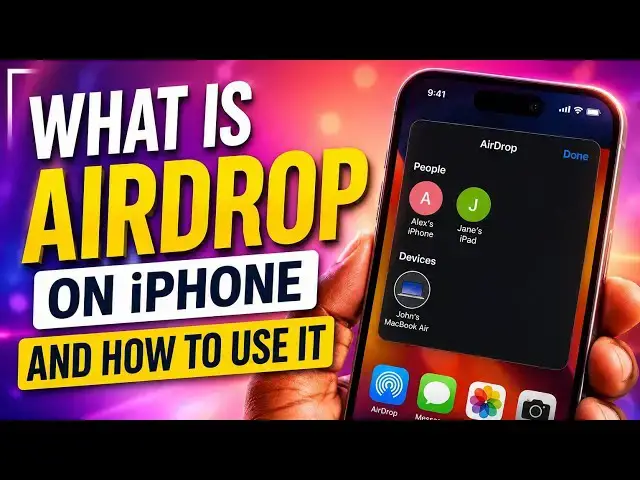
Using AirDrop on an iPhone is a pretty
0:03
straightforward and simple matter. Go to
0:05
your photos, select the image you want
0:08
to share, tap this upwards pointing
0:12
arrow button here, and this is airdrop.
0:15
Tap on it. Now, any available iPhones in
0:18
your vicinity will be listed here. I
0:20
don't have any available but assume that
0:23
you have an another iPhone or compatible
0:26
Android phone because Android phones are
0:29
now gaining the airrop feature. If you
0:32
have a Google Pixel 10 series, a Samsung
0:35
Galaxy S26 series and other devices will
0:39
be added to the list. You can airdrop to
0:42
those devices as well. So if you have an
0:43
airdrop compatible Android phone or an
0:47
iPhone with you, you will see a list of
0:50
those devices here and then you select
0:53
which one you want to send to and it
0:56
goes through. Now in some cases if
0:58
you're having problem sending, if you
1:01
can't see devices nearby, you can try
1:03
holding the top of this iPhone near
1:05
another. So you can try something like
1:08
this with another iPhone or compatible
1:12
Android smartphone. Hold them close
1:14
together. To understand how Airdrop
1:17
works in case you keep having
1:19
challenges, it's time to explain to you
1:22
how it works. Airdrop uses a combination
1:25
of Bluetooth and Wi-Fi, but it does not
1:29
necessarily need an internet connection.
1:32
So what happens when two devices find
1:35
themselves? They find themselves through
1:37
Bluetooth. So you have to make sure your
1:38
Bluetooth is on on both devices. And
1:42
once they find themselves, they create a
1:45
peer-to-peer Wi-Fi connection. In other
1:48
words, a local device to device Wi-Fi
1:52
connection. And it is over that Wi-Fi
1:55
connection that the file is transferred.
1:59
Of course, a fallback mechanism has been
2:02
built into AirDrop that allows it to
2:04
also send over the internet in case that
2:06
local connection fails, but the local
2:09
connection usually works. And it's
2:10
pretty fast because it's based over
2:13
Wi-Fi. You can enable AirDrop to use
2:16
mobile data and to use an internet
2:19
connection when everything else fails.
2:22
here in your iPhone settings. All you
2:27
have to do when you open the settings
2:29
app, type AirDrop to see the settings
2:33
for AirDrop. And then here you can turn
2:35
off receiving. You can say only for your
2:38
contacts. And then you have to be signed
2:41
into iCloud to be discoverable by
2:43
contacts only. And you can say anyone
2:46
can see my device for 10 minutes. So, if
2:48
you're trying to airdrop to another
2:50
iPhone or compatible Android phone and
2:52
it's not working, check in the settings
2:55
of both devices, especially the
2:58
receiving device, that he can see
3:00
everyone or everyone can see it for 10
3:03
minutes. Enable this. Usually, that
3:05
solves your problem. There is the option
3:07
to also bring devices together. You
3:09
remember I mentioned earlier that if
3:10
you're having trouble sending, you can
3:12
bring the devices together. Yes, that
3:15
option is enabled. I have explained the
3:18
mobile data angle to you as well. It's a
3:21
fallback measure. If the peer-to-peer
3:23
Wi-Fi connection is not created. So this
3:26
is how airdrop works. The two devices
3:29
find one another through Bluetooth then
3:32
they create a peer-to-peer a deviceto
3:34
device Wi-Fi connection over which the
3:38
files are transferred whether it's
3:39
picture a document or video whatsoever.
3:42
It's pretty fast and it goes through in
3:45
moments. That's how it works. Let me
3:48
know if this video was helpful to you in
3:51
using AirDrop on your iPhone or
3:54
compatible Android smartphone. It works
3:56
the same way on iPhone and Android.
3:59
Thanks for watching this video. Please
4:02
do like it. Do share it. Follow my
4:04
channel. Turn on your notifications. I
4:06
look forward to seeing you when I share
4:09
another helpful, informative video.