0:00
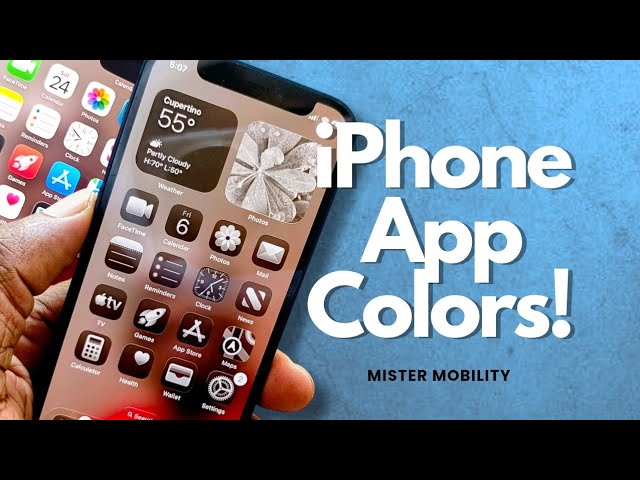
Yes, you can change the color of your
0:03
app icons in your iPhone and it's pretty
0:08
easy to do. Press and hold any blank
0:11
space on your home screen, you can see
0:14
the icons begin to jitter. If you look
0:17
up in this top left corner, you see an
0:20
edit button. Tap on that and then you
0:24
have this menu pop up. Add widget,
0:26
customize, edit to wallpaper, edit
0:29
pages. Tap on customize,
0:37
You can now change the look of your
0:40
icons. The default is this, and that's
0:42
what you're looking at. If you select
0:44
dark, a black background is applied to
0:48
each of the icons. If you observe, they
0:51
have a white background here. And now
0:53
they have a dark background here. If you
0:59
now this gives you a grayscale kind of
1:03
feel to your apps. And then tinted. So
1:08
with tinted, the difference is that you
1:10
can now select whatever color you want
1:14
the icons to lean towards to. Right now
1:16
this is a reddish hue and then you can
1:21
blue approaching green and orange and
1:25
then this is a pure red. This is more
1:27
pinkish right? So this is a pure red and
1:31
you can also determine how deep the
1:35
color is. So if you want to do the
1:37
grayscale like thing, this is where you
1:40
come. And then you can also determine
1:43
the size of the app icons. You need your
1:46
icons bigger. This is a great option to
1:49
use. Of course, when you go bigger, the
1:52
captions are gone. The name on each app
1:55
disappears. And when you come down to
1:58
the smaller size, the names show up
2:00
again. You can make it brighter.
2:04
Jump it down a bit. make it brighter,
2:06
don't bring down a bit.
2:08
And that applies to all these other
2:15
Of course, you can also still change
2:18
Remember the option to change wallpaper
2:29
pick a dark color. That's black.
2:34
And now this is what your iPhone's home
2:37
screen looks like. Totally grayscale.
2:41
So this is how to change the colors of
2:44
your app icons on your iPhone.
2:47
There is no option present that I have
2:50
seen that allows you to change the icons
2:54
themselves, just the colors. That's it
2:57
guys. Thanks for watching this video. I
2:59
hope it has been helpful. Do like it. Do
3:02
share it. Follow my channel. I look
3:04
forward to seeing you here again when I
3:06
publish another video.