0:00
Hello friends welcome to Solid Works
0:02
tutorial and in this tutorial we will
0:05
learn the types of a filet in solid
0:07
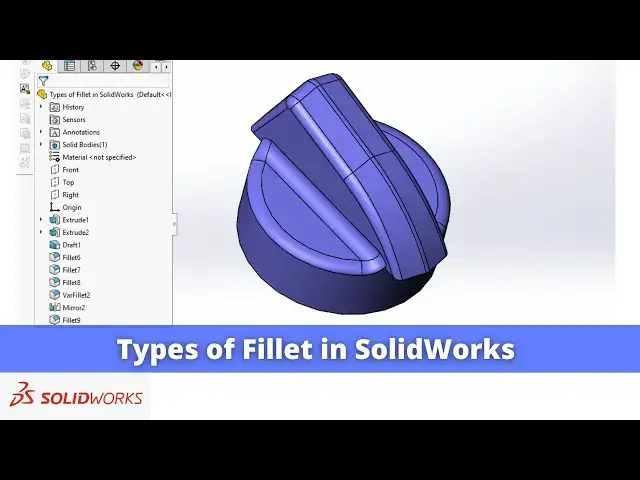
works so here in this part I have
0:10
applied the multiple types of affiliat
0:13
which we will learn in this tutorial so
0:16
if you go to the fillet options we will
0:19
see the constant fillet variable fillet
0:22
pH fillet and uh how to apply those
0:26
fillets on a part I will show you from
0:30
so I will delete all these features and
0:33
uh I will show you how I have applied
0:36
different type of a fets so I will
0:45
fillets so now we have a part of without
0:49
fillet now we will see the fillet
0:52
options in solid Bo you can also visit
0:56
my website macn nexus.com and you can
1:00
visit this solid works tutorials tab
1:02
where I have written so many tutorials
1:06
on solid works where you can follow the
1:09
step by step guide to model the
1:13
parts if you like my method of teaching
1:16
then you can also support me on kofi.com
1:19
you can buy me a cup of coffee your
1:22
small support will help these channels
1:25
to grow and it will motivate me to
1:27
create more awesome content on on solid
1:30
works so let's come back to our
1:35
tutorial so first we will uh use the
1:41
option for this we will click on the
1:48
and we will use the face fillet
1:53
option and here we will select this set
1:58
one and this one one set
2:01
two we will delete here and click here
2:04
and we will make it set two and now here
2:10
radius and uh we can simply increase
2:14
this radius as per our
2:17
choice but here we will go to the fillet
2:22
parameters and select the hold
2:25
line and we will press control key and
2:31
now this fillet will start from this
2:38
age and we will say okay so you can see
2:42
that uh we have controlled the fillet
2:47
age now the next fillet which we will
2:51
learn is a constant fillet so we will
2:54
click on the fillet icon and here the
2:57
first one fillet is a const siid fillet
3:01
and here we will select this age and
3:09
here we will give the fillet size of 2
3:16
mm and on the full preview so that you
3:20
will get the preview of your
3:27
okay so we have seen the face fillet we
3:31
have SE the constant fillet and now we
3:34
will learn the next type of a
3:36
fet next type of a fillet is a symmetric
3:40
fillet along the cylindrical Edge so now
3:43
we will apply the symmetric fillet to
3:45
this age so we will select this age and
3:52
fillet and now instead of a symmetric we
4:01
now we will give the value
4:05
one and this one I will give value
4:13
two now here we are seeing the value so
4:17
we will make this distance
4:22
two and give okay so now so we have the
4:26
two type of affiliate which we can see
4:28
here this large margin one is a 2 mm and
4:32
lower one is a 1 mm so this is a
4:35
asymmetric fillet which is of a constant
4:38
size throughout this uh cylindrical
4:44
age we can easily change the value now
4:50
okay now we will learn the next
4:54
fillet next fillet is of variable radius
5:01
of a different radius so we will click
5:05
fillet and we will click on the variable
5:14
one and now we will remove here the
5:17
tangent propagation because if we on the
5:20
tangent propagation then it will take
5:23
the tangency and apply the constant
5:26
radius now we will select the edges
5:32
now we will select this
5:36
age this age you can see the two edges
5:40
has been selected and two edges are
5:42
added here now we will select the third
5:46
Edge and we will select the fourth
5:50
Edge now instead of a symmetric we will
5:54
symmetric and here you can change the
5:58
values from here or or you can change
6:00
from here so we will keep this one but
6:08
1.5 we will make this
6:13
1.5 we will also make it
6:20
1.5 and start and int we will keep at 1
6:26
mm so you can see that we have apply the
6:35
okay so we have learned the three type
6:38
filet one is a face then constant radius
6:43
then constant radius a symmetric and
6:46
then we have learned the variable radius
6:49
so in a constant radius we have learned
6:51
the two types one is a symmetric and
6:55
asymmetric now we will mirror this part
7:00
and we will apply radius to The Parting
7:03
line so for this go to the insert go to
7:08
the feature and from here you will see
7:16
mirror sorry in features tab you will go
7:18
to the linear pattern and go to the
7:21
mirror and in Mirror select the right
7:24
plane and if you see the right plane at
7:28
the half of this part and from here
7:32
instead of a feature select bodies to
7:34
mirror and from graphical window area
7:39
body and click on okay so now you can
7:43
see that our bodies is got mirror and
7:48
this line is a parting line and now we
7:51
will apply to the fillet to The Parting
7:53
line so we will select the age and click
7:59
and from here we will give the fillet
8:16
okay now our part is the mirror and now
8:20
we will apply fillet to this parting
8:23
line for this we will click on the
8:26
fillet and we will select the constant
8:30
fillet and we will give the radius 2
8:34
mm and select this parting
8:41
okay so this is how we have also apply
8:45
fillet to The Parting line and we have
8:47
learned all types of a fillets in
8:52
a solid works so this is all about this
8:56
tutorial thank you for watching and
8:58
thank you for for your valuable time