0:00
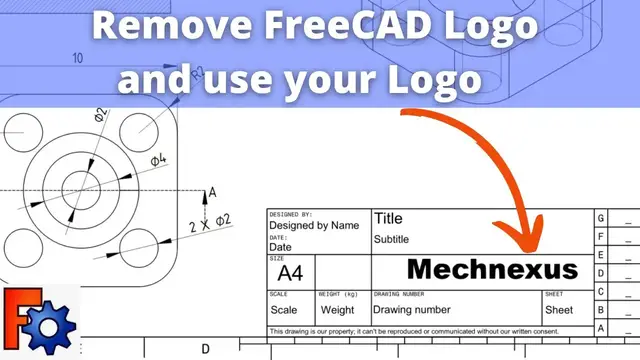
Hello Friends, Welcome to FreeCAD Tutorial and in this tutorial we will learn how to replace the FreeCAD logo with your logo on FreeCAD drawing template. As you can see that FreeCAD logo is a default logo when you load any FreeCAD drawings
0:18
so before replacing this logo you have you must have the your own logo in the
0:28
form of SVG file and SVG file is a scalable vector graphic so it does not
0:33
reduce the quality once you zoom it I have my own logo in the form of SVG
0:40
file so I will show you how you can do this so for this drawing if if I go to
0:48
to here template sections and if I go to the property here so I can find my this template
0:56
details so simply I will open the path and I will copy this path in a notepad notepad
1:10
template and here the template which I am using the A4 landscape TD so for the properties if I go here it is
1:23
HTML document cancel and second is the page result so I will
1:33
this is these are the same path if we see here so we are more interested
1:42
with this svg1 which is the template here which we have copy in a notepad now for this modification
1:52
you must have the ink space software which is a free and open source software which you can
2:01
easily download from the internet so now I will start my ink space so here ink space is loading
2:09
so I will select your browse other files so the path which you have a copied
2:18
where my template is located I will copy this and I will paste here and I will
2:27
say open so this is the a4 ldd so I will load in a ink space so my template will be get loaded here so this template in the form
2:43
of SVG so now we will click on this free cat logo and we will remove it now I
2:54
I will save as this file in the form of svg and I will rename it something like underscore 01 or I can say R1 and I will save
3:13
Now here at the template we will give part of our template which I have modified in Inkspace
3:30
so we will go to the download and here is our template which we have modified and we
3:37
have loaded it here. you can see that we have removed the free cad logo now the next part is to
3:45
insert our logo here so I have the Mac Nexus logo in the form of SVG so in a TechDraw workbench you will see here icon insert SVG symbol so I will insert
4:01
my SVG symbol so here is my SVG file and I will say ok so it has been ok means it has
4:08
been loaded here so now if you try to move my logo you won't be able to move until and
4:14
unless you on the frame so here I have on the frame now I will select this one and I
4:20
will drop here so as you can see that it is going out of the border so I will
4:27
again select the frame and I will give here a scale of 0.7 and I will say ok
4:37
and I will off the frame
4:50
So this is how I have replaced the FreeCAD logo and inserted my logo in FreeCAD
4:56
I hope you have liked this tutorial and if you like my method of teaching and if you want
5:01
to appreciate my work then you can support me