live_tv
Livestream Starting Soon
00
Hours
:
00
Minutes
:
00
Seconds
Up next in 10


#freecadtutorial #freecad #freecadpartdesign
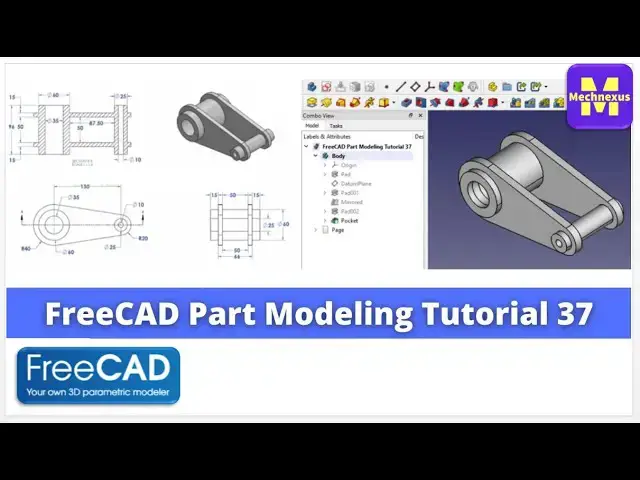
In this video I have explained How to Model Part in FreeCAD with the help of part design Workbench.
▶️ Get my Complete FreeCAD Course : From Zero to Expert ! on Ko-fi
https://ko-fi.com/s/1ab4385434
▶️ Get my Complete FreeCAD Course : From Zero to Expert ! on Udemy
https://www.udemy.com/course/freecad-course-for-beginner/?referralCode=3BA9B526A12F96295D44
▶️ Join my channel membership and keep supporting my work:
https://www.youtube.com/channel/UCcn6z2whMaFu-_LDsEXCfVA/join
▶️ Visit my website for more info on FreeCAD-:
https://mechnexus.com/
▶️ Download Source File of Tutorial-:
https://mechnexus.com/mechnexus-youtube-tutorial-source-file/
▶️ Buy Me a Coffee
I am very grateful that you watch my videos and I am constantly trying to improve the quality of the videos on this channel. If you'd like to help me do this, please consider supporting me so that I can to continue to produce content for your enjoyment.
Show More Show Less View Video Transcript
0:00
Hello friends welcome to Free cat
0:02
tutorial and in this tutorial we will
0:04
convert this orthographic drawing into
0:07
the 3D model and we will make the scts
0:11
model like this isometric View
0:16
so before starting this tutorial
0:19
if you like my method of teaching then
0:22
you can support me on coffee.com you can
0:25
buy a cup of coffee for me your small
0:28
support will help this channels to grow
0:31
you can also support me by buying this
0:34
free cat crash course for beginner I
0:37
have designed this course for the
0:39
beginner users who has just started
0:42
learning the free CAD
0:44
at very affordable price
0:47
so by buying this course you can support
0:50
me
0:51
to help these channels to grow and also
0:55
apart from making the free care tutorial
0:58
please visit the Mac nexus.com where I
1:01
write the article on free care and open
1:04
source software here you will get more
1:07
information about the free CAD apart
1:10
from the tutorials on my YouTube channel
1:13
so coffee.com and my website
1:17
mcnesses.com link is given in a video
1:20
descriptions please visit and keep
1:23
supporting so now come back to our
1:25
tutorial
1:30
so for this we will create a body and we
1:34
will on our plane and here I will switch
1:37
to the orthographic View
1:40
so before starting the model we will
1:43
study this model and how we are going to
1:46
start this model so for this we will
1:49
make this
1:52
Extrusion
1:57
to mid plane and then we will make this
2:01
plate and this plate
2:03
and after that we will make a hole and
2:07
make this Extrusion
2:10
so this is the very simple tutorial and
2:13
this tutorial is designed for the
2:15
beginner user of a free card and I will
2:18
also provide the source file and this 2D
2:21
drawing in the video description so any
2:23
beginner user can refer my model and
2:26
practice and master the free card so now
2:30
I will select this exit plane and I will
2:33
create a sketch and I will off my origin
2:37
plane now
2:39
I will
2:41
draw a circle on my origin
2:48
and its diameter is 40 year given
2:53
so I will select on diameter and I will
2:55
give here 40.
2:57
and inside one is a 35
3:01
so I will click on the circle
3:04
and
3:06
do diameter 35
3:18
sorry outer diameter is a 60
3:27
now I will close my sketch
3:31
and now
3:33
I will switch to the isometric and
3:38
I will click on the pad
3:40
and length is a 96
3:44
so I will give here 96 and I will click
3:47
on submit to the plane
3:52
and I will say okay
3:55
we have made the base feature of our
3:57
part now
4:02
from our mid plane
4:05
we will
4:06
create a plane
4:09
and on this plane we will draw this
4:12
profile
4:14
and then from this mid plane we will use
4:17
the mirror tool and we will mirror it on
4:20
the other side
4:25
so for this I will on my plane and I
4:28
will select this plane and I will create
4:31
a datum plane
4:34
so I will move my toolbar here
4:39
and I will click on here data plane and
4:43
in a z Direction I will give the
4:46
position of my datum plane
4:48
so if we see the top view
4:54
if I zoom the model
4:58
so it is a 50
5:02
Plus
5:06
15 mm so 50 divided by 2 is 25 plus 15.
5:14
so it is 40 so here in the Z Direction
5:18
I will give my dimension 40.
5:22
and we are considering the material
5:25
thickness
5:29
so in this case I will make my Extrusion
5:33
Direction
5:34
in this site
5:38
if you wanted to make Extrusion outside
5:41
then you should not consider this 15 mm
5:45
material thickness just offset it by 25
5:49
mm
5:51
so I am considering the material so I
5:53
will click on OK
5:55
and now
5:57
I will off my origin plane and here I am
6:01
seeing the Blue Tick symbol so this
6:04
means it's required update
6:06
so I will click on here refresh or you
6:10
can press the F5 so you can see that
6:13
blue tick has been gone and now I will
6:15
select this datum plane and I will
6:17
create a sketch on this plane
6:21
[Applause]
6:22
now
6:24
I will fit my model
6:37
now I will project the outer edge
6:41
and I can also off my datum plane
6:46
now click on Project geometry
6:49
and then
6:51
the outer
6:55
outer diameter is
6:59
given R40 here
7:02
if I zoom it
7:04
so it is R40 so I will
7:08
create a diameter of circle 80
7:12
so I will select a circle and I will
7:14
draw a circle and then I will give the
7:18
diameter 80.
7:22
and then
7:25
I will
7:26
draw the two line like this
7:31
and I will make it tangent
7:36
same here I will make it tangent
7:40
and now
7:42
I will move it to the approximate
7:45
position and now I will create a three
7:47
point Arc and I will
7:53
create an arc and I will make it a
7:55
tangent
7:57
and I will make it
8:00
tangent
8:02
and now I will trim the line
8:07
click on the trim tool
8:12
and inside also a trim
8:15
now I can see here
8:19
this is not a
8:21
horizontal so I will select this point
8:23
and this point and I will give the
8:25
horizontal constraint
8:27
now the center to Center distance is a
8:29
130
8:31
so I will give my dimension
8:35
130
8:39
and the radius is R20
8:55
now I
8:57
fit my model
9:05
okay
9:07
now we have made our plate
9:10
and now I will come out of the sketch
9:14
because my sketch is fully constrained
9:16
so I will click on close
9:20
and as I have included the material
9:23
thickness so I will click on the pad
9:26
so in this case I will reverse my
9:29
directions to the inside one
9:32
and I will say okay
9:36
so here I can see that uh material has
9:40
been added here to avoid this
9:43
we will again go to our sketch and
9:46
project the inner one
9:51
and switch to the wireframe and I will
9:58
draw a circle and I will make it equal
10:05
and then I will close my
10:08
sketch and I will switch to the flat
10:10
lines
10:11
and then I will create a pad
10:14
and here I will reverse my directions
10:19
now I will say okay now I will press 0
10:26
now I will mirror it to the other side
10:28
to mirror it select the feature you want
10:31
to mirror and click on here mirror tool
10:35
and the selected feature will be added
10:38
here
10:39
so here we get automatically took
10:42
the reference but I want to Define my
10:45
reference so I will click on the
10:47
reference
10:48
and here
10:50
I will select this mid plane
10:54
and it has been mirror on the other side
10:58
I will say okay
11:02
and now
11:05
I will
11:07
create this pipe
11:10
to create this pipe
11:15
I will select
11:17
my mid plane
11:21
and I will
11:23
create the sketch on this plane
11:28
and I will project my
11:30
arc on that plane
11:33
so if I switch to the isometric view so
11:36
you can see that it has been projected
11:37
and now I will click on the circle
11:43
I will draw a circle
11:46
and make sure it is a coincidence yes it
11:49
is a coincidence and now
11:53
the pipe diameter here given is a 25
11:59
so I will select it and I will give my
12:02
diameter 25.
12:09
now I will switch to the so it is a
12:13
radius it has been tooked so I will give
12:16
it a 12.5 because it is a diameter or
12:21
I will delete it and simply give the
12:24
diameter to avoid the confusion
12:28
so I will select here and select
12:29
diameter and diameter is a 25.
12:33
now I will close it and total length of
12:37
this pipe is a same with our boss
12:42
base feature so it is a 96
12:46
so I will select on this sketch and I
12:48
will create on the pad
12:52
and I will give here 96
12:58
so it has been on One Direction so I
13:01
will select on symmetric to the plane
13:06
I will say okay
13:08
now I will
13:10
off my origin plane now I can see here
13:14
one small hole of diameter 10
13:18
to through this pipe
13:20
so I will select the face and I will
13:23
create a sketch
13:25
and I will project the diameter and I
13:29
will select the circle
13:31
and I will give the diameter 10
13:35
so
13:37
I will select it and give diameter 10.
13:41
and I will close it
13:43
and I will go with extrude cut and I
13:46
will say simply through all I will say
13:49
okay
13:54
so now
13:57
if I place my model to the isometric so
13:59
we can see that we have a successfully
14:02
converted this orthographic drawing into
14:05
the 3D model
14:07
and if we look for the orientation so
14:10
front view is matching perfectly and if
14:13
I go with the side view it is also
14:15
matching perfectly
14:22
left and right view both sides
14:32
so now we will give the color as per our
14:36
part so it is the same color
14:40
so this is how we have completed our
14:42
model I hope you have liked this
14:44
tutorial and if you likes this tutorial
14:47
and my method of teaching then please
14:49
like subscribe and Share my video and
14:52
also support me on coffee.com either
14:56
buying a cup of coffee for me or
14:59
purchasing my course free cat cash flows
15:03
for beginner at very affordable price
15:05
this is a very
15:07
minimal price which I have a set so that
15:10
anybody can Master the free Cad and
15:13
enhance their design skill because
15:18
having the lots of potentials it has a
15:21
lots of workbenches you can do anything
15:23
in freecad part modeling 3D printing fem
15:27
and lots more
15:29
and at same time also check my website
15:33
Mac nexus.com where I post very useful
15:37
videos
15:39
on free CAD you can also find the video
15:42
tutorials here and also
15:45
text tutorials and other information
15:47
related to the free CAD which will
15:50
enhance your knowledge on freecad so
15:53
this is all about these sessions
15:56
I will come with a more useful tutorial
15:59
like this thank you for watching and
16:01
thank you for your valuable time