live_tv
Livestream Starting Soon
00
Hours
:
00
Minutes
:
00
Seconds
Up next in 10

FreeCAD Part Modeling Tutorial 135 | FreeCAD Tutorial | 3D Modeling Tutorial | FreeCAD Community
Apr 24, 2025

#freecad #freecadtutorial #FreeCADforbeginners
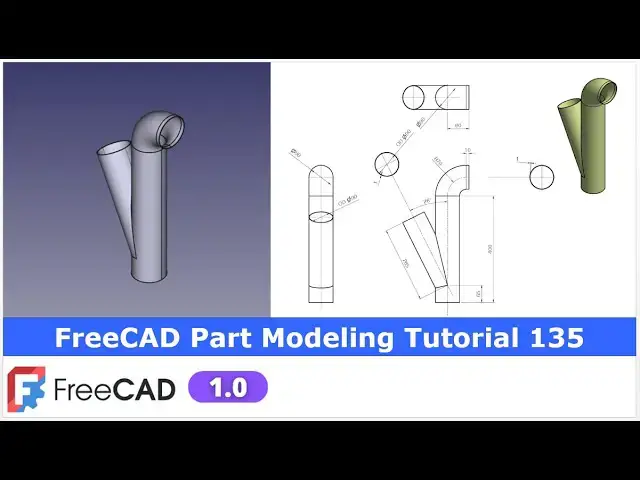
In this video I have explained How to Model Part in FreeCAD with the help of part design Workbench.
▶️ Join my channel membership and keep supporting my work:
https://www.youtube.com/channel/UCcn6z2whMaFu-_LDsEXCfVA/join
▶️ Visit my website for more info on FreeCAD-:
https://mechnexus.com/
▶️ Get my FreeCAD Crash Course for beginner-:
https://www.udemy.com/course/freecad-course-for-beginner/?referralCode=3BA9B526A12F96295D44
▶️ Download Source File of Tutorial-:
https://mechnexus.com/mechnexus-youtube-tutorial-source-file/
▶️ Buy Me a Coffee
I am very grateful that you watch my videos and I am constantly trying to improve the quality of the videos on this channel. If you'd like to help me do this, please consider supporting me so that I can to continue to produce content for your enjoyment.
👉 Help support this channel by buying me a coffee: https://ko-fi.com/mechnexus
Show More Show Less View Video Transcript
0:00
hello friends welcome to FREA tutorial
0:03
and in this tutorial we will model this
0:05
part which is a
0:07
pipe with a branch and you can see that
0:11
I have already modeled it and our free
0:15
model matching with our reference
0:19
drawing and now we will refer this 2D
0:22
drawing and uh we will create this
0:25
branch pipe from the
0:27
scratch so for this tutorial I am using
0:30
the Frecad version 1.0 so you must have
0:33
at least Fread version 1.0 or higher
0:36
version and now I will close this file
0:39
and create a new file and show you from
0:42
the scratch how you can create this part
0:45
you can also visit my website
0:48
macexus.com where I write articles and
0:52
tutorials on a freecad and you can also
0:56
access my 3D part library of a free CAD
1:01
you can download the part from here and
1:04
you can use in your projects with
1:07
modifications
1:09
you can also access my 2D drawing
1:12
library where you can uh download this
1:16
2D drawings and uh you can create 3D
1:20
models with respect to these
1:24
drawings you can also support me on
1:28
coffi.com you can buy me a cup of coffee
1:32
your small support will uh help this
1:35
channels to grow and it will motivate me
1:38
to create more awesome content on uh
1:42
free cat you can find my Kofi donation
1:44
page link in a video description as well
1:48
as you can also see my Kofi page URL on
1:52
this
1:53
header so let's come back to our
1:56
tutorial
1:59
so here I have created a new part and
2:01
now I will insert the
2:04
body and I will on the origin plane and
2:08
uh we will create our first sketch on
2:12
the front
2:13
plane we will first create this main
2:16
pipe and then we will create this branch
2:20
pipe so let's select the exit plane and
2:24
click on the sketch go to the model tab
2:26
and hide the origin and
2:29
now here I will select a line
2:33
tool create a vertical and then
2:37
horizontal line and now here I will use
2:41
the fillet tool and create one fillet
2:44
here
2:45
and uh I will provide this fillet
2:50
70
2:52
and this is of 400
2:58
mm and now we will create one horizontal
3:02
line and which will be tangent to the
3:06
arc
3:13
select this and this and add a tangency
3:17
and select smart dimension and provide
3:21
the 10
3:22
mm so
3:30
here so here is a two
3:32
line we will delete
3:35
it select it and add a coincidence and
3:39
add a tangent
3:42
so so this is the path of our profile
3:46
and uh now we will create a profile on
3:50
the top plane so we will come out of the
3:53
sketch and we will again on the origin
3:57
plane and now we will select this top
4:00
plane and click on the sketch and let's
4:03
hide the origin plane and now
4:08
here we will uh
4:10
create the outer diameter is of 90 which
4:15
we can see here and thickness is 1 mm is
4:19
given so ID will be 88 and OD will be 90
4:24
so let's switch to the top view and uh
4:26
create two
4:28
circles so first we will define the
4:31
outer
4:32
one which is uh diameter 90 and inner
4:37
one is of 1 mm thickness so this will be
4:39
the
4:41
88 so that we get a wall thickness of 11
4:44
1 mm and now I will close it so we have
4:51
the path for our pipe and we have the
4:55
profile so we will
4:59
select the
5:02
sketch and we will click on the additive
5:07
pipe
5:10
so here is a profile and path is
5:13
selected and our pipe is
5:17
created now say
5:20
okay now
5:23
here I wanted to show this method again
5:26
if you are not selecting the sketch here
5:29
then you can directly click on the
5:31
additive pipe and here we will first
5:34
select
5:35
the profile say okay and now here path
5:40
click on the object go to the model tab
5:44
and uh select the path
5:48
here and say okay so this is created and
5:55
now we will
5:57
uh create one datam plane at a distance
6:00
of uh
6:02
65 so we will uh select origin and on it
6:07
and we will select this plane and click
6:09
on the datam plane and here in a Z
6:12
direction I will give the 65 and say
6:16
okay and now I will off the origin plane
6:20
and uh on datam plane I will recomputee
6:23
it and
6:26
now we will create one axis so for this
6:31
I will on the origin plane and on
6:35
a newly created datam plane I will
6:38
select it and press the control key and
6:41
select this YZ plane and here we will
6:45
create a DATM line which is
6:48
axis say okay so
6:51
now let's uh switch to the wireframe
6:55
view so now you can see that uh axis is
6:59
created here now it wants the rebuild so
7:02
we will recmp compute it and let's off
7:05
the origin now we will uh create a datam
7:10
plane which will be at 26° with uh
7:14
respect to the y z plane so for this we
7:18
will on the origin plane and we will
7:21
select our DATM line which we can say
7:25
that axis and now select this and click
7:28
on the DATM plane and now here we want
7:32
to the angle with respect to
7:36
the exit and uh from
7:40
here in a
7:43
yaxis
7:45
give 90
7:47
minus
7:50
26 so you can see that uh a DATM plane
7:55
is created along the DATM line and now
8:00
we will off the origin plane and uh
8:04
rebuild this DATM
8:07
line and uh let's again on the origin
8:10
plane and now here we will uh create a
8:14
sketch on exit
8:18
plane and here we will click on the
8:21
project geometry and we will project
8:24
this uh datam plane into the line and
8:29
now let's uh hide the unnecessary things
8:32
which is not required so here I will
8:37
first hide the origin and this hide this
8:40
datim line and datam plane
8:44
now I will select a line tool and
8:48
uh create
8:50
a
8:55
rectangle and
8:57
now let's uh add a
9:00
coincidence and let's add a
9:05
perpendicularity let's add a
9:07
perpendicularity here select this and
9:09
this and add a
9:11
perpendicularity and select this and
9:13
this and add a
9:16
parallel now let's uh define the
9:19
dimension so here is a alliance
9:23
dimension of
9:25
285 which we can see here
9:31
and and this is of
9:35
45 and here we will create a line and
9:40
close our
9:42
profile and now we will create this pipe
9:46
along this axis so we will close it
9:50
and select the sketch and uh click on
9:55
the
9:56
revolve and let's switch to the flat
9:59
lines and now here I will select
10:03
reference and here I will define my axis
10:06
this
10:07
line so you can see that our uh pipe
10:10
profile is
10:12
created and
10:14
now let's move to the next
10:17
step our uh next step is
10:21
to we can see here material is added so
10:26
we will select this bottom face and uh
10:29
click on the
10:30
sketch and
10:33
here I will click on the project
10:35
geometry and project this
10:38
uh internal
10:40
diameter now make this face bottom and
10:43
now click on the circle and create a
10:46
circle and make
10:49
this as a equal
10:53
now close
10:55
it and now we will uh remove the
10:58
material we will select the sketch and
11:00
click on the cut and from here I will uh
11:04
give the 300 mm which is an approximate
11:08
distance because we wanted to remove the
11:12
inside material which is removed say
11:16
okay now let's move to the next step in
11:20
the next step we will uh
11:23
create the same thing here and we will
11:27
remove the material so we will select
11:30
this top face and click on the sketch we
11:33
will rotate our model and here we
11:36
require a center so we will project this
11:40
outer diameter
11:43
now I will
11:45
uh create a
11:47
circle and select this center and our
11:50
projected center and add a
11:53
coincidence and uh let's reduce the
11:56
diameter and
11:59
uh give it a 88
12:03
mm because we want wall thickness of 1
12:06
mm and now we will
12:10
uh create a cut and we will define the
12:13
end condition
12:18
here now select the sketch click on cut
12:22
and from here define the end condition
12:25
which is up to phase and select this
12:27
inside
12:28
face so you can see that cut is created
12:32
here now say
12:37
okay say
12:39
isometric so you can see that we have
12:43
successfully model this branch pipe and
12:46
uh this tutorial is very good to know
12:49
about how to use the DATM plane and DATM
12:52
line and how to create this branch pipe
12:56
so this is the tutorial designed for the
12:59
beginner user of a free how to create a
13:02
branch pipe so this is all about this
13:05
tutorial thank you for watching and
13:08
thank you for your valuable time
#CAD & CAM