Up next in 10

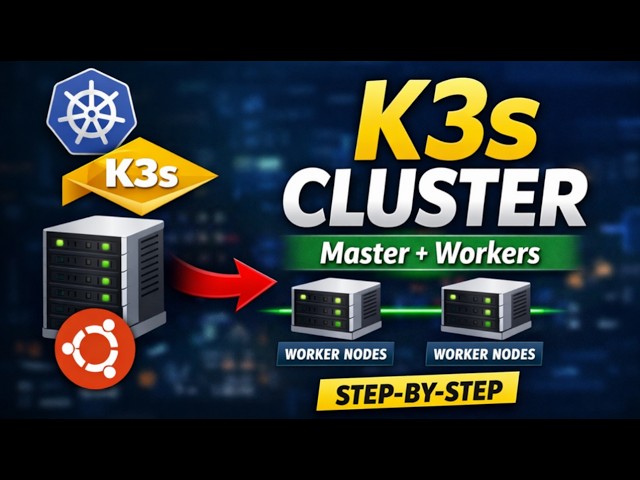
If you want to run Kubernetes in a lightweight environment such as home labs, edge computing, IoT environments, or small cloud setups, then K3s is one of the best Kubernetes distributions available today.
🧰 Prerequisites
Before installing the K3s cluster, ensure the following:
✔ Two Ubuntu systems
k3s-master (Master Node) – 192.168.1.137
k3s-worker1 (Worker Node) – 192.168.1.138
✔ Supported OS: Ubuntu 24.04 / Ubuntu 26.04
✔ Minimum Requirements
2 CPU cores
2 GB RAM
20 GB Disk
✔ Sudo Access
✔ Network Connectivity (ping between nodes)
✔ Disable Swap:
sudo swapoff -a
Show More Show Less View Video Transcript
0:00
Hello everyone, welcome back to the
0:01
channel. In today's tutorial, we are
0:03
going to learn how to install a
0:05
multi-node K3S Kubernetes cluster on
0:08
Ubuntu 26.04
0:10
or Ubuntu 24.04 stepby step. If you want
0:14
to run a Kubernetes in a lightweight
0:16
environment such as home labs as
0:18
computing, IoT environments or small
0:21
cloud setups, then K3S is one of the
0:24
best Kubernetes distributions available
0:26
today. What is K3S? K3S is a lightweight
0:30
fully compliant Kubernetes distribution
0:32
developed by Rancher. It is designed to
0:34
make Kubernetes simple, lightweight,
0:36
easy to install. Unlike traditional
0:38
Kubernetes clusters that require
0:41
multiple components, he have resource
0:43
usage, K3S removes unnecessary
0:45
components, package everything into a
0:47
single lightweight binary. Because of
0:49
this design, K3S uses less memory,
0:52
installs in couple of minutes, require
0:55
minimal configurations, and is perfect
0:57
for as computing, IoT, labs, and
1:00
development environments. Even though it
1:02
is lightweight, K3S is still a fully
1:05
certified Kubernetes distribution,
1:07
meaning it behaves just like standard
1:09
Kubernetes.
1:11
Before installing K3S cluster, ensure
1:13
following requirements are met. We need
1:16
minimum two systems. One would work as
1:19
K3S worker. Another would work as K3S
1:22
master. We need two CPU cores, 2 GB RAM
1:26
and 20 GB free disk space on these
1:28
systems. In addition to this, we need
1:31
root or pseudo privileges on all the
1:33
nodes and these nodes must communicate
1:36
with each other. So without wasting
1:38
time, let's get started. First step is
1:41
to disable swap on all the nodes. For
1:44
that we will be running swap off command
1:46
and we will comment out this swap entry
1:48
from the f file using the set command so
1:51
that swap is permanently off on all the
1:54
nodes.
2:12
Next, set the host name on these systems
2:15
using the host name MCTL command. For
2:17
our master node, host name would be K3S
2:20
master and for worker, it would be K3S
2:22
worker.
2:45
Next, add the host name and IP details
2:48
in the host file of the systems. Let's
2:51
get the IP address of your master node.
2:54
Run the command IP space a space s. Now
2:57
edit the file
2:59
using vi
3:02
etc host. Add a new entry.
3:19
Save and close the file. Add the same
3:21
entry on the worker system.
3:30
Next step is to install K3S on the
3:32
master node. Head back to the master
3:34
node and run this command.
3:44
This command will automatically install
3:45
Kubernetes components, container D
3:47
runtime, networking plugins and K3S
3:50
services.
3:51
Once the installation completes, we can
3:53
verify the node status using the cubectl
3:56
space get nodes.
4:03
All right, the command confirms that
4:05
control plane or the master node is in
4:07
ready state. Name of that node is K3S
4:10
master and this is the Kubernetes
4:12
version currently installed on this
4:14
master node. Next step is to get the
4:17
cluster token. We need the node token to
4:20
join the worker nodes to the cluster.
4:22
For that we can run this command to get
4:25
the token.
4:32
All right. Now move to the worker node
4:34
where we will install this K3 agent.
4:39
Run this command.
4:45
In this command, you need to replace
4:47
this master IP with the actual IP
4:50
address of your master node or you can
4:52
specify the host name of your master
4:55
node
5:01
and whatever the token you have
5:03
generated using this command. Copy this
5:06
token from the master node
5:11
and paste it here.
5:17
Hit enter.
5:27
All right. This output confirms that K3S
5:30
agent is configured successfully on this
5:32
worker node which means this worker node
5:35
has joined the Kubernetes cluster. We
5:37
can verify it. Head back to the master
5:40
node and rerun this cubectl get nodes
5:44
command. Perfect. The output shows that
5:47
we have one master node and one worker
5:50
node. Both are in ready state. This
5:52
confirms that installation part is
5:54
completed. Now verify this multi-node
5:57
cluster setup. How we can verify that?
5:59
We will try to spin up a enginex based
6:02
deployment. We will expose that
6:03
deployment using the type node port and
6:06
we'll try to access that application on
6:08
the master node. Run the command.
6:19
This command will create a deployment.
6:22
Deployment name would be engine x and
6:25
for that deployment image is engine x.
6:29
Use sudo in front of cubectl.
6:37
It will take a couple of seconds to
6:39
download this engineext image and we'll
6:41
start this deployment and its ports.
6:44
Meanwhile, let's expose this deployment
6:46
using expose command.
6:59
Deployment is up. Let's verify the port
7:01
status as well.
7:06
Port is also up and running. Let's
7:08
verify the status of service.
7:15
All right. This is our engineext
7:17
deployment which is exported using the
7:19
type node port and this is the node port
7:22
on which we will try to access our
7:24
application from the outside of this
7:26
cluster.
7:32
This is my worker node IP and this is
7:34
the node port for my engineext
7:37
deployment. Hit enter. We should see the
7:40
engineext default homepage. All right.
7:42
This confirms that we are able to access
7:44
our application outside of our
7:46
Kubernetes using the node port. Let's
7:49
say you want to add one more worker node
7:51
to this Kubernetes cluster. You need to
7:53
run the same command on the new worker
7:56
node which you want to add it to the
7:57
Kubernetes cluster. Then that worker
7:59
node will be automatically added to our
8:01
Kubernetes cluster and you will see the
8:03
new node has been added when you run the
8:05
command cubectl get nodes. That's all
8:07
from this video tutorial. If you found
8:09
this video helpful, make sure like the
8:12
video, comment if you have any
8:14
questions, subscribe to the channel for
8:16
more Linux, Kubernetes, DevOps and cloud
8:18
tutorials. Thanks for watching. I will
8:20
see you in the next video. Bye.
#Computers & Electronics
#Networking
#Science