Up next in 10

DO This NOW To GROW Your PINTEREST ACCOUNT (MORE Impressions & Outbound Clicks)
Jun 22, 2025
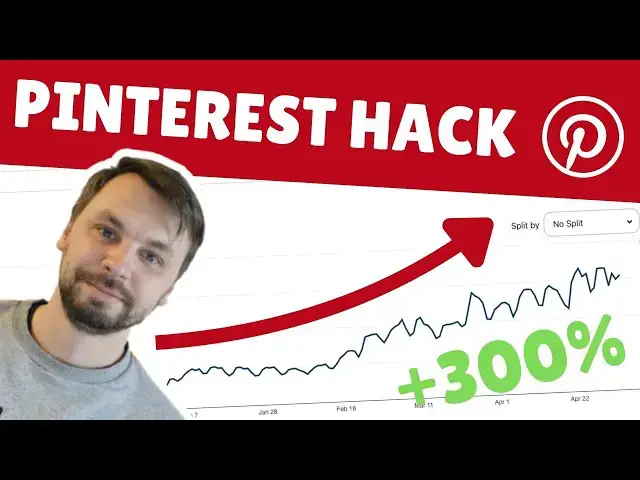
In this video, I’ll show you how I used Make.com automation to grow my Pinterest account by over 300% by automatically deleting pins that aren’t getting impressions. This simple but powerful strategy has massively increased both my impressions and outbound clicks, helping me scale my Pinterest traffic efficiently.
By the end of the video, you’ll understand exactly how to set up this automation and apply it to your own Pinterest account for better performance and growth.
🔥 What You’ll Learn:
✔️ How to automatically delete underperforming pins.
✔️ Why cleaning up low-performing pins can boost your impressions.
✔️ The exact automation scenario that helped me triple my Pinterest outbound clicks.
✔️ Tips for optimizing your Pinterest growth strategy with automation.
📌 Whether you’re managing a personal brand, blog, or eCommerce Pinterest account, this automation will save you time and help you achieve consistent growth!
Links (I may earn a commission if you sign up using these):
🔗 Sign Up with MAKE - https://www.make.com/en/register?pc=jsautomates
🖼 Generate Midjourney Images for as low as $0.001 - https://app.all-images.ai/en/home?_by=jsautomates
📢 Automate social media post generation with PLACID - https://placid.app?ref=nznmmdc
💡 Need help with Make.com automation? I offer personalized coaching and workflow consulting to help you set up the perfect automation for your needs!
Show More Show Less View Video Transcript
0:00
hello everyone and in today's video I'm
0:02
going to show you how I was able to get
0:04
off this flat spot of approximately 40k
0:08
30k impressions per day up to 147k
0:13
impressions on my Pinterest account
0:16
using a simple make.com automation
0:19
that's going to delete underperforming
0:21
pins from my account basically I've
0:24
created an automation that checks if a
0:26
Pinterest pin has received less than 10
0:30
impressions in the last 90 days and also
0:33
it's going to check if the pin is older
0:37
than 90 days if both conditions are met
0:40
we're going to delete this pin from our
0:43
account so that our account can grow
0:46
like you see in this chart from my own
0:50
account i have applied this to multiple
0:52
accounts i I have seen the same type of
0:55
growth so I really recommend you to
0:58
follow this video i will have the
1:00
automations in the description but make
1:02
sure you watch the video so you know how
1:04
you can set it up and also at the end of
1:07
the video I'm going to show you a simple
1:10
uh automation to delete the boards which
1:13
will have zero pins because if you run
1:15
this automation probably you will have
1:17
some boards that will have none of the
1:20
pins inside them so you want to delete
1:22
them as well to make sure your Pinterest
1:26
account is growing it's getting a lot of
1:29
um impressions it's getting uh outbound
1:33
clicks and etc so this is the first
1:36
scenario basically what happens here we
1:39
are making an API call to Pinterest to
1:42
get the list of our pins pinterest API
1:47
returns you 250 of your pins with one
1:51
request but it also includes this
1:54
bookmark code that allows you to make
1:58
another API call for the next 250 pins
2:02
so we're going to use this one in our
2:05
scenarios as well so as I mentioned this
2:08
one makes an API call to Pinterest to
2:11
get all your pins and then we have a
2:14
router first the first route uh goes to
2:18
iterator that iterates to all these 250
2:23
items returned by
2:25
Pinterest and passes them to a filter
2:28
this filter what it does it checks if
2:32
the pin has less than 10 impressions in
2:36
the last 90 days and it also checks if
2:40
the pin uh is created later than 90 days
2:43
from now if these conditions are met
2:46
then we are deleting this pin from our
2:48
account because we don't want
2:50
underperforming pins on our account
2:53
because underperforming pins drags your
2:56
account down and if you delete them your
2:58
account will grow and you will see more
3:00
impressions more outbound clicks etc
3:04
uh on the second route of the router we
3:07
are passing this bookmark value
3:10
uh to another scenario that basically is
3:14
the same and this one once this one runs
3:18
first time you can forget about it
3:20
because the second scenario will run on
3:22
loop all the time until it goes through
3:24
all your uh pins um checks them and if
3:29
they met the conditions this um scenario
3:33
will delete them so here is a web hook
3:36
on the second scenario we basically we
3:39
copy this um URL and paste it here
3:45
uh in HTTP uh URL that we are
3:49
requesting we are sending a post and we
3:52
are sending the bookmark so and
3:55
basically the same is here the same uh
3:59
URL is here and it just loops this
4:02
scenario until there is no bookmark
4:05
value in Pinterest API response so let's
4:09
just run this one quickly so I so I can
4:12
show you how it works and explain you
4:15
some um some important things that you
4:19
need to know so let's click run once uh
4:22
it's going to get the first 250 pins
4:24
from your Pinterest account uh none of
4:29
these first 250 pass the filter yes I
4:33
have a pin here with less than 10 views
4:36
10 uh impressions but it's created on
4:40
4th of March so that's not 90 days later
4:45
than from now so it didn't pass the
4:47
filter but it sent the bookmark to our
4:50
second scenario which should be uh
4:54
actually uh running now as you can see
4:58
it's running now on loop um it's getting
5:02
again the next uh 250 the next and so on
5:06
so on so on at one point uh as as you
5:10
can see here we have hit some pins that
5:12
are underperforming so we are deleting
5:14
them and I'm going to show you uh
5:16
because now we should soon hit a
5:20
Pinterest rate limit but you don't have
5:23
to worry about it because make.com will
5:26
pause the scenario for 20
5:29
minutes and it's going to just resume
5:33
from where it left just keep it on keep
5:35
this second scenario on and let it run
5:38
until uh all your pins will be cleaned
5:42
and I recommend you to run this um every
5:46
month to see growth like you you see
5:50
here on my Pinterest account i didn't
5:54
like this flat spot that I hit so I was
5:56
looking for uh solutions how to um
6:01
increase the impressions so I found that
6:04
this works pretty good and also I didn't
6:07
change any other strategies my posting
6:09
times etc etc i just started to run this
6:13
automation so as you can see we hit the
6:17
rate
6:18
limit you have exceeded your rate limit
6:21
try again later and what happens now
6:24
make.com just uh pause the scenario for
6:27
20 minutes and it's going to
6:29
automatically continue running after 20
6:31
minutes until again it hits the rate
6:35
limit or until it goes through all your
6:38
pins in your account
6:41
so I'm going to quickly show you how you
6:43
can build this yourself i'm going to
6:46
have these two scenarios in the
6:48
description plus I'm going to show you
6:51
another scenario with which you will be
6:53
able to delete boards that have zero
6:55
pins inside them so we're going to go to
6:59
our scenarios we're going to create a
7:01
new scenario and this will be scenario
7:04
one for Pinterest um pin deletion
7:09
um just delete
7:17
this okay and we are starting with a
7:21
Pinterest
7:24
module pinterest module um make an API
7:29
call i'm going to just unlink
7:33
this move the timer here and delete this
7:38
one so if you go to Pinterest developers
7:41
what we need to do is we need to get um
7:44
all the pins from our account and to do
7:48
this we're going to just use uh list
7:52
pins with get
7:55
method
7:56
and we're just going to copy this
8:00
address go to our uh make.com new
8:04
scenario and uh we just you need to
8:07
create a connection to your Pinterest
8:09
account so I'm going to use this one i
8:12
don't know if I have something in there
8:14
or no so basically we paste what we
8:17
copied here in here and just delete the
8:20
Pinterest domain name because we need
8:23
only this V5 pins and we're going to use
8:26
method
8:28
get and that's it we just click save and
8:32
we click run once
8:36
and yeah we get the items from our
8:39
account so which one account okay so
8:42
this is the account so okay so we got
8:45
250 items no 25 items because um we need
8:50
to set up
8:53
um um we need to add cury strings so we
8:57
get the maximum amount of
9:00
uh pins that's 250 so we're going to
9:03
click on page size copy
9:06
um go to the scenario key is page size
9:10
value is
9:12
250 and we're going to click save and
9:15
we're going to click and we also need
9:17
one more thing we need pin metrics so we
9:21
get all the data from
9:25
uh from our pins like when it when it
9:28
was published uh how many impressions it
9:30
got all time last 90 days you can get
9:33
all this information in your make.com
9:36
account so you can work with this
9:37
information in your future um
9:40
automations so we're going to copy
9:41
pinmetrics
9:43
i'm going to again go here query swing
9:47
string add item paste pinmet matrix and
9:51
set this to true save and now because
9:55
last time we didn't have these pin
9:57
metrics uh we didn't we didn't get that
10:01
uh information like when uh like how
10:04
many impressions this pin gets we get
10:08
only the date when it's created
10:09
description and etc etc so we're going
10:13
to run it once again this time we should
10:16
get
10:17
um we we got 64 U because probably this
10:22
account has 64 pins only let's choose
10:26
another account that has more um we're
10:30
going to use the same get method um page
10:34
size is 250 so it returns us 250
10:38
uh pins uh and we're going to get the
10:41
pin matrix if we set this pin matrix to
10:44
true so let's run this one
10:47
once and this should return us 250
10:53
um items because this account does have
10:56
more than it has around 9k pins so it
11:00
gives us 250 pins with pinmetrics
11:07
uh when it's when it was published uh
11:10
the date as well so this is 29th of
11:15
April okay and also it gives us this
11:18
bookmark
11:20
value so after we have this we're going
11:23
to need a
11:25
rotor we're going to add a rotor and
11:28
then we have two routes so the first one
11:31
goes to iterator that's going to iterate
11:34
through all 250 pins that we receive
11:38
from API response so to get the iterator
11:41
we click flow control
11:44
iterator and add it here just delete
11:48
this
11:48
one and after iterator we need to select
11:53
uh sorry in the iterator we need to
11:55
select array to work with and it's going
11:58
to be the items array which contains all
12:01
our 250
12:03
um pins so we're going to click save and
12:06
then after iterator we're just going to
12:09
add a Pinterest module it's going to
12:10
delete the pin that's underperforming so
12:15
uh click here make sure you have the
12:17
same account as
12:19
here
12:21
um for some reasons it's taking some
12:24
time to load
12:26
do let's delete this one and add again
12:30
delete pin the pin we need pin ID so we
12:34
get the pin ID from our iterator module
12:38
and this is this ID we click save and
12:42
before we move any uh further we need to
12:45
set up a filter so we're going to have a
12:48
condition so uh here the condition is
12:53
[Music]
12:55
Um pinmetrics 90 days uh impressions so
13:00
the in the last 90 days we want we want
13:04
to target pins that have uh less than 10
13:07
impressions in the last 90 days so we're
13:10
going to choose this one and then we're
13:13
going to choose numeric operations less
13:16
than
13:17
10 and we need another rule it's we're
13:21
going to click on add hand and rule and
13:24
this one's going to check if the pin is
13:28
posted more than 90 days from now so uh
13:33
we need to check uh to select the
13:37
created at date and we're going to go
13:41
to time operations
13:46
sorry date date time
13:48
operations earlier than
13:51
um and we're going to select here we
13:55
have a like calendar icon we're going to
13:58
select that and we're going to select
14:00
add days and the first value is now and
14:06
then we're going to set minus
14:09
90 and that means from now on minus 90
14:13
days if it pass this uh value then the
14:17
pin is deleted okay save and at the
14:21
bottom we just add an HTTP module and
14:26
make a basic
14:28
uh make a request yeah I'm going to
14:31
delete this gray one
14:33
here and what we want to do here is we
14:37
want
14:40
to add
14:42
URL for so we can add URL we need to
14:46
create another
14:50
scenario create new scenario and this
14:55
will be very quickly so we will just add
14:59
one module here uh this module will be
15:03
web
15:03
hook and custom web hook we're going to
15:07
click on add and we're going to name
15:10
this um JS Automates uh
15:16
Pinterest
15:18
hack okay and now we get a URL this
15:21
we're going to copy this URL go back to
15:24
our new scenario and paste the URL here
15:27
in the HTTP module and we're going to
15:31
change the method to post because we are
15:33
sending the bookmark uh value to this
15:37
web hook so we're going to post and
15:41
we're going to change the body type to
15:43
raw content type to JSON and then we're
15:46
just going to type uh like this
15:52
uh
15:57
bookmark
15:58
and add here and for some reason
16:02
sometimes it doesn't work um and I just
16:06
use this replace emoji characters
16:10
because sometimes uh for some reason uh
16:14
the value of the bookmark is lost in the
16:17
way um while it's being sent to the web
16:21
hook uh module um this way it always
16:25
works i don't know why so we're going to
16:28
check the bookmark here from this
16:31
Pinterest API call module and here we're
16:34
just going to add an
16:37
um uh empty string value so click save
16:42
and let's just test this out let's uh
16:46
come
16:46
here uh click run once so as you can see
16:51
it's waiting for an input to the URL of
16:54
the web hook so we're going to click run
16:56
this module only and we're going to type
16:58
in here some random value and
17:03
uh what's wrong oh I forgot to cur curly
17:07
add curly bracket here at the end okay
17:10
and let's run this once and again random
17:13
value as you can see code
17:17
200 and why it's not receiving use
17:21
existing data yeah here it is so this
17:25
works fine and what we're going to do
17:27
now is we're going to click on shift and
17:30
select all these modules and click copy
17:35
and come here to our second scenario and
17:38
paste it here and just connect this web
17:43
hook module to our Pinterest module that
17:47
we copied just now what we need to do
17:50
here is we're going to click on
17:52
here add another query string and it's
17:55
going to be
17:57
um just so it all correct
18:01
so let's go here to
18:07
pagionation and we need to have this
18:09
bookmark uh query
18:15
string key and the value of this key
18:19
will be the response from our web
18:23
hook i'm going to click save
18:27
and save switch this
18:30
on
18:33
uh save and let's run this scenario to
18:37
see if it works oh yeah all is good
18:43
so it's getting now 250 items um yeah I
18:48
stopped it so let's rerun it again it's
18:51
getting 250 items from from Pinterest
18:55
um none of these pass the deletion
18:59
filter but it send the HTTP request to
19:02
this one and let's see if it's running
19:06
and yeah as you can see it's running on
19:08
the loop i've already cleared this
19:10
account so none of these pins will match
19:14
uh the deletion
19:16
um
19:18
thing i will now stop this let's return
19:22
to our
19:24
um scenario two that we at the beginning
19:27
of the video we we we pushed to run as
19:31
you can see
19:33
it's it's on um still waiting for the 20
19:38
minutes to pass so we're going to click
19:40
run once use existing data and it will
19:44
continue to run wherever it left off
19:49
so uh I'm going to show you one more uh
19:53
quick scenario that it's very useful
19:55
after this two this these both scenarios
20:00
are finished to
20:02
run uh we need a Pinterest module to
20:06
um list
20:09
boards um and uh let's do this one we're
20:13
going to set to limit to 10,000 i don't
20:16
know how many boards you have uh for one
20:19
account I had like 400 boards or
20:21
something but I usually put the limit
20:24
way up higher so we're going to list
20:27
boards this is going to return us all
20:30
the boards that we have on our Pinterest
20:32
account as you can see this one has 68
20:36
and then we just going to have an array
20:39
aggregator that's going to aggregate all
20:42
the boards in like
20:45
um one array uh that we can push into
20:50
iterator to delete the the boards that
20:53
have zero pins in them so what we need
20:56
to map out from this list boards uh
20:59
response is uh pin count and ID uh after
21:05
that we're going to add iterator module
21:08
we're going to choose the array from our
21:11
array aggregator
21:12
module and at the end we just going to
21:15
add delete
21:18
uh board module
21:23
uh we're going to add filter after
21:28
iterator that pin count
21:31
uh numeric
21:33
value is equal to
21:36
zero save and just make sure you have
21:41
the same Pinterest count for both of
21:44
your
21:47
modules uh here we select board from
21:50
iterator module its
21:53
ID here is the same account so let's run
21:56
this once i don't think there are going
21:59
to be any modules uh yeah uh sorry any
22:02
boards that have zero pins in this
22:05
account as you can see none of these
22:07
passed
22:08
uh passed to the filter that we set i'm
22:12
going to have this uh scenario also in
22:15
the description uh this is all for this
22:17
video so if you enjoyed it if you like
22:19
it please uh subscribe to the channel i
22:22
will have more videos like this for tips
22:24
how you can automate processes you can
22:27
also contact me my details are in the
22:30
description if you want custom
22:32
automations etc i will be happy to help
22:35
you if you have any questions about how
22:38
these automations work just leave a
22:40
comment i will try to get back to you i
22:42
hope you have a wonderful day i hope
22:44
your Pinterest channel grows uh you get
22:48
uh more impressions using this strategy
22:50
you get more uh outbound clicks to your
22:53
website thus you get more revenue um I
22:57
see I will see you in the next video
22:59
thank you for watching bye-bye
#Business & Industrial