Up next in 10


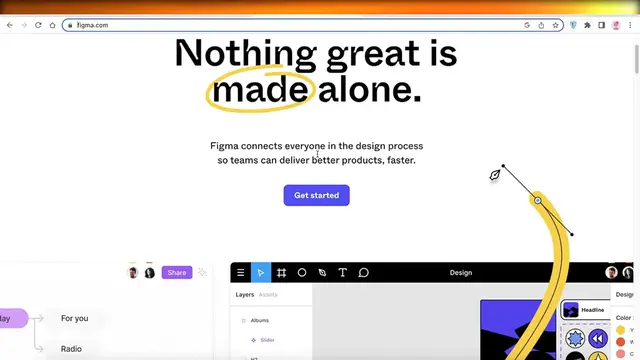
Transform your Figma designs into a fully functional website with this comprehensive tutorial. In this step-by-step guide, learn essential techniques to seamlessly transition from Figma to web development, ensuring your design vision becomes a reality online. Whether you're a web designer, developer, or someone exploring the intersection of design and development, this video provides clear instructions on turning Figma designs into a live website. Watch now and empower yourself with the knowledge to bridge the gap between design and development, bringing your Figma creations to life on the web.
Show More Show Less View Video Transcript
0:00
how to turn a figma design into a website
0:05
Hey guys, welcome back. Today we'll be taking a quick look at how you can get started with turning a figma design
0:13
into a actual website. So let's get into it. Now, figma is a amazing tool that can enable you
0:21
to create amazing websites, because a lot of people don't realize figma is super customizable
0:28
So first off, you want to just log on, create a free figma account
0:33
I have my account created for free. This is just a basic little frame I have over here
0:38
You can create as many frames as you want, just like that. You can just create this frame over here
0:43
You can create, you know, multiple different frames, but let's say I remove everything else
0:48
I can cut everything else from over here, and I just have my singular frame
0:53
I can design it however I want, because this is such a customizable tool
0:58
I can really bring whatever I want to life. So for example, let's say within this frame
1:03
I want to build something or, you know, create something like this
1:08
I can input text over here. So let's say I want to fill this up with a different color
1:17
or, you know, whatever you want to do. That's totally up to you
1:20
But once you have, you know, whatever you're designing, once you have the basic idea in mind
1:26
you can actually convert it into a website. Now, a lot of people don't know this
1:31
but to do it is very simple. All you have to do is click on the top over here
1:37
where it has your resources. This is going to open up the plugins
1:41
and in your plugins, you just want to search for Framer. So you're going to search for Framer
1:48
and it's Figma to HTML with Framer. You're just going to click on that, click on Run
1:54
and then you will just select your layer to copy. So whatever layer you want, you can just select that to copy
2:01
So now that I have just copied this on from my Figma to Framer
2:07
I'm just going to head on over to framer.com. You can log in to your account if you have one already
2:13
If you don't have one, you can create your account for free. It's absolutely free to create an account
2:18
And once you create your account on Framer, you guys can see this is like my Framer section
2:25
I can actually just copy. So you're just going to go on to Figma, click on Run
2:29
select the layer that you want to copy. You can just click on over here and click on Copy
2:36
You can go on to Framer and you can just click on Paste, and it would, you know, paste everything as it is
2:43
So obviously this is a empty design on Figma. Let's add something so it's a bit easier
2:49
for you guys to see. Add this star over here, this. And then we have the color of the star like this
2:58
And then I can just go on like this, go into my plugins, copy to clipboard
3:04
and then I can go on to paste. And you guys can see just like that from Figma
3:09
my entire frame has been copied. Now I can set it to the size that I want
3:16
You guys can see this is a desktop frame. I can click on Add Breakpoint and add a tablet version
3:22
And obviously on the tablet version, I would want this to be slightly different
3:26
It's going to be aligned like this. Then on the phone version, I would align it differently
3:31
So I would copy it like so, or you can even move individual elements
3:36
if you wish to do that. But I would just copy it like this
3:40
have everything added like so. And then you can choose the overall aspect ratio you want
3:47
You guys can see in this way, you can really add whatever you want
3:51
into your Figma designs. Obviously, this is just a basic design. You want to do this with website designs
3:58
For example, you can go on to Figma over here. Let's go back into our libraries
4:04
And if we take a look over here, we have this empty design for a website
4:11
So we have our little website wide frame, whatever it might be
4:15
So what I would do is I would just copy this, click on plugins, run last plugin
4:21
copy to clipboard, go on to framework, click on plus, add a new page
4:27
And I would just click on paste. And then I could add my new page
4:32
Obviously, I have created too many pages over here. I'm just going to delete some of those
4:37
But in this way, you can really copy any page and click on paste over here
4:42
to copy your little Figma design. Obviously, I haven't added the plugin in this one
4:47
So that is why I might be having some issues with that. But you guys can see, you can pretty much do this
4:54
with any kind of design on Figma. For example, if I go back onto my dashboard over here
5:01
on Framer, and Framer is a great way for you to really actualize your website designs
5:08
If you only have a design, you can create actionable buttons. For example, you guys can see
5:13
this is like my desktop version. I'm going to zoom in a little into the desktop version
5:17
But if I go onto the desktop version over here, you guys can see this is what the frame
5:22
is going to look like. I can click on my layout. I can add rows, columns, grid within my desktop version
5:29
that are super customizable. I can also insert sections, navigation panels, pages
5:36
collection, field contents, media, forms, interactive elements into my Figma design directly from Framer
5:43
So if you want to add a button, all you have to do is click on Insert
5:47
You can click on Insert Navigation, and then you can just add whatever you want
5:53
So we are adding this navigation, and we can add this navigation wherever we want
5:58
So let's say I want it right below my top section. You can add that
6:01
If you want to add something like a button, you can add Utility
6:05
and then you have your multiple different buttons, patterns, so on and so forth
6:09
We have this little button over here. So you guys can see I've added this button
6:13
and I can just click on it like so, and I can add absolute button position like so
6:21
Obviously, you're going to customize this however you want, but it's super easy to do
6:26
and once you have completed the design however you want on desktop
6:30
on your tablet version, on your mobile version, you can just click on Publish on the top right over here
6:36
and once you do that, just like that, your project will be published with a specific little URL
6:42
and you can connect your own domain name to make it into your own very amazing
6:48
and usable and effective website that can be really made out of anything
6:53
because Figma is going to really give you the creative liberty, while Framework is going to give you
6:58
the actualization of your designs from Figma to your real and working website
7:04
So that was it for today. I hope you guys found this video helpful
7:08
and you are now able to follow along with these methods and techniques
7:12
that I showed in this video, and if you enjoyed this video
7:16
I would recommend that you please leave a like, and if you have any questions regarding this video
7:22
regarding any other video, or regarding any social platform, then you can definitely ask me in the comments down below
7:28
and make sure to subscribe to our YouTube channel and check out other videos
7:32
and if you feel like some other video might be helpful to someone else
7:36
make sure to share our videos with your friends and family as well
7:40
and if you find that there is something missing, I will try to figure out a way
7:46
to integrate more accurate content according to your needs onto the channel
7:51
so make sure to tell me if you find anything missing. So that was it for today
7:56
Make sure to leave a like and subscribe to the YouTube channel, and I will catch you guys in the next video
Fun & Trivia
Flash-Based Entertainment
Web Services
Online Goodies
Clip Art & Animated GIFs
Skins, Themes & Wallpapers
Virtual Worlds