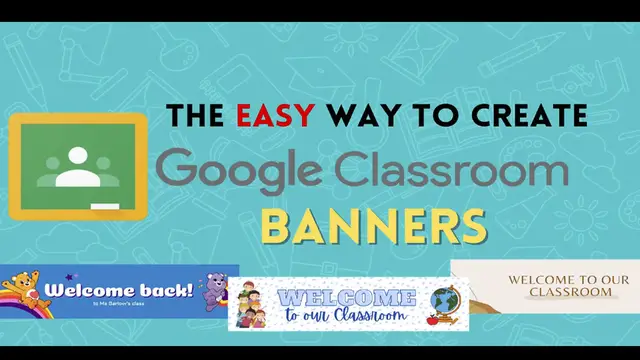
0:00
If you're looking for an easy way to customize Google Classroom backgrounds, then you're
0:04
in the right place. Here's how you do it. You want to start by going to canva.com slash education and signing up for a free educator account
0:15
Once your account has been created, search for Google Classroom header
0:26
You'll notice hundreds of different templates that you can use and customize
0:31
Find a template that you like. Double click to edit the text
0:45
And if you'd like, you can even customize certain parts such as the background color
0:52
the font type, and font size. You can even add some media located inside the element section
1:01
Once you're done, click download and download the image
1:12
We're all set. So now let's open Google Classroom and we're going to change the theme by clicking upload photo
1:21
After you adjust the size of this photo, you should be all set
1:25
There we go. Now our banner is created. You'll notice that it is a little dark
1:32
That's a setting that is set in Google Classroom. Anytime you upload your own banner, it's an accessibility issue so that everyone can see
1:41
the title of the class and the class code as well. So you can't really change that, but you can design and customize your banner using some
1:49
of the great features available in Canva. Thanks for watching and if you like this video, please subscribe