Up next in 10


Learn how to make a mesh gradient in Figma with this detailed tutorial. This video walks you through the process step-by-step, from selecting colors and creating gradients to manipulating nodes for a seamless mesh effect. Ideal for designers of all skill levels, you'll gain valuable tips and techniques to enhance your projects with visually striking and dynamic mesh gradients.
Show More Show Less View Video Transcript
0:00
How to make a mesh gradient in Figma
0:02
Hey guys, welcome back to the YouTube channel. Today we will be going over how you can quickly create a mesh gradient using Figma
0:11
Because mesh gradient have become pretty much a standard background or a standard in
0:17
illustration nowadays and any kind of vector illustration or backgrounding that you do
0:22
Having a gradient is pretty much the norm now and they look very nice, they're very simplistic
0:27
and they are relatively easy to create. So this is a beginner friendly tutorial if you are not used to working with Figma don't
0:35
worry this is going to be very simplified and you can easily follow step by step
0:40
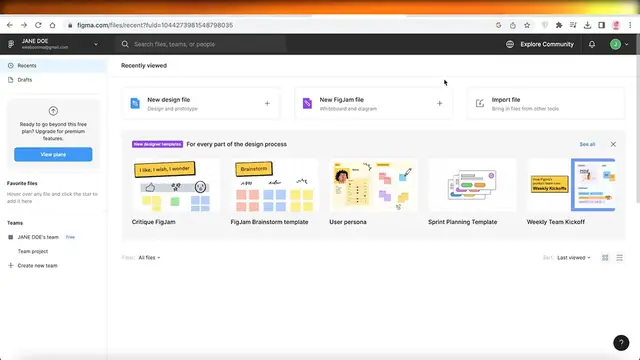
So without wasting any more time let's get into it. Now I have logged on to my Figma account and I will simply click on
0:47
new design file on the top left over here. Once I have opened up a new design file I can name it on the top
0:54
So I'm just naming this as a mesh gradient and then after that I'm going to create my frame
1:00
So whenever you're working in Figma the first thing you want to do is click on the top left
1:04
over here and you can see your frame and you're just going to create a frame
1:09
You can choose whatever frame size you want you know if you're doing this for iPhone backgrounds
1:14
whatever you want to build. When you click on frame you actually get multiple different uh you know frames that you can
1:19
work with. So desktop frames let's say I want to build a background for my MacBook Air I can click
1:25
on that and it's going to give me the exact dimensions for a MacBook Air
1:29
So after I have created my frame this is the first step
1:33
You're going to start creating shapes that you want to base your gradient on because
1:37
gradients don't have to be simple one colored gradients they can be of multiple different
1:41
items meshed in together and that is what I mean when I refer to a mesh gradient
1:46
So if I create a rectangle over here and I create a circular shape over here like so
1:55
I'm going to place this place this over here then I can even go into the line tool and
2:01
take the pen over here I'm just going to use the pen tool or the pencil tool
2:09
Now I'm just building a very random shape like so and I'm just joining it like this
2:15
and once I have my shape ready once I've created this I'm just going to click on done
2:20
and I can actually fill this out so if I click on this I can see on the right side over here
2:25
I have pass through normal the layer saturation the pen stroke and then I can click on fill
2:32
and I can fill it to my color of choosing then I can even you know remove any of this
2:37
or delete this however you want to build your little structure. I'm going to change it up a little because I don't like this shape
2:45
I'm just going to go on ahead and cut it out for now so we're going to move it like so
2:52
even resize it a little like so and then I'm just going to fill it in and I'm just going to make it
3:00
like a darker shade of gray so it's easier for me to denote everything and your frame actually
3:05
allows you to cut through you know the sections you don't want to appear so in this way I'm just
3:10
going to build another little shape like so after that I'm going to fill it out just with a
3:17
shade of gray just so I'm easily able to denote everything and for now I'm just going to set these
3:25
out I'm just going to place everything like so just to make it easier for me to later on denote
3:32
everything I just like to go with different colors of gray because later on you're going
3:37
to change the colors anyway to you know the actual gradient that you want to pursue now I'm just going
3:42
to add a couple of more shapes just to fill out you know my background how I want it to appear
3:47
so I'm just going to go into the eclipse add one over the top like so and then we're going to add
3:54
a couple of more I've just duplicated this I'm going to resize it like so now once I have set
4:02
up my design so once you know your design has been completed you're certain with the way that
4:08
it is going to appear you're just going to move on to your second step and the second step is actually
4:14
to begin coloring it so you can select any of your items and begin adding the colors that you want
4:20
you're going to choose your color scheme so let's say I want to do a color scheme that is green and
4:25
pink so I'm just going to select you know the colors that I want I will just select each individual
4:31
item and you know add the colors you can do this randomly or you can build your color scheme in
4:37
accordance to you know pre-existing colors that you might have so I'm just going to build my color
4:43
scheme I'm doing a very basic radiant so now I've just added all my shapes and I've colored all of
4:50
my shapes to you know the color scheme that I want to follow it's greens and pinks and now that I have
4:56
completed that I want to begin creating my mesh blur so to do that all I have to do is I'm going
5:03
to select all of these items like so you are just going to select all of your items once you have
5:09
done that you can see on the right side of your screen you're going to scroll down once you scroll
5:14
down you find your effect in your effect you see drop shadow but you're going to select that and
5:19
click on layer blur then you're going to adjust the value so I'm going to increase the value
5:25
so this is a little too much and I'm going to set it to 20 and I just uh you know changed up the
5:33
opacity as well so you guys can choose however you want to build it but uh what I'm going to do
5:39
is I'm just going to go on ahead and change back our original opacity as well so just changing up
5:49
the values what I'm going to do is this time I'm going to actually take my frame and I'm just going
5:56
to do a command z just to show you guys once more so this time instead of selecting my entire frame
6:02
from here I'm going to select all the elements within the frame so you can select all these
6:06
elements without you know selecting everything else so we have our little frame and we can just
6:13
select the entire frame like so if you want to do that if you want you know blurred edges you can
6:18
totally choose that or you can just choose uh all of the individual items by clicking on shift and
6:24
then selecting each individual one so let's say we have all of these and after that you're just
6:31
going to scroll down click on layer blur and you're going to add the value of your blur and just like
6:36
that you have your mesh gradient obviously the higher the value the better the blur looks if you
6:41
add a hundred value it usually looks pretty amazing as well and then you have your cut through so you
6:47
have your layout how you want everything to be laid out and you can totally adjust that however
6:52
you want but moving on the next thing you have to do is to clip content so we want to clip content
6:58
outside of frame that is what I want to do then you have your auto layout however you want your
7:03
item to be layout and then you have your grid as well if you want a grid if that is up to you now
7:09
after that what I actually recommend is creating more of a depth within your item so once you have
7:15
your mesh blur ready you want to create more depth and depth can be created in a very simple
7:21
manner simply by creating a simple new element so you can go into your little eclipse and let's say
7:28
I want to bring like a little bit of a shine in the screen so in this section I can create a little
7:33
eclipse and I can fill it out with a white color like so and then this just looks like gives a
7:41
shine it gives texture and it's very essential to add something with shine and texture just to make
7:47
it look a little better if you select all of your items and scroll down you have your effect you can
7:53
add another effect and you can click on in a shadow and you can also add some more shadows
7:58
like so and you can choose how you want the effect color to appear so you have you know a bordered
8:04
effect if you want to add those then you also have some other basic effects like your background
8:09
blurs and drop shadows as well that's totally up to you and after that you can actually go ahead
8:16
and see your prototype and you can you know build flows and interactions but once you have everything
8:21
ready you're just going to you know select all of your items you're good with it you're just
8:27
going to go ahead and you can export it now so to export it all you have to do is go into your
8:33
design click on export and export this as a png you also have a preview that you get of how the
8:39
export will look and you can even click on share over here to share a basic link that other people
8:45
can view as well I hope you guys found this video helpful make sure to leave a like and subscribe
8:50
to our youtube channel and I will catch you guys in the next video
#Online Media
#Visual Art & Design
#Software
#Hobbies & Leisure
#Skins, Themes & Wallpapers