Up next in 10


How To Withdraw Money From Opensea To Metamask (Step by Step)
Show More Show Less View Video Transcript
0:00
How to withdraw money from OpenSea to Metamask
0:03
Hey guys, welcome to this new video, in today's tutorial I'm going to show you how we can
0:09
add our funds into our Metamask wallet. So let me tell you real quick that if you have funds into your Metamask or in your Phantom
0:17
wallet it is not that your funds are on OpenSea, it's that your funds are actually directed
0:23
from your wallet. But maybe you just can't see it because you haven't imported the right token
0:29
Now in this case I am on OpenSea as you can see, this is my Metamask wallet, I'm going
0:35
to reload this. So if I select my Metamask and I change that into the Ethereum mainnet
0:41
So what you want to do first is to verify that you are using the right blockchain, in
0:46
this case I'm using Polygon. And this is actually some metadata I had into OpenSea
0:51
So if you cannot see the Ether or you can see the Polygon, you need to go into this
0:55
space that says Polygon scan. So once we are into Polygon scan, you want to select one that says grabbed and either
1:02
you want to grab your Matic or you want the USD token or you want a BTC token
1:10
In this case, I'm going to select the WETH, that would be the grabbed Ethereum, that would
1:15
be the grabbed Ether. I'm going to select this one. Now as you can see, I have the overview of this, of this whole token, we want to copy
1:23
this contract. Okay, so let's go back into our Metamask. And now that once we are in here, we want to scroll down until we can see the import
1:32
token so we can import our new token. So I'm going to paste the token contract that I just copied from that Polygon scan
1:39
It says token has already been added. So I'm going to delete it. I'm going to hide it
1:43
I'm going to import that again. And now as you can see, the token symbol was put in automatically and the token decimal
1:49
is 18. So I'm going to go, I'm going to go ahead and to add custom token
1:53
And this is the token that we want to add. I'm going to go into import tokens
1:58
And as you can see, these are the transactions that I have made with this token
2:02
I'm going to go back. Just in case that I have a few amounts of tokens of Ether, it's going to be, it's going
2:08
to be appearing in here. But in this case, I just had a little bit of medic
2:13
So now just in case that you don't see your funds again, you just have to go into reload
2:17
a page of OpenSea again, or try to select the wallet that are in here
2:22
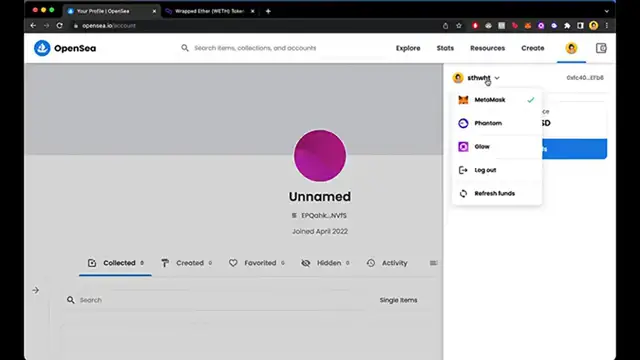
And when you select your profile, you go into refresh funds and metamask is going to
2:27
ask for a signature request so we can sign this and we can see, we tried to see our funds
2:33
successfully refreshed. So there you have it guys. Just keep in mind to use the exact network that you have to use
2:39
In this case, I'm using Polygon, but maybe you want to use Ethereum mainnet
2:43
So just be aware of that guys. Hopefully this was a very useful video for you
2:47
Don't forget to like and subscribe to this channel if you want to see more about this kind of stuff
2:51
Thank you for watching the video and I'll be seeing you guys in the next one
#Business & Industrial
#Computers & Electronics
#Internet & Telecom
#Funds