Up next in 10


How to Setup a Homepage in WordPress 2024 (Step by Step)
Show More Show Less View Video Transcript
0:00
So you want to add a homepage into WordPress, I'm going to be showing you what we can do in a very, very easy way. So speaking about a homepage, what you want to do is to have cozy Heather here into the actual index, I'm going to go into my very first part of WordPress, so we can all understand what we're talking about
0:19
Go here into my dashboard. So here, as you can see, we do have the enable post sharing here, this is my actual home, I want to actually go for right, which is actually in the very upper part, like this. And here, what I want to do is to locate the very first page that I want to create. So here, what I want to do is to hit into plus. And here, I want to look out for Heather, because I want to add, let's say, like a customizer to edit my actual WordPress page
0:49
So WordPress, I'm going to hit into the customizer that appears in here. And here, as you can see, we do have the different site editor, I'm going to leave it like this. So this is the very first image that's going to be showing me the actual WordPress. So what you want to do is to, let's say, change the customization of the site editor, for example, here, the homepage settings, you want to use a static page, we want to use the latest post, you want to leave this like that
1:16
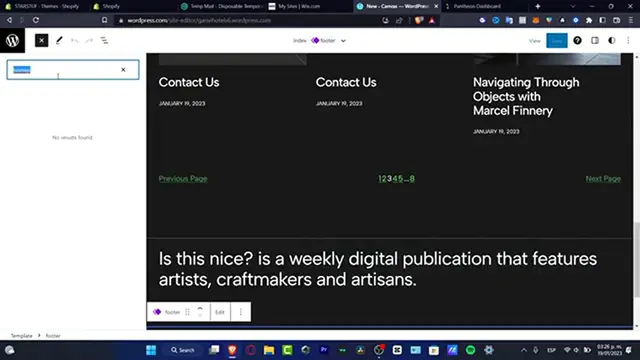
And I'm going to go into the cancel, I'm going to save my changes. So if you use the site editor, it's going to be sending you into the different designs that you can choose. For example, this one that we have already been created. But if you want to create something new, you want to go into templates, and you want to look out for search. And here to search, let's say that I want to look out for going to the optional placeholders for the shows here, I'm going to go into my manage all templates
1:46
I'm going to go into add new. And here you want to look out for the homepage, or you go into the custom if you want to go into the plus button, I'm going to go into front page. And there we go. This is my very front page. So what I can do is to hit plus, and I want to look for a header. So here to have different options to add, let's say I want to add a header with an image. So I think
2:16
that I kind of like this one says simple header with image background. So you drag and drop. And there we go. This is my header, if you want to just use this instead of this one. So this one, I just want to select the one and delete it. And I want to just stick around with this one. So the last thing that I just need to do is to edit the about home context section, the actual thing that I'm going to be seeing here, the logo and all that. So with that being said, guys, this is how we can use start to edit
2:45
our own stuff. It's really easy to work here into WordPress, really, really easy. What you want to do is to of course, try to edit just one by one parts template. So you can see all of them into the latest part, that would be your actual website. After that, you need to save going to publish and view your site just to make sure that this one actually works. And it actually looks great for you. So with that being said, guys, we reached the very end of the video, don't forget to like and subscribe to the channel, guys, if you want to see more great
3:15
tools for the WordPress. Thank you so much for watching this video guys. And I'll see you on the next one. I'll see you soon guys