Up next in 10


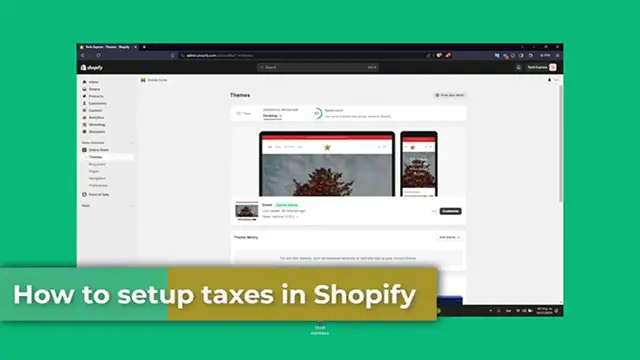
How To Set Up Taxes On Shopify 2024 (Step by Step)
Show More Show Less View Video Transcript
0:00
Let's see how we can set up taxes inside of Shopify for beginners
0:05
Alright everybody, welcome to Xpress. Let's see how to set up taxes into Shopify
0:11
First of all, let's understand the tax requirements. Before we dive into the setup, it is important to understand your local tax requirements
0:18
Tax rates can vary based on your location and the type of products you sell
0:23
It's advisable to consult with a tax professional to understand your specific obligations
0:30
So, let's head over to your Shopify administrator and start setting up your taxes
0:35
First of all, let's access the tax settings into your Shopify. Let's go into login to your Shopify administrator, navigate to settings
0:42
and then later on what you're going to do is to select taxes and duties
0:47
You'll find all the options to configure your tax settings. Display here provides a comprehensive set of tools to help you manage your tax rate
0:57
For example, here you have the managed tax collection of Australia, Canada, the European Union
1:03
and there's a lot of elements already been added here. Now, the setting up your tax region
1:08
In the tax regions, you'll see a list of countries and regions, start by setting up tax rates of the regions where you are registered to collect taxes
1:16
For each region, you can set standard rates, reduce rates, or even exempt certain products from taxes
1:24
Now, here we have the configuring the tax rates. Click on a region to edit a taxes here
1:31
You can enter the tax percentage that applies and decide if it should be included in your product price
1:37
or to add it into the actual checkout. So let's say for example, collect here, and it's going to be asking you for a VN number
1:46
After that, it's going to be added here. But in our case, let's say for example, that since our country, we are actually from Mexico
1:53
we're going to be enabled taxes in here, and we're going to be receiving the 16
1:57
since this actually is the tax obligation into Mexico. And down here, I have all the rates of the country taxes
2:07
So after that, add a tax over rate, you hit it to save, and then you can always go back
2:14
Now, remember to activate here, tax rates are crucial for correcting billing and compliances
2:20
I wanted to make sure that here, and to decide how taxes is charged
2:25
you wanted to include tax in the prices, you wanted to charge tax on the shipping rates
2:32
and lastly to charge VAT on digital goods. This will create an actual collection that can add digital products
2:41
we apply to products in the collection at checkout, and all of that
2:45
In my case, since we are not selling digital products, I want to choose to disable this
2:49
and hit now to save. I maintain this into disabled, and I hit save
2:55
Now, setting up tax in ShiFi is straightforward, but it requires attention to details
2:59
to ensure accuracy, regularly review and update tax settings to align any changes in the tax law
3:06
What I love to do is to go to open a new tab, and look out for the tax laws for
3:13
let's say for example, Canada. And it's going to be showing you the tax policy of Canada
3:18
and what are the actual policies and legislation of that in order to continue
3:23
you wanted to get started by collecting some taxes into this specific country
3:29
So if you find this video helpful, please give us a thumbs up, subscribe to express for more ShiFi tutorials
3:36
If you have any questions or additional tips on setting up your taxes, you can share them into the comments below
3:41
Thank you once again for watching the video, don't forget to like and subscribe guys. Hopefully we can all see you into some ShiFi success managing stores
3:50
Thank you guys, and see you next time
#Tax Preparation & Planning
#Shopping
#Other