Up next in 10


How to CREATE an AMAZON ACCOUNT Register on Amazon Step by Step guide
Show More Show Less View Video Transcript
0:00
So you wanted to get started into Amazon, you wanted to buy a few stuff or if you're
0:05
willing to sell this we can help you to do that. So in this tutorial I'm going to be helping you to create your very first Amazon
0:12
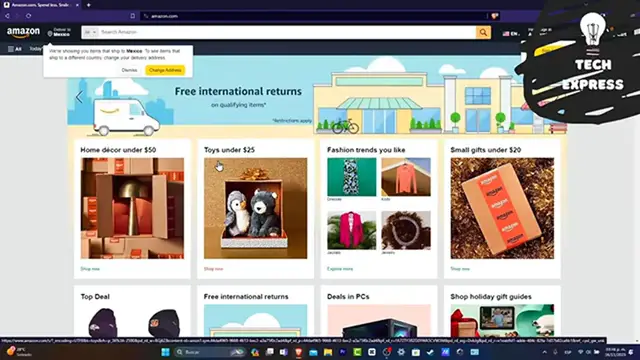
And it's a really easy process, you don't have to pay absolutely for anything. So first of all let's go into Amazon.com, here into your browser, open your browser
0:21
type here and go for Amazon.com. As you can see I'm inside Amazon.com and I can see that there's a lot of stuff that I
0:28
can check out. So for example that I wanted to buy something, but first of all let's say that I wanted to
0:33
create my account in order to save the things that I wanted to, let's say, buy later to
0:38
create a list to add my personal address if I wanted to save a few money in here or whatever
0:46
So the first thing that I wanted to do, I'm going to go here into the upper side that
0:50
says Hello Sign In. So here instead of going for Sign In, let's go for Start Here
0:56
Now here into Start Here you want to type your first and your last name
1:01
Now it's really important to add a mobile number or an email
1:05
Now in this case what I wanted to do is to add my actual email
1:09
And here you want to create an actual passcode in order to access the second time you're
1:14
actually willing to work in here, let's go for like this. And later I wanted to re-enter the passcode just to make sure that I have in quotes the
1:24
same information in here and in here. Now after that I'm going to hit into Verify My Email
1:29
Now it's going to be sending us a one-time passcode, so we need to import that directly
1:35
from our email. So in this case what I wanted to do is to go and open a new tab
1:40
I wanted to go here into my Gmail, and as you can see here is a verification code that
1:46
here is into Amazon. In my case it's actually this one. You might be seeing an actual brand new passcode because this was sent directly into your Gmail
1:54
So this is only a one-time passcode. So if someone else uses this before you, you're going to be no longer ready to set this up
2:03
So in this case if I use this passcode, nobody can use it later
2:08
So as you can see my account has now been created successfully. If I go into the upper side, I can see that I have my account and I have the profile
2:15
So Who's Shopping, Selected Profile, Account, Orders, Recommendations, Browsing and much more
2:21
So now let's say for example that I'm willing to buy something or to save this directly
2:24
into an actual list. For example, let's go for NFL. And I can see there's a top results for example that I can buy
2:33
So let's say for example that I want to choose to save this Raiders coaches jacket
2:39
So I hit into Add to List, and I have NFL favorites for example
2:46
And I go into Create List, and here's my first list saved
2:50
I can go into the View List, and there you go. So this is how guys we can create an actual account here into Amazon
2:55
If you wanted to add for example a new credit card or your very first address, you can go
3:01
here into your account. Down here you can see your addresses, gift cards, profiles, your payments
3:08
So hit there, add your info, save it so you can make the purchase much more faster the
3:13
next time you sign it in, and you're actually good to go
3:17
So with that being said, we have now reached into the very end of the video. Don't forget to like and subscribe guys if you want to see more great videos from Amazon
3:23
Thank you so much for watching the video. Hopefully we can all see you next time
#Shopping