Up next in 10


How To Add Navigation Menu In WordPress (2024) Step By Step
Show More Show Less View Video Transcript
0:00
And as you can see here, you have the navigation
0:03
We have the styles, the pages, templates, and pattern. Into navigation, you're going to be seeing that you have different pages list
0:11
You want to make sure that your actual website, it's saved it before you've moved into a very
0:16
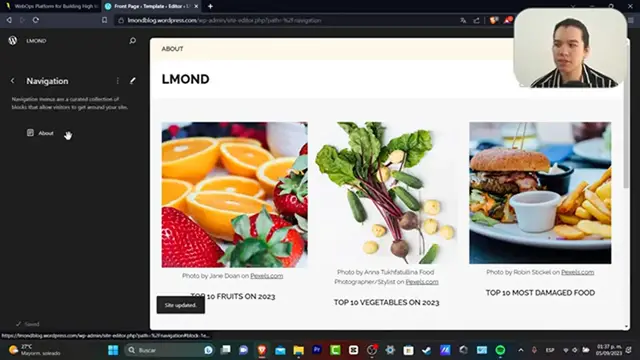
next step. So if I go into navigation, I can go into this section, which is about
0:24
So in about section, if I go into the right pod, I can get started by adding a new link
0:30
So usually I get to go here and to home, for example
0:34
So I choose this post. I go into add new, and now I have this new section
0:42
So as you can see, we have one, two, three, I'm going to add a new one
0:46
Usually I can choose my social icons. So I click plus to add, and I'm going to be getting started with an actual link
0:55
So let's say that I enter, I don't know, maybe YouTube. I'm going to go for triple W, let's go for youtube.com and enter
1:02
And now here have the new navigation tool. So you can make this like this, look like this, look a little bit more big enough
1:10
So hit now to save. You want to make sure that you save everything that you do here into your actual WordPress
1:18
So which that actually brings us into the actual next step. If you're actually okay with the template you are actually using, then what we can do
1:25
is just to keep following more and more and more elements as we are adding blogs, as we
1:30
are adding our social media, our content and much more. So usually what I do now is to go back
1:36
I'm going to go actually back. I have my design. I'm going to go back
1:41
This one is going to be sending us directly where we actually add before I'm going to
1:45
go into launch my site and my website is going to be launched automatically
1:49
So I have now view my site and by default, this is how it's going to be looking
1:54
Our actual site. If you see into the upper side, you have a navigation bar, the about, welcome everybody
1:59
hello world. So this is like a menu and here we have the socials into the right pod
2:04
We have our logo here. We have our images. We have the subscribe to our mailing list and that will be actually it
2:11
So, so far we actually did a really great job. But what happened if you think that this template is not working for you or you actually wanted
2:19
to get started totally from scratch. So I totally get you guys
2:23
What you can do here is to actually go back into your WordPress
2:28
As you can see here, we do have the visit my site
2:31
So what you can do is whether you wanted to just save this as an actual template or as
2:38
a draft. And what I do is to go directly here into the home section
2:45
And now if you can see here into your home section, you can go into visit your site or
2:50
what you can do is to go directly into your new site so you can try to get started with
2:56
an actual new one
#Computers & Electronics
#Online Goodies
#Skins, Themes & Wallpapers
#Photo & Video Sharing