Up next in 10


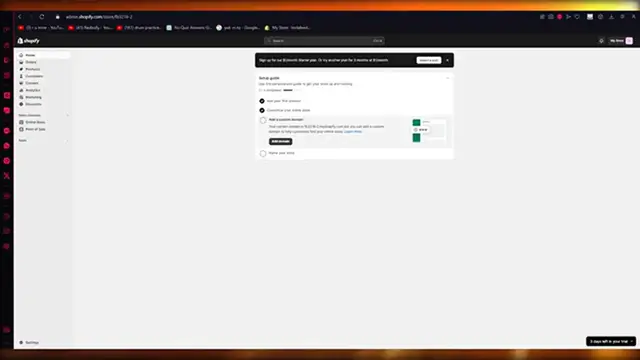
How To Add Live Chat On Shopify (2024) Shopify Inbox
Show More Show Less View Video Transcript
0:00
How to add live chat on Shopify, Shopify inbox
0:04
Hello everyone, welcome back to another video. I hope you all are doing great and are having an
0:09
amazing and absolutely incredible day. I bring you back with yet another video and in this video
0:15
we're going to be talking about adding live chat onto our Shopify account in the easiest
0:21
most simplest way possible. So please do make sure to fully watch this video till the end
0:26
to get the general idea of how all of these things work. So yeah, without further ado
0:30
let's get straight into this. Now to start things off, what we are going to want to be doing is
0:36
we're going to come to Shopify and over here we're going to go into our apps. And once you go into
0:41
your apps, you're going to go on all recommended apps and we're going to go to Shopify app store
0:45
from here. Now, once you go into your Shopify app store over here, what we want to do is we're
0:52
going to go into search apps and once you go into search apps from here, what we're going to want to
0:58
do is we're going to go up and search Shopify inbox. And once you do that, you're going to click
1:04
on enter or you can just go with this. Okay. It appears in front of you. Just go over here, click
1:10
on install. And once you click on install, that will do is it will obviously start installing
1:15
your Shopify inbox into your Shopify space. Now, once your Shopify inbox is installed
1:23
what you can start doing is you can actually do a lot of things with Shopify inbox. Like you
1:29
obviously can add live chat, but that's not the only thing Shopify inbox can be used for
1:34
You can use it for various different things and it's a pretty fun thing to use. So here you can
1:41
see, first of all, you're going to make sure that the online store chat is on. So for that, you're
1:46
going to go into manage settings and it takes you to the chat settings of the inbox. So in chat
1:52
settings, make sure that the online store chat is on. And once the online store chat is on, then
1:58
there's the customization of everything. So it could be a chat bubble. It could be an email bubble
2:04
et cetera. So go with whatever you think looks best. Then the text could be, it could be assistance
2:10
It could be chat. It could be contact help, et cetera. We want to go with live chat. Okay. So
2:17
just click on live chat over here. And there you can see, it gives you the live chat text. You can
2:22
add it anywhere. I'm going to add it to the lowest and we're going to add it to the bottom right
2:27
section. And once you've added it to the bottom right section over here, from there, what you're
2:32
going to want to do is there your greeting message, hi message us with any questions. We're happy to
2:36
help. And you can obviously add instant answers as well. So there's instant answers to tracking
2:43
your order. There could be suggestions for your stores and all. So you could say pretty easy
2:50
pretty simple stuff to go ahead with. Now, once you go with these things, what we're going to want
2:56
to do from here is we're simply going to go ahead and click on save. And here you can see chat
3:02
settings have been updated, right? So now once the chat settings are updated, basically your live
3:09
chat has been initiated. Your live chat has been started and you know, what you were here for has
3:15
been done. So that's the first step that you're good to go with. Now, moving on, once you've done
3:22
your live chat, there's a whole lot of other features that you can mess around with as well
3:26
So first of all, to actually initiate and to show you the live chat actually works, I'm going to go
3:31
to my online store to show you how it actually is. And the live chat obviously could be with
3:37
some live operators that you have in the backend, or it could be with, you know, maybe you. So I'm
3:44
going to go, as you can see, you have live chat over here. Someone's going to click live chat
3:47
it's going to open this widget. So let's say I want to ask, hi, I am having issues with ordering
3:58
your hoodie. Like let's say someone writes that and they obviously click on next. So before we
4:05
get started, please provide your information so that we can reply to you if you leave the chat
4:10
Okay. So the person is going to add their information and now you're going to click
4:15
on start chat. Now, once someone clicks on start chat, someone on the backend
4:20
like let's say me, will get a prompt that a live chat is going on. And as you can see
4:27
it's going to tell you that a new conversation is up. And obviously there we can see, it gives
4:33
us in messages that someone has messaged you in the live chat. So it's going to take us to the
4:38
Shopify inbox store. And you know, when someone is initiated live chat, we're going to go to the
4:43
inbox and over here, we're just going to wait for things to load up. And here you can see
4:48
you can start having a conversation. So this person said, I am having issues with ordering
4:53
your hoodie. So you can open this up. It can be obviously, hi sir. I am terribly sorry that you
5:05
are having this issue and inconvenience. Okay. And you can obviously click on send and all. So click
5:18
on send over here. Now, if we go to our store, look at that. So a staff member has joined
5:24
typical response time varies. And look at that. So a staff member, which was I replied, hi
5:30
sir. I'm terribly sorry that you are having this issue and inconvenience. So you can obviously
5:35
go ahead and keep on having your live chat. And you can also see if the user is online and where
5:41
they are right now. So this user is on checkout and they're having issues over there. And you can
5:46
actually see what the conversation is on. So it's pretty incredible, pretty great stuff. And
5:51
this chat is obviously open. You can also go in closed chats, but open chats are chats that are
5:58
actually going live. Okay. These are chats that are going in real time. So these are chats that
6:04
you have to keep at higher priority. So obviously go with the basic settings and just add in the
6:15
efficient amount of detail that you want to. And once you do that, yeah, you should be set to go
6:20
with the basic working of all of this. So, yeah, that's the general idea of how we are going to be
6:30
adding a live chat bot to our Shopify using the Shopify inbox setting or feature. Now, although
6:39
this feature is pretty useful, you can use this for other cases as well, because the Shopify inbox
6:48
can only be used for online chat. It can be used for other things as well. But for that, you're
6:53
obviously going to need to get your inbox mobile app. And you can also use quick replies. Quick
6:57
replies are basically, you know, reader and messages, which are automated to reply, depending
7:03
on what the person or personnel have asked. Okay. So just make sure to get quick replies in as well
7:11
if you want to. But yeah, that's the general idea of how all of this works. So I hope this tutorial
7:17
was extremely helpful to you. And if you need any more videos like this, please do tell me. I am
7:23
always available and I will give you the easiest step to step guides for any type of videos that
7:29
you demand. And if you have any queries regarding this video, you can let me know down in the
7:35
comments. And yeah, I guess I'll see you next time. Before signing off, please like and subscribe to
7:42
the channel and leave down a nice comment if you watched the video. And please don't forget to
7:48
share this video with any of your friends in need or your family. And I hope you all have a great
7:55
day. So until next time, I'll see you later. And goodbye
#Computers & Electronics
#Software
#Text & Instant Messaging
#Photo & Video Services