Up next in 10


How to Add Instagram Feed to Shopify Store (Step by Step)
Show More Show Less View Video Transcript
0:00
to add Instagram feed to Shopify store quick and easy
0:04
Hello, everyone. Welcome back to another video. In this video, we're going to be talking about how you're going to be able to add
0:10
your very own Instagram feed to your Shopify store in the easiest, most simplest
0:14
ways possible. OK, so please do make sure to fully watch this video till the end to get the whole idea and main gist of how this is going
0:22
to work. OK, so without further ado, let's get straight into this
0:26
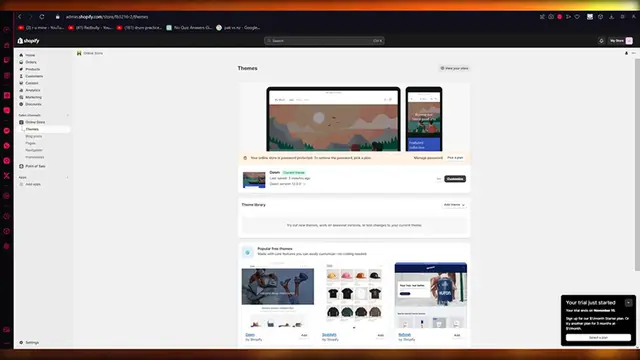
So to start this off, let's actually discuss how will you add your Instagram feed to your Shopify
0:33
Most people, what they do is like there's three options for integrations
0:37
OK, so the first method would be third party social plugins. So what's going to happen is that you can get an Instagram feed plugin from Metta
0:46
that you can obviously search on the Shopify app store. So if we click on Shopify app store and we write Instagram, what that will do is
0:54
it will give us the Facebook and Instagram Metta app. But the thing about that app is that you can go ahead and, you know
1:04
market the products that you have on Shopify on Metta or, you know
1:09
your Facebook and Instagram, but you can't really put your Instagram feed on your Shopify through that
1:16
Let's say even if I go ahead and write Instagram, you can see this is the most
1:20
famous app on the Shopify app store, and it's going to give you the Metta products
1:26
But it says, bring your products to people on Facebook and Instagram. We don't really want that
1:30
So for our ease, we're going to go with Insta feed. So you can either go with this or you can go with this
1:36
These both are officially built for Shopify, but this would make more sense
1:40
because it has more, you know, more downloads. And it says boost sales and trust with official Instagram shop feeds
1:47
So obviously you can go ahead and click on this and you can basically display custom shopable Instagram feeds on your
1:54
store like you can display your own as well, but you can even make them custom
1:58
So you can convert your store visitors into actual customers and you can show
2:03
different posts like photos, reels, videos in a grid or slider layout
2:08
So, yeah, this is the first way that you could do this, which is basically, as I told you, a third party plugin
2:16
So to add this third party plugin, what you're simply going to do is you're going to click on install
2:20
And once you click on install, what's going to happen is it's going
2:25
to take you to the install page, so I'm just going to click on install app
2:29
And yeah, things are going to be pretty good and easy from there
2:33
Now, as I told you, there are three methods. OK, and this is the first method
2:36
The rest of the three methods are a bit on the difficult side
2:41
So to perform the integration of posts, you're going to have to do it manually
2:47
and you're going to have to do it individually. So what you're going to do is obviously
2:51
you're going to go to a single Instagram post, copy its embedded code and start
2:56
embedding it into your Shopify store. I'm going to show you that as well
3:00
And then you can obviously do the third way by developing a custom code if you're tech savvy
3:05
Now I'm going to show you how you're going to do the second step. The third step, I'm not even sure of it
3:11
myself because I'm not too much into code, but I will show you where you can code all
3:16
of the programming if you're good at coding. OK, so first of all, here it says, welcome to MinStudio InstaFeed
3:23
Connect your Instagram account to start using InstaFeed. So obviously we're going to go ahead and connect our Instagram
3:30
And once you click on connect Instagram and load this in where it asks our authorization
3:35
OK, so let's say I'm going to go ahead and click on allow. And here it says, you know, profile info, media
3:42
It needs all of that. So I'm just simply going to go ahead and click on allow
3:46
And once you click on allow, it comes back to your Shopify feed
3:52
And we're just going to wait for it to load up. And here you go. So it's loaded our feed in
3:58
And as you can see, our feed looks you get a preview of your feed
4:03
You get a preview of how things are. And basically you can add a feed title as well
4:10
So let's say I want to add a title into the feed saying
4:17
let's say this feed had products on it, right. So I'm going to give it a title, new summer products
4:26
OK, or you can call it the new summer badge or whatever. Then there's post spacing
4:30
I'm going to keep a small spacing between it. Or you can obviously keep medium basing if you want to
4:37
On post, click up. They can open a pop up or show product or go straight to Instagram
4:42
I'd keep it on open pop up or show product because if they go straight to Instagram, that's a bit annoying
4:48
Even for me, like even when that happens to me, that's pretty annoying
4:53
So I wouldn't want my users to be annoyed. Then moving on, there's a layout
4:57
Would you want the layout in the squares or tiles? Now I would go with a slider is that just looks pretty cool
5:05
And once you've done all of this, you're going to click on save feed
5:09
Now, once you click on save feed, as you can see, it's added it in a slider
5:13
with the medium pacing between it and now you can add this to your theme
5:18
So once we have obviously done that, we're going to add the theme
5:23
And what this will do is obviously will add this whole thing that we have into a Shopify theme
5:28
And then you can edit it around to, you know, actually see how it looks
5:33
So here's my store, added in my theme. Here you can see I have the Insta feed app and there you go
5:39
You have your feed right here. And then to obviously open up products
5:43
Look at that. You can open up products in the biggest way and you can see the descriptions and all
5:50
It's pretty it's pretty great. It's pretty amazing stuff. And then you can also add your custom code
5:54
Now, this is exactly what I was talking about when it says developing custom code
5:58
So you can add that custom code over here. And the second step that I told you, which was embedding, OK
6:07
how will you embed individual posts? Let me show you. Let's say I'm going to come over to Instagram
6:12
OK, and you do have to make sure that the post is yours
6:16
that someone else's you could be copyrighted pretty easily, pretty simply. And we don't want that, do we
6:22
So we're going to go over to your profile and go over to any post you want to embed
6:27
Let's say I want to embed this post. We're going to go over here and here it says embed
6:32
OK, and I'm going to copy the embedded code, right? And we're just going to go ahead and paste this
6:40
And as you paste this, we're going to make sure that everything is normal
6:44
And yeah, it is. So we're going to click on save and look at that
6:49
It adds the whole embedded post into it as well. So pretty cool, right
6:54
You can add your whole embedded post into your store just like this
6:59
And, you know, it looks pretty cool that you have your Instagram feed going on
7:04
And let me show you how it looks in lifetime. OK, I'm going to exit out of the store and here, you know, I'm just going to wait
7:11
for it to save itself. And once you do that, let's click on this option over here and here we come
7:18
So look at this. It's all pretty good to go. And you can actually
7:24
post. So you can see that embedding a post and adding in a whole Instagram feed to your
7:31
Shopify store really easy, really simple. And I would obviously much more prefer
7:36
Insta feed because Insta feed is just much faster, much more reliable and much better
7:41
But you can use this code away as well. So I hope this tutorial was extremely helpful to you
7:47
And if you need any more videos like this, please do tell me
7:51
I am always available and I will give you the easiest step to step guides for any
7:56
type of videos that you demand. And if you have any queries regarding this video, you can let me know down in the
8:03
comments and yeah, I guess I'll see you next time. Before signing off, please like and subscribe to the channel
8:11
and leave down a nice comment if you watch the video. And please don't forget to share this
8:17
video with any of your friends in need or your family. And I hope you all have a great day
8:23
So until next time, I'll see you later and goodbye
#Business & Industrial
#Computers & Electronics
#Social Network Apps & Add-Ons
#Shopping