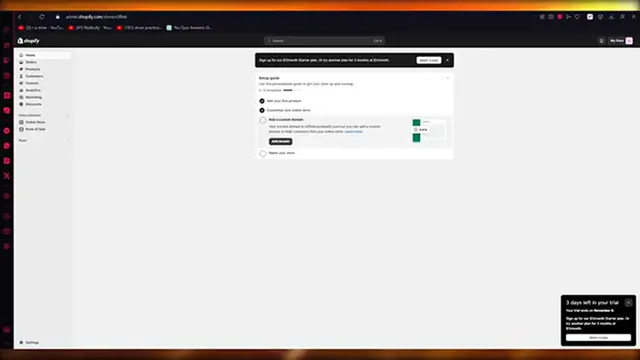
Up next in 10


How To Add Custom Liquid Section In Shopify - Full Guide
Show More Show Less View Video Transcript
0:00
How to Add Custom Liquid in Shopify
0:03
Hello everyone. Welcome back to another video. I hope you all are doing great and are having an amazing and absolutely incredible day
0:11
I bring you back to yet another video. And in this video, we are going to be talking in great detail and depth on how we're going to be able to add custom liquid sections in our Shopify in the easiest, most simplest way possible
0:23
Okay. And custom liquid sections are pretty popular because they allow us to add any line of code
0:30
that we want to and that line of code can actually be adjusted into our shopperify page like butter
0:35
You know, it works really well. It works really nice and yeah, we're just going to talk about that
0:42
in great detail. So to start things off, please do make sure to drop down a like and subscribe
0:48
to this channel because that truly helps me out a lot. And after you've done that, let's go ahead
0:53
and talk about the necessities. So when it comes to actually talking about your basic necessities
1:00
what we are going to do is first of all we're going to go over to our online store and make sure we have a good theme selected okay because a good theme is what really makes a store okay and so once you made a store with a really good looking theme what we're required to do from there is we're going to work with the the more in detailed necessities of the page now there's two ways that you can edit code okay
1:30
So the first way is doing that and you're going to come down here and click on edit code
1:35
So doing that is just clicking these three buttons and clicking on edit code
1:39
So that's the first way. The second way is actually going into the customization and adding any type of liquid code
1:45
Now that depends on you on whatever type of liquid code you want to add. Liquid codes could be for any section
1:52
They could be for any type. They could be of any styling. You know, it all depends on the type of working you want to go with
1:58
and you know it really easy and fun stuff to get your head around so what we going to do is we going to add a few liquid codes or add some custom liquid sections in our Shopify store just to add you know these nice animations or essentially
2:18
some type of moving colorized team bar or something like that. You know, just the fun stuff
2:27
So let's get into it. So to start things off, first of all, what we're going to do
2:31
is, as I said, come to online store, go into themes, select a good theme
2:36
Okay, I would prefer Don or Refresh because these are the best that give us the most liberty to, you know, add custom liquids because they have a lot of space in them
2:47
Now, once you do that, what you're going to do, like if you already have a well-made store on Don or Refresh and you want to try out custom liquid, first of all, what I would recommend is for you to create a duplicate
2:58
Now, the reason I'm telling you to do this is because if you don't create a duplicate
3:04
what's going to happen from there is you might not like custom liquid sections
3:09
You might not like the new addition that you've added to your store, and you can't really undo that
3:16
can you? So that's why I always try new things on a duplicate store so that if I like it, I'm just going to click
3:23
on publish and make this my original store. and if I don't like it, I'm just going to go ahead and remove it
3:28
Simple. So, yeah, here's my copy of my store. I'm going to click on Customize
3:33
And once we click on Customize, it's going to load us into the store. Let me switch to desktop view, and there we go
3:38
So this over here is an example of the custom liquid that I have added over here
3:43
So let me show you. I'm just going to go ahead and delete this and let's start from scratch
3:48
So first of all, down here, you can actually add a section of custom content
3:54
Okay, so we're going to add section and down here. It should give you custom content or collapsible content or custom liquid content
4:05
And the custom liquid content is going to be here. So that your custom liquid section okay that you can add for yourself Pretty easy So that how you going to do it in the store Let me show you how we can do it outside of the store Okay there a few things that you going to need to follow when you outside the store
4:23
So we're going to come here. We're going to click on these three buttons, click on Edit Code
4:28
Okay. And once you click on Edit Code, it brings you here, right
4:32
So from here, you're going to go into your sections, okay? So let's go ahead and find sections
4:39
There are sections right there. And in sections, you're going to click on Add a New Section
4:45
And once you click on Add a New Section, you're going to keep it liquid. And over here, you're going to write Section-Dash Custom-Dash Liquid
4:56
Okay? You're just going to write that. And once you write that, you're going to click on Done
5:00
So, you know, you have Section Dash, Custom-Liquid. It's going to give you this custom code over here
5:05
and we're going to remove all of that. We need nothing from that code
5:10
Now in this code, what you're going to be doing is you're going to be adding a certain code, okay
5:16
So the certain code that you're going to be adding for yourself is basically custom liquid section code
5:22
Okay? So you can find this code online as well. So, you know, custom liquid section code Shopify
5:33
Okay? you can find these things over here as well and it can give you different stiletticoes and examples
5:40
of building these custom liquid codes so you can get them off of shopify's github to get the liquid
5:47
code examples or you can even go on pastebin because a lot of people have pasted these codes on
5:53
pastebin for you know people like you to actually copy them off so pretty pretty easy pretty
6:00
incredible stuff so let's say you're going to come over to pastebin dot com and the code is going to be there or you can even choose the codes from here okay so
6:08
let say i going to add custom liquid or you can even just write section okay and as you write section it going to give you these things So you have the announcement bar you have the Brutcomb navigation blog posts log posts Logalists
6:25
So these are all the different liquid codes that you can add. But yeah, you get the point, though
6:30
So once you add the code off of Pacement over here, what you're going to do is you're just
6:36
going to save everything. And you can also, like, add some formatted liquid code to this file if you want to
6:43
So once you've done that, you're going to click on save. And as we click on, say, what's going to happen from there is basically it's going to add a custom liquid section into your code
6:54
And in the case, obviously, you want to go ahead and find it
6:59
Again, just click on these three buttons. Click on edit code. Again, make sure that everything is set to go
7:06
Yeah, take on these three buttons, go ahead and click on customize. And once it loads in, just go ahead and to add set up
7:15
Once you go into add section, scroll down here, it gives you custom liquid, you're going
7:20
to add that, and then you're just going to add any liquid code that you want to, and it's
7:24
going to deposit and format all of that over here. It's pretty incredible and pretty easy stuff, right
7:31
So those are one of my favorite things in Shopify, and trust me, they're really fun to work with
7:37
So please do make sure to try this because it's an absolute game changer and you will love
7:41
using it. So I hope this tutorial was extremely helpful to you and if you need any more videos
7:48
like this please do tell me I am always available and I will give you the easiest step to
7:53
step guides for any type of videos that you demand and if you have any queries regarding
8:01
this video you can let me know down in the comments and yeah I guess I'll see you next time
8:05
Before signing off please like and subscribe to the channel and leave you
8:11
down a nice comment if you watch the video and please don't forget to share this video
8:16
with any of your friends in need or your family and i hope you all have a great day so until
8:23
next time i'll see you later and goodbye
#Programming
#Software
#Custom & Personalized Items
#Wholesalers & Liquidators