Up next in 10


How To Add a Login And Registration Pop Up plug In On Woocommerce - Full Guide
Show More Show Less View Video Transcript
0:00
How to add a login and registration pop-up in VooCommerce, quick and easy
0:06
Hey guys, welcome back. Today, I will show you how you can get started with inculcating a login pop-up or a registration pop-up in your VooCommerce site
0:17
So let's get into it. Now, we're going to be doing this via a plugin, and plugins can make this a whole lot simpler for you to incorporate these kinds of pop-ups in VooCommerce
0:27
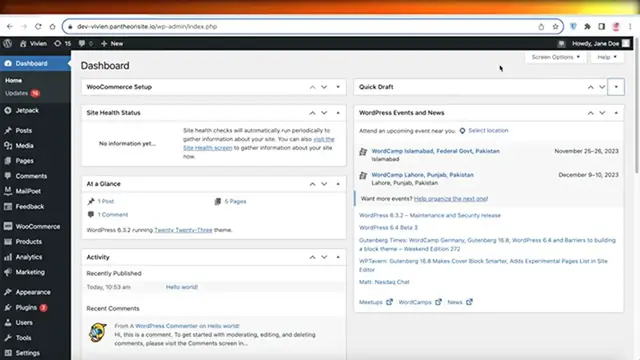
So to get started, all you have to do is log in to your WordPress dashboard
0:34
In your WordPress dashboard, you might already have WooCommerce installed. So if you already have WhoCommerce installed and you've already built your pages, that's totally fine
0:44
Then all you have to do is go to your toolbar on the left side of your screen and you're going to scroll down and click on plugins
0:52
Once you click on plugins, you want to click on Add New on the top page
0:57
So once you click on add new, from here you can add new plugins
1:02
Now, you're not going to add a VooCommerce plugin. We're actually going to be adding a form plugin that will allow us to build registration and login forms that are directly related to VooCommerce
1:14
So what you're going to do is that you're going to go into this search engine over here and you're going to search for Ultimate Member
1:21
So once you search for Ultimate Member over here, you will see this is the first plugin
1:26
This is considered one of the top plugins, so you're going to click on install now
1:32
And once you click on install now, this plugin will be installed. Once this plugin is installed, you want to click on Activate
1:39
Now, once we have clicked on Activate, we can get started by setting this plugin up
1:44
So now this is going to lead you back to your pages where you actually can see all of your different kinds of plugins that you have previously installed
1:53
and if you scroll down you will find Ultimate Member over here
1:57
So you can click on the docs or settings of this particular plugin
2:02
Now you will see in your settings you have a toolbar on the top and then you have some options
2:08
So on the user page where I want my particular plugin to be
2:12
Now I can set that up. Now before we do that, you can click on dashboard on your left toolbar
2:19
And once you click on the dashboard you will see where your current plugins are where your current pop are and you will also see the cache of your users so what we going to do is we going to click
2:31
on forms on the left side and we're going to begin by building our first form now there are some
2:37
default or template forms such as the default profile default login and default registration however
2:44
for your particular niche you might want a different type of form to do that you can edit this
2:50
previously existing form, or you can create your own. So we're going to just click on edit on the
2:55
registration form. And now these are the fields of the registration form. It includes username
3:01
first name, last name, emails, and password. Let's say I don't require a last name. So I'm
3:08
going to delete this field over here. Now, you can also see how this has been structured. So this is
3:14
structured in one column. I can do a two column structure or a three column structure. And I can
3:20
click on add over here and add a new field. However, because we're only building a simple
3:26
kind of registration form, I'm going to keep a simple plain field. Now, if you want to include
3:32
new kinds of fields, such as things like phone numbers or additional email addresses, then all
3:39
you have to do is click on the plus icon on the bottom. And once you click on the plus icon
3:44
you can choose the type of field that you want. So let's say this is going to be a text
3:50
box. Now after that you're going to add the title of your field. So what are people supposed to
3:57
write within that particular field? Let's say this might be. Now after you add your particular
4:03
title, you also have other information that you can add. So a minimum length or a maximum
4:08
length. You can set these up for fields such as passwords or phone numbers where you know a minimum
4:14
amount of letters that are required. Now after that, you can click on add over here. You can set
4:20
here and the field will be added which is going to provide a meta key and then you also have
4:25
one other option where you can choose whether or not this field is required so if this is going to be
4:32
a mandatory field where all of my people or all of the users that are registering have to fill this
4:37
out or if they can skip if they can skip you don't want to take off this field however if you want
4:44
everyone to be able to put in their phone number and this is going to be a required field then you want to click on over here after that you can click on add and a new field within your registration form will be created now once you do
4:59
this you can also click on the right side where it says customize this form now you can click on yes
5:05
over here to build your custom default form so you can add a particular role you can also add your
5:13
template the width the icon primary buttons and more however i like to keep this at the standard template
5:22
now once you've completed your form and you have updated it you can click on update on the top right
5:28
now like this our form has been updated now once the form has been updated you can click on live
5:34
preview and you will see this is what your form is going to look like now once you've built your
5:40
form within your WordPress site and you want to put it inside your VooCommerce dashboard or your WordPress dashboard. You can get started by
5:50
so once you've built your form you can go on ahead and incorporate this form into your WordPress site
5:58
Now you have two options to do so. So the first thing you can do is open up your WordPress site and
6:04
you can incorporate this form directly. However, some templates or some themes are not going to let you do that
6:12
Now, if you have a template or theme that does not natively allow you to add these forms into your website, then you have to install another plugin. So to do that, you just go back into plugins and then click on add new. Now, if your template allows you, you can directly add your form into your WordPress site simply by editing the site and choosing the ultimate member block and incorporating that particular form that you just created
6:41
So if your template is not allowing you to incorporate your ultimate member form, then you can go into
6:46
Pop-Up Builder and you can click on Install Now, and you can redirect your pop-ups and create pop-ups
6:53
using this particular builder, and then lead them back to your Ultimate Member Form
6:58
Now, within your particular website, you have different types of templates or sections that you can
7:04
add, so it really depends on the type of theme or template that you have chosen, and whether or not
7:10
you can add these particular pop Now if you want to add a pop and you don want to do two method of adding two particular types of plugins then you also have a pop builder
7:24
So if you search for pop-up, WooCommerce, so if you don't want to do the two-step method
7:29
and you want to use your pop-ups on all templates or themes, you can download this particular
7:36
plugin, which is the login slash sign-up pop-up. This allows you to build pop-up slash inline forms that are incorporated with VooCommerce
7:45
So the step-asset method is going to be the same. You're going to click on install now
7:50
And once you install this particular plugin, you want to click on Activate and you're going to do the same thing
7:56
where you're going to activate this plugin. And once this plugin has been activated, you can follow the same steps
8:02
However, this plugin actually also has a upgradable version where you can get started with some other perks
8:09
as well however using ultimate members is completely free so if you're looking for a free solution
8:15
then ultimate member is going to be better for you however if you are looking for a upgrade then
8:21
you can go with the login or inline form so within this you can go on ahead and click on general
8:27
and then you will see the different woo commerce settings you have and the type of form that you
8:32
have once you've built your form and once you've built the fields within your form you can open up
8:38
the particular page that you have and then within that page, you can start editing and incorporate
8:43
your form. So once you open up your WordPress or WooCommerce site, you can click on Edit
8:49
site over here. So once you've built your forms, you can click on the top left corner of your
8:55
website editor on WooCommerce or WordPress and then you can click on forms. And then you can choose
9:02
the type of form that you want and then you can insert that particular form. And then after that
9:07
you can choose the animation or the style of that form as well and after that you can also lock a
9:14
particular form and you can choose the one that you want so you can go ahead and add a specific type of form
9:21
that you previously created you can also just click on explore all patterns and then you can find
9:27
the form that you previously created to incorporate that into your WordPress site so I hope you found
9:33
this video helpful if you did make sure to leave a like and subscribe
9:37
and I will catch you in the next video
#Software
#Web Services