Up next in 10


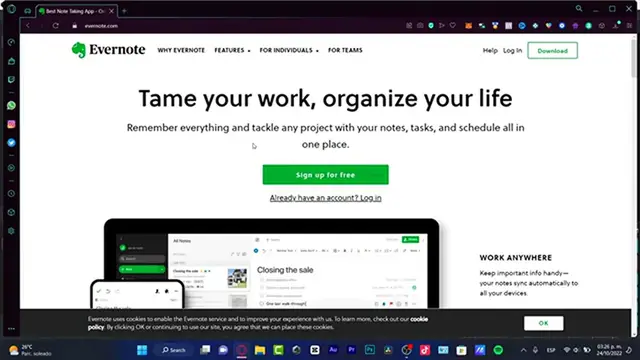
Evernote Tutorial For Beginners (2024) How to Use Evernote
Show More Show Less View Video Transcript
0:00
Hello there, if you are new here into Evernote, you are actually in the right place
0:05
So, I'm going to be showing you how to time your work, how to organize your stuff, your tasks, your schedule, just in one place
0:12
And for that I'm going to be using Evernote. So, I'm going to leave you guys a link down below in the description so you can sign up totally for free
0:19
And as you can see there is a personal, a professional, price, and multiplies price that appears actually in here, into MX
0:26
because I'm currently actually here into Latin America, but you don't have to be worried about that
0:31
Speaking about the professional stuff, it's just $3 a month, which is actually nothing
0:37
But if you want to stick around with the free version, you can totally do that
0:41
Actually, I'm going to leave you, with that link, I'm going to leave you a start pro version so you can check it out if it's the right for you
0:49
And if it's good, then you can just start right away. Now, in my case, I want to create an account here with Google, my Google account with my Gmail
0:57
Now, I'm going to choose to get started. Depending if you're doing this for your work, for school, or personal, you want to choose your workspace
1:06
In my case, I want to go for work, and go into next
1:10
Now, where will you be using Evernote? I can strongly recommend you guys to use every stuff here into your desktop application, so you can install your personal computer
1:20
So I can do this on my phone. But in my case, I just want to enable this one just for this tutorial, but you guys want to enable your desktop and your phone
1:28
Then go into next, and in here you have the meeting notes, the project planning, and the to-do list, like the importance of your work
1:36
So you want to choose your project planning, to-do list, and the meeting notes if this is for your work or for your personal work
1:42
In my case, I want to enable the three of them, and hit into next
1:46
It all starts with a note in here, so what we can do here into Evernote is just to start writing, let's say, for example, the to-do list
1:55
Do my stuff, and hit into next, and you can apply here to add this, let's say, as a task, right
2:06
So I can choose to change this later. So I can see my task assigned in here
2:14
I'm going to choose assigned, I have my notes, I have my due dates, and here into my notebook, it's actually very, very great to have more than one notebook
2:24
Let's say that this is for math, I'm going to choose create, I'm going to have a new notebook, let's say that this is for personal stuff
2:32
Hit into enter, and what I can do here is to choose these three dots
2:38
Let's say that I want to add that to my shortcode, so I can see that directly here into my shortcode
2:44
So I'm going to be clicking into my personal stuff, I can create my new stuff, and I can title this, for example, October 2021
2:54
I can like to attach my stuff, let's say, my personal document, and here to just add a link for a Google Drive
3:05
So what is going to be happening here is that I can link to a Google Drive section
3:11
It's going to be really easy just to merge my Google Drive into Evernote, so I don't have to go back into Google Drive, look for my files, and import that
3:21
I mean, I already have almost everything into just one file. In my case, this is the case, so I'm going to choose Google Drive
3:28
It's going to be popping up my Google Drive, and I can see all my documents in here, so I can just select my document, and I can see that in here, which is really, really simple
3:38
And after that, let's say that this is a task for someone, I can go into share, and here into invite to someone can edit, or invite can edit
3:48
or just say view, shareable link enabled, and I can just copy my link and send that to the person who I want this to see this Evernote stuff
3:59
So as you can see, actually, it's really simple. It's really great to use these tools
4:04
Check it out by yourself. See for yourselves how it's going to be working for your own personal work
4:09
You have sketches. You can add so much more things in here
4:13
Be creative into your own personal stuff. Figure it out if this is the right application or not for you
4:20
And once again, guys, this has an application that you can download totally for free for your PC, for your iPhone, your Android, whatever you are using so far
4:30
So thank you so much for watching this video, guys. Hopefully, this was very useful for you
4:34
Don't forget to like and subscribe to this channel if you want to see more about this great tools like Evernote
4:40
Thank you so much for watching this video, guys. And, well, I will see you next time
#Software
#Crafts
#Education
#Intelligent Personal Assistants