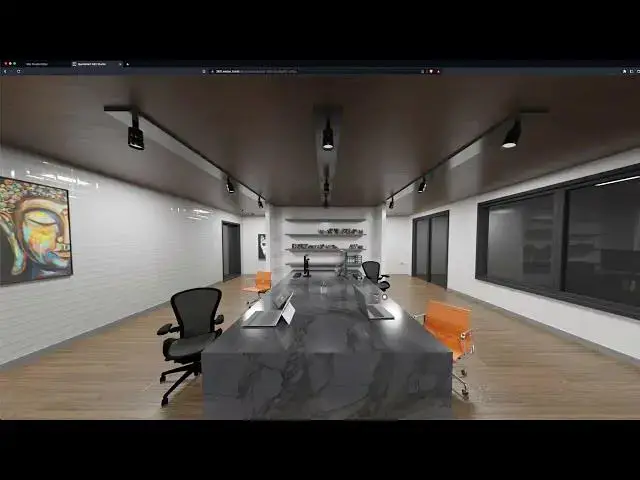

Exploring 360 Studio from webXR.tools - Quickstart Guide
Apr 18, 2023
Ready to extend reality and start building the future using webXR?
webXR.tools immersive experience builder makes it easy for you to create stunning XR experiences for the web. Whether you're a seasoned developer or just starting out, our platform offers a user-friendly interface and intuitive tools to bring your XR ideas to life.
Sign up now to join our community of XR developers and start building immersive experiences today.
What is 360 Studio? https://webxr.tools/360-studio/
Create Visually Stunning and Interactive WebVR
Use webXR.tools industry leading no-code WebVR tool to create immersive, branded, discovery-driven virtual experiences that work across desktop and mobile web browsers. Using the intuitive drag-and-drop interface, you can create a virtual experience in minutes. Whether you’re looking to build a virtual tour of a real-world location, or a fully interactive 360 experience, our tool has everything you need.
Log in at https://hub.webxr.tools.
Don't have an account? Register now at https://hub.webxr.tools/#/register
Visit Arlene to learn more: https://arlene.io/
- - - - - - - - - - - - - - - - - - - -
Follow FilterGrade!
Instagram - https://www.instagram.com/filtergrade/
TikTok - https://www.tiktok.com/@filtergrade_
Facebook - https://www.facebook.com/filtergrade
Twitter - https://twitter.com/filtergrade
Pinterest - https://www.pinterest.com/filtergrade/
Newsletter - https://filtergrade.com/filtergrade-newsletter/
- - - - - - - - - - - - - - - - - - - -
Check out all new digital products on the FilterGrade Marketplace: https://filtergrade.com/shop/
View educational resources: https://filtergrade.com/education/
View all Best Sellers on FilterGrade: https://filtergrade.com/product-category/best-sellers/
Subscribe so you can see future product demo videos first! #immersive #3d #virtualspace
See what's new: https://filtergrade.com
See what's trending: https://filtergrade.com/trending/
Show More Show Less #Science