0:00
In this video, I'm going to show you how
0:02
In this video, I'm going to show you how
0:02
In this video, I'm going to show you how you can delete continue watching on your
0:05
you can delete continue watching on your
0:05
you can delete continue watching on your videos in Netflix. If you find this
0:07
videos in Netflix. If you find this
0:07
videos in Netflix. If you find this video helpful, I'll kindly request that
0:09
video helpful, I'll kindly request that
0:09
video helpful, I'll kindly request that you support me by liking the video and
0:10
you support me by liking the video and
0:10
you support me by liking the video and also by subscribing to this channel. All
0:13
also by subscribing to this channel. All
0:13
also by subscribing to this channel. All right. So, if you had watched a video
0:15
right. So, if you had watched a video
0:15
right. So, if you had watched a video previously and when you come back, if
0:17
previously and when you come back, if
0:18
previously and when you come back, if you go ahead and open it,
0:22
you go ahead and open it,
0:22
you go ahead and open it, >> it will automatically continue from
0:24
>> it will automatically continue from
0:24
>> it will automatically continue from where you left. However, if you want it
0:26
where you left. However, if you want it
0:26
where you left. However, if you want it to begin from the beginning, you need to
0:29
to begin from the beginning, you need to
0:29
to begin from the beginning, you need to go ahead and clear or delete continue
0:31
go ahead and clear or delete continue
0:32
go ahead and clear or delete continue watching feature on your Netflix
0:33
watching feature on your Netflix
0:33
watching feature on your Netflix account. To do this, just head over to
0:36
account. To do this, just head over to
0:36
account. To do this, just head over to your account profile here and then click
0:39
your account profile here and then click
0:39
your account profile here and then click on account. Now, under this, scroll down
0:41
on account. Now, under this, scroll down
0:42
on account. Now, under this, scroll down to edit setting. But first, you have to
0:44
to edit setting. But first, you have to
0:44
to edit setting. But first, you have to make sure that you are on the right
0:45
make sure that you are on the right
0:45
make sure that you are on the right profile. If you want to change the
0:47
profile. If you want to change the
0:47
profile. If you want to change the profile, you can go ahead and switch it
0:50
profile, you can go ahead and switch it
0:50
profile, you can go ahead and switch it from here. Then head over to edit
0:52
from here. Then head over to edit
0:52
from here. Then head over to edit settings. And under this, scroll down
0:55
settings. And under this, scroll down
0:55
settings. And under this, scroll down until you see viewing activities. Go
0:57
until you see viewing activities. Go
0:57
until you see viewing activities. Go ahead and click on this. And here you'll
0:59
ahead and click on this. And here you'll
0:59
ahead and click on this. And here you'll see we have all the videos that you had
1:02
see we have all the videos that you had
1:02
see we have all the videos that you had watched or you are watching here. So
1:04
watched or you are watching here. So
1:04
watched or you are watching here. So this is the history for you are
1:06
this is the history for you are
1:06
this is the history for you are watching. So go ahead and identify the
1:09
watching. So go ahead and identify the
1:09
watching. So go ahead and identify the movie or the episode you want to delete.
1:11
movie or the episode you want to delete.
1:11
movie or the episode you want to delete. Continue watching. For my case, I want
1:13
Continue watching. For my case, I want
1:13
Continue watching. For my case, I want to clear on this direct route. So I'll
1:16
to clear on this direct route. So I'll
1:16
to clear on this direct route. So I'll go ahead and click on hide from viewing
1:18
go ahead and click on hide from viewing
1:18
go ahead and click on hide from viewing history. And you can see it has been
1:20
history. And you can see it has been
1:20
history. And you can see it has been removed. Now, if I go back to Netflix
1:23
removed. Now, if I go back to Netflix
1:23
removed. Now, if I go back to Netflix and then scroll down, you can see the
1:26
and then scroll down, you can see the
1:26
and then scroll down, you can see the recruit is no longer under continue
1:28
recruit is no longer under continue
1:28
recruit is no longer under continue watching. And if I go ahead and look for
1:31
watching. And if I go ahead and look for
1:31
watching. And if I go ahead and look for it, you can see here it is. If I go
1:33
it, you can see here it is. If I go
1:33
it, you can see here it is. If I go ahead and tap on it, it will begin from
1:35
ahead and tap on it, it will begin from
1:36
ahead and tap on it, it will begin from the beginning. So, you can see now it
1:38
the beginning. So, you can see now it
1:38
the beginning. So, you can see now it has started a fresh. So, that's how you
1:40
has started a fresh. So, that's how you
1:40
has started a fresh. So, that's how you can remove or delete continue watching
1:43
can remove or delete continue watching
1:43
can remove or delete continue watching on Netflix. If you have any other
1:45
on Netflix. If you have any other
1:45
on Netflix. If you have any other question, kindly let me know in the
1:47
question, kindly let me know in the
1:47
question, kindly let me know in the comment section. Otherwise, thanks for
1:48
comment section. Otherwise, thanks for
1:48
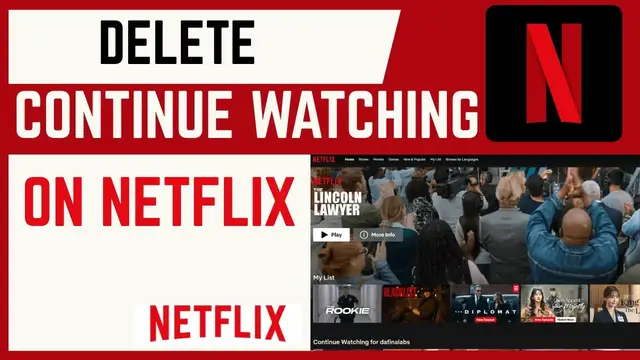
comment section. Otherwise, thanks for watching. Let's meet in the next