
How To Python Download on Mac - Macbook - iMac - M1/M2
Jul 12, 2023
In this video we take a step-by-step look at how to download Python on a Mac/Macbook/iMac - M1/M2
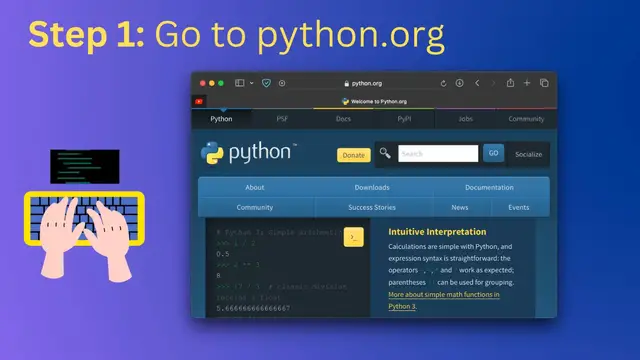
Step 1: Go to python.org
Step 2: Click on Downloads button.
Step 3: Click on Download Python 3.x.x, to get the latest version of Python.
Step 4: Click on allow when prompted "Do you want to allow downloads on Python.org"
Step 5: Once download you will find the python.dmg setup file under Downloads folder.
Step 6: Double click on the Python dmg file to open the installer to install.
Note: macOS comes with bundled Python3 which you can access using Terminal app.
Simply type "python3" on your zsh/bash terminal to use it.
Note: You can also make use of home-brew to install Python via terminal command.
Command: brew install python
Links:
Show More Show Less #Computers & Electronics