live_tv
Livestream Starting Soon
00
Hours
:
00
Minutes
:
00
Seconds
Up next in 10


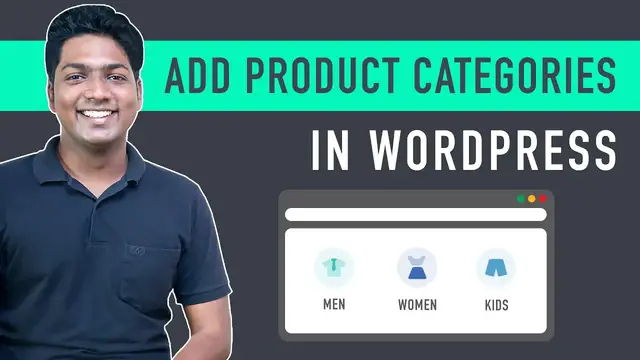
In this informative video tutorial, you'll learn how to organize and streamline your e-commerce website by adding product categories. Effective categorization is crucial for enhancing the user experience, making it easier for customers to find the products they're looking for. This guide will walk you through the process of creating and implementing product categories, helping you structure your online store for maximum efficiency and customer satisfaction. Discover how to group similar products, optimize your website's navigation, and make it more user-friendly. With this tutorial, you'll gain the knowledge and skills to improve the organization of your e-commerce website, making it easier for customers to browse and shop for products, ultimately boosting your online business's success. Start enhancing your e-commerce website today by adding product categories!
Show More Show Less View Video Transcript
0:00
Hi guys, today we are going to see how you can create product categories to your ecommerce website
0:05
Let's say you have an ecommerce website and you have products like this
0:10
And now you want to arrange your products into different categories like this
0:23
You can do that by watching this video. So after watching this video, you will be able to create product categories like this
0:30
on your website. And anyone who's visiting your website will be able to easily find the products they want
0:36
based on the category. So all you need to have to follow this tutorial is an ecommerce website
0:42
If you don't have an ecommerce website, you can easily make one by watching this video
0:48
Once you have created your ecommerce website, you can then follow this tutorial. So let's get started
0:53
I'm Brian from Website Learners, and let's add product categories to our website
0:57
First, let's see the website, where we are going to create the product categories. Here it is
1:03
Now you can see that we have all the products on our site, but there are no categories for our products
1:08
So we are going to create product categories in just 3 steps. The first step
1:13
is to create your categories. So to create the categories, just go to your WordPress dashboard
1:23
Now go to products And click categories And it will take you to this page
1:38
Now enter the name of your category in this field I'm going to create a category called men
1:47
And click add new category Now as you can see, a new category has been added
1:57
So in the same way, you can create as many categories as you want
2:01
Next, I'm going to create another category called women. So let's enter that here
2:12
And click add new category Now we have successfully created our product categories
2:22
Once you have created the categories, If you go here, And click view
2:32
You can see that, We do not have any products in our category. So now
2:39
We can go to step 2 of this tutorial, Which is to add products to your categories
2:46
So to add products to your categories, Just go back to your dashboard, And click all products
3:00
Here you will find all the products you have on your site Now to add products to your category
3:05
First, you need to select the products, which you want to add to your category
3:10
I'm going to select these Once you have selected the products
3:24
Just click here And click edit And then click apply
3:39
Now here you need to select the category in which you want to add these products
3:43
I'm going to add the products into the min's category. So let's select that
3:52
And click update So now your products will be added to the min category
4:03
To check that, Let's go to this tab As you can see we do not have any products here Now if we click refresh
4:21
You can see that, we now have the products in our category. So this is how you can add products to your category
4:28
In the same way, we will add products to the women's category. So let's go to our dashboard
4:40
And click products Now select the products, Which you want to add to the women's category
4:51
I'm going to select these Once you have selected the products
5:04
Like we did before Let's click here and select edit and then click apply
5:19
Now here, select the category as women and then click update Okay, so now we have successfully added the products to our categories
5:37
Now if you go to our website And click home You can see that, our categories do not appear here
5:53
Now, how do you add the categories you created to your menu
5:57
Next, let's go to step 3, where we see, how you can add the categories to your menu
6:06
So to add your categories to the menu, Let's go to our wordpress dashboard Now go to appearance
6:17
And click customize And it will take you to this page Now to add the categories to your menu
6:26
Just click menus And click on main menu Here you will be able to see the menus, which you have on your website
6:41
Now to add categories to your menu, click add items And select product categories
6:53
And here, select the categories you want to add to your menu. I am going to select these categories
7:02
Now to save the changes, let's click publish As soon as you select the categories
7:14
It will be added to your menu like this Now if we go back to our website
7:24
And click refresh You can see that, we now have the categories on our menu
7:35
So now if we click on men, we can only see men's products
7:45
And now if we click on women, we can only see the women's products
7:53
Okay, so this is how you can add product categories to your menu
7:59
And now, your customers will be able to easily choose their products using these categories
8:04
So now you know how to add your product categories on your menu. But what if you want to display categories in a different place on your website
8:11
Next, let's see how you can display your categories in a sidebar of your website, like this
8:19
So to display your categories in a sidebar, First you need to enable the sidebar on your store page So to enable it Just click customize
8:34
And then go to sidebar Now as we are using the Astra theme
8:41
we have got the sidebar option here But if you're using a different theme
8:47
find it from here, and enable the sidebar on your theme So to enable the sidebar
8:52
under WooCommerce, Click here And select the sidebar you want to add
8:59
I'm going to select left sidebar And as soon as we select it
9:07
You can see that Our sidebar appears here Now to display products on this sidebar
9:13
Let's click here to go back And click widgets Now click WooCommerce sidebar
9:29
And then click add widget Now here, search for product categories And you will get this feature
9:41
So let's click on it You can see that, we now have our sidebar with product categories
9:52
So to save the changes, Let's click publish Now if we go to our website
10:06
And click refresh You can see that, We have got our product categories
10:16
In the sidebar of our site So this is how you can display your product categories
10:20
on your sidebar. Now if you see here, We have a default category in our sidebar called uncategorized
10:28
If you click on it, You can see all the products under this category by default
10:38
Since we have all our products under this category, Let's change this category name to all products
10:44
So to change it, Let's go to our dashboard, Now go to products
10:56
and click categories Here you can see that, we have our default category
11:03
Now to change the name of this category, Let's go here And click quick edit
11:12
And then change the name to all products And click update So now we have changed the category name
11:25
Now if we go to our store page And click refresh You can see that
11:40
The default category name has been changed Once you have changed the category name
11:46
Next Let's see how you can create subcategories on your website Like this
11:53
Let's say you have a set of products, which are related to men, And you want to create a separate category for those products
12:00
And add it under men You can do that easily, By creating subcategories
12:08
So to create a subcategory, Just go back to your WordPress dashboard Now go to products
12:19
and click categories Now here, enter the new subcategory name, which you want to create
12:31
I am going to enter shoes Next you need to choose under which parent category you want to add this subcategory I am going to add this to men So let click here and select men
12:53
and then click add new category. Now our new subcategory has been created
13:02
So to check it, Let's go to this tab And then click refresh
13:17
As you can see, we now have a new subcategory, under the men's category
13:23
So this is how you can create a new subcategory on your website. Now if you click on it
13:32
You can see that, we do not have any products in our subcategory. So next, let's see how you can add products to this sub category
13:41
So to add the products, let's go to our dashboard And click all products
13:54
Like we did before, let's select the products which we want to add to our sub category
13:58
Once you've selected the products, click here and click edit
14:14
Then click apply Now select the subcategory shoes, which is under men
14:26
and click update And now our products will be added to the subcategory
14:37
Now if you go to this tab And click refresh You can see that, we now have the products in our subcategory
14:54
Once you have added the products to the subcategory, How do you make this subcategory visible to your customers
15:00
Next, let's see how you can add this subcategory to a drop down menu
15:06
Like this To add a drop down menu, Let's click customize
15:19
And click venues Then click main menu Now click add items
15:33
And select product categories Now select your subcategory, which is choose And as you can see, it has been added to the menu
15:47
Now to add this as a drop down menu under men Just drag this menu
15:56
And place it like this So to save the changes, click publish
16:06
Now if we go to our website And click refresh You can see that, we now have a drop down option on men
16:21
Now if we go to men And click shoes You can see that we have the products on our subcategory, shoes
16:32
So this is how you can add your categories in a drop down menu
16:37
That's it guys, so now you know how you can add product categories to your WordPress website
16:42
And now if you want to learn how to deliver products to your customers, you can watch this video
16:46
And also make sure you subscribe to website learners to get more videos like this one
16:53
Thanks for watching. I'll see you in the next video. Take care. Bye-bye
#Business Services
#E-Commerce Services
#Retail Trade
#Reference
#Shopping
#Apparel
#Men's Clothing
#Women's Clothing
#Shopping Portals
#Small Business