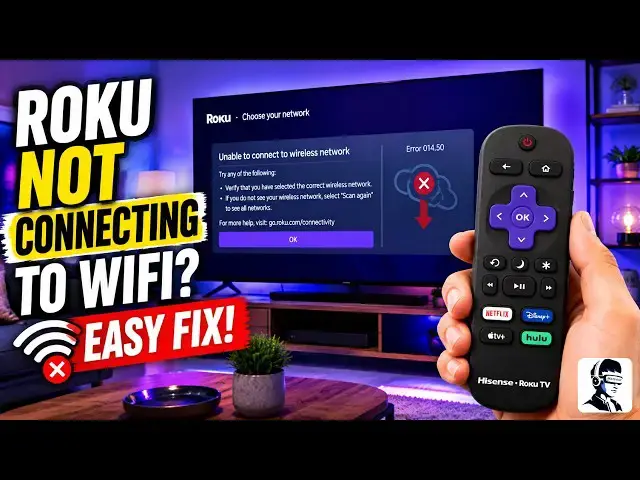
0:00
Your Roku is connected to Wi-Fi, but
0:02
it's still refuses to work. Apps keep
0:04
failing, videos won't start, and you're
0:06
stuck staring at error messages instead
0:08
of your favorite shows. It feels like a
0:10
broken device, but in reality, it's
0:12
usually just a small network issue. The
0:14
best part is you can fix it yourself
0:16
without any tools or repairs. In this
0:18
video, I'll guide you through quick and
0:20
simple fixes to solve the problem and
0:22
get your Roku working again fast. Let's
0:24
start with a full restart because this
0:26
clears temporary network glitches. Turn
0:28
off your device and unplug it from
0:30
power. Then unplug your router or modem
0:32
as well. Wait for about 1 to 3 minutes
0:34
before plugging the router back in. Let
0:36
it fully start up and connect to the
0:38
internet. After that, plug your device
0:40
back in and turn it on. This simple step
0:42
often fixes many connection issues. If
0:44
that didn't fix it, check your Wi-Fi
0:46
password. Go to settings, then network,
0:48
and choose setup connection followed by
0:50
wireless. Select your network again and
0:53
carefully re-enter the password. Make
0:55
sure everything is correct including
0:57
capitalization and spacing because even
1:00
a small mistake can stop the connection.
1:02
Next, let's check your signal strength.
1:04
Go to settings, then network, and select
1:06
about. Look at the signal quality. If it
1:08
shows poor or fair, that could be the
1:10
cause. Try moving your device closer to
1:12
the router and remove any obstacles like
1:15
thick walls or metal objects that can
1:16
block the signal. If the issue
1:18
continues, reset the network settings.
1:20
Go to settings, then system, then
1:22
advanced system settings, and select
1:24
network connection reset. Confirm the
1:26
reset and let the device restart. After
1:28
that, reconnect to your network again.
1:30
Now, let's try switching Wi-Fi bands. If
1:32
your router supports both 2.4 GHz and 5
1:35
GHz, connect to the 2.4 GHz band
1:38
instead. Even if 5 GHz appears stronger,
1:41
it can be less stable over distance, so
1:42
switching bands can improve reliability.
1:45
Another step you can try is disabling
1:47
network pings using a hidden menu. This
1:49
reduces background network checks that
1:51
can sometimes cause disconnects. On your
1:53
remote, press the home button five
1:55
times, then press fast forward, play or
1:57
pause, rewind, play or pause, and fast
2:00
forward again. This will open the secret
2:02
menu. Go to system operations, then
2:04
network menu, and select disable network
2:07
pings. Exit and restart your device.
2:09
Next, check your time and bandwidth
2:11
settings. Go to settings, then system,
2:13
and select time. Make sure the correct
2:15
time zone is selected. If it's set to
2:17
automatic, try setting it manually. Then
2:19
go to settings, network, and select
2:21
bandwidth saver. If it's turned on, turn
2:23
it off, since it can sometimes interrupt
2:25
the connection. Now, here's an important
2:27
test. Try connecting your device to a
2:29
mobile hotspot. If it connects
2:31
successfully, then the problem is coming
2:32
from your router. If it still doesn't
2:34
connect, the issue may be related to the
2:36
device itself. After that, check your
2:39
router settings. Restart the router
2:40
again if needed. Make sure MAC filtering
2:43
or VPN settings are not blocking the
2:45
connection. If possible, give your 2.4
2:47
GHz and 5 GHz networks separate names,
2:50
so your device connects to the correct
2:52
one more easily. If none of these steps
2:54
work, the final option is a factory
2:56
reset. Go to settings, then system, then
2:59
advanced system settings, and choose
3:01
factory reset. Keep in mind, this will
3:03
remove all apps and settings, so use it
3:06
only as a last step. That's it for
3:08
fixing Wi-Fi connection issues on your
3:10
Roku. By following these steps, you've
3:12
covered the most common causes and know
3:14
exactly where the problem is coming
3:16
from. If this video helped you, give it
3:18
a thumbs up and subscribe for more
3:20
simple and reliable tech fixes. And if
3:23
one of these steps worked for you, or
3:24
you still have questions, let me know in
3:26
the comments below. Thanks for watching,
3:29
and I'll see you in the next one.