0:00
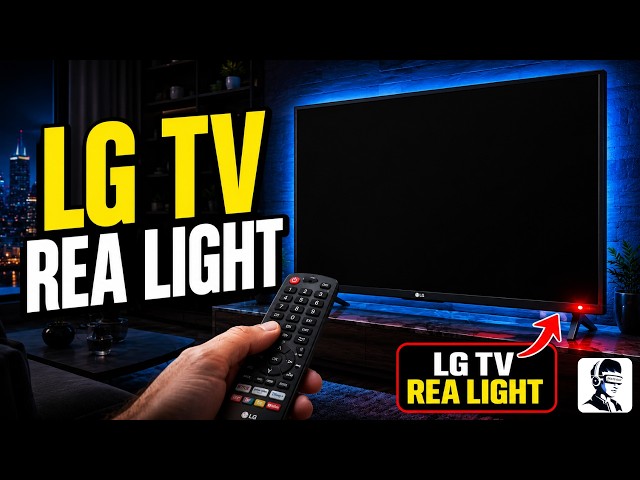
You press the power button on your LG
0:02
TV, the red light starts blinking, but
0:04
the TV never actually turns on. No logo,
0:07
no sound, just a black screen staring
0:09
back at you. It's frustrating and
0:11
confusing, especially when it was
0:13
working fine before. But don't worry,
0:15
this problem is more common than you
0:16
think, and in many cases, you can fix it
0:18
yourself. In this video, I'll guide you
0:20
through easy troubleshooting steps to
0:22
fix an LG TV with a blinking red light
0:25
safely at home. Usually, this happens
0:27
due to a faulty power supply, a
0:29
backlight issue, a problem with the
0:31
mainboard, or sometimes just a simple
0:33
software glitch. First, check if the TV
0:36
is updating. A blinking red indicator
0:38
light can sometimes mean the system is
0:40
installing a software update. So, leave
0:42
it on for at least 10 minutes and do not
0:45
unplug it during this time. If the
0:46
blinking stops and the TV turns on, then
0:49
it was only updating. But if the light
0:50
keeps blinking and the screen stays
0:52
black, move to the next step. Now
0:54
perform a complete power cycle, also
0:56
called a cold reset, because this helps
0:58
reset internal power circuits. Unplug
1:01
the TV from the wall outlet. After
1:03
unplugging it, press and hold the
1:04
physical power button on the TV itself,
1:07
not the remote, for about 30 to 60
1:09
seconds. This drains any leftover
1:11
electricity inside the TV. Then leave it
1:13
unplugged for 10 to 30 minutes so the
1:15
remaining power fully clears. After
1:17
waiting, plug the TV directly into the
1:20
wall socket and turn it on using the
1:21
physical button. Next, remove all
1:23
external devices to isolate the problem.
1:26
Unplug the TV again and disconnect every
1:28
HDMI cable and all connected devices
1:30
like streaming sticks, consoles, or
1:32
cable boxes. Make sure nothing is
1:34
connected. Then, plug the TV back in and
1:36
turn it on using the button on the TV.
1:38
If it turns on, then one of the devices
1:40
or cables was causing the issue.
1:42
Reconnect each device one by one and
1:44
test the TV after each one so you can
1:47
identify which cable or device is
1:49
faulty. If the TV works without devices
1:51
connected, check the HDMI control
1:53
setting, turn the TV on, go to settings,
1:56
open general, and find Simp Link. Turn
1:58
Simp Link off. After that, reconnect
2:00
your HDMI cables and test again. This
2:03
helps prevent automatic control signals
2:05
from external devices that can stop the
2:07
TV from starting properly. Now, check
2:09
the remote control. Remove the batteries
2:12
and press and hold the power button on
2:14
the remote for about 30 seconds. Then
2:16
press all the buttons firmly to make
2:18
sure none are stuck. Put fresh batteries
2:20
back in and try turning the TV on again.
2:23
You can also move the remote away and
2:25
use only the physical button on the TV
2:27
to rule out remote issues. After that,
2:29
check the power source and cable. Make
2:31
sure the TV is plugged directly into the
2:33
wall outlet and not into a surge
2:35
protector or smart plug. Try a different
2:37
outlet to rule out a socket issue. Also
2:40
inspect the power cable carefully and
2:42
make sure there are no cuts, bends or
2:44
loose connections and that it is firmly
2:46
connected to the TV. Now observe the
2:48
blinking pattern carefully. Watch the
2:50
red light and count how it blinks. If it
2:52
keeps blinking continuously, it may
2:54
indicate a power board issue. If it
2:56
blinks in a repeating pattern like two
2:58
or three times, it may point to a
3:00
mainboard or internal fault. This
3:02
information can be useful if you contact
3:04
support. Finally, if the TV turns on but
3:07
the problem keeps coming back, you can
3:09
try a factory reset. Go to settings,
3:11
select general, and choose reset to
3:13
initial settings. Confirm the reset and
3:15
let the TV restart. Keep in mind, this
3:17
will erase your saved settings. That's
3:19
it for this video on how to fix an LG TV
3:22
with a blinking red light. I hope these
3:24
step-by-step troubleshooting methods
3:25
help you get your TV back up and
3:27
running. If this video helped you, give
3:29
it a thumbs up and don't forget to
3:31
subscribe for more simple and practical
3:33
tech fixes. If one of these steps worked
3:35
for you or if you're still facing the
3:37
issue, let me know in the comments