0:00
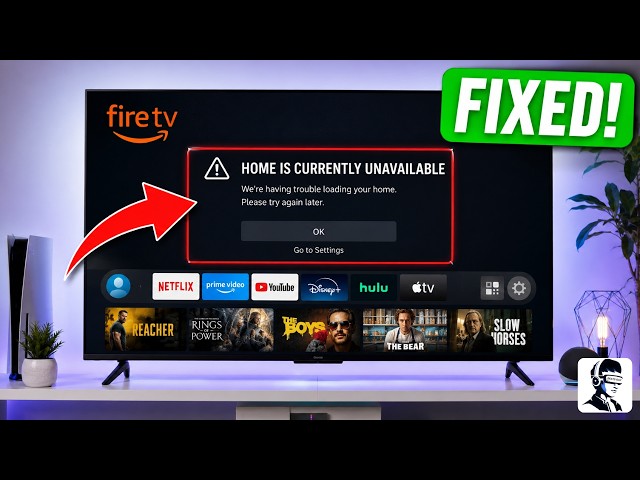
You turn on your Fire TV Stick, but
0:02
instead of loading the home screen, you
0:03
see "Home is currently unavailable" and
0:06
nothing works properly. Apps are stuck,
0:08
the screen won't refresh, and it feels
0:10
like the system is completely
0:11
unresponsive. It can seem like a serious
0:13
problem, but don't worry just yet. The
0:15
good news is this issue is very common
0:18
and often easy to fix at home without
0:20
replacing anything. In this video, I'll
0:22
guide you through simple step-by-step
0:24
troubleshooting to fix the problem. Most
0:26
of the time, it's caused by network
0:28
issues, account syncing problems,
0:30
updates, VPN interference, or a
0:32
temporary glitch. First, we will do a
0:34
soft restart using the remote because
0:36
this clears temporary glitches. Take
0:38
your remote and press the play or pause
0:40
button and the select button in the
0:42
center at the same time. Keep holding
0:44
both buttons until the device powers
0:46
off. Once it turns off, release the
0:48
buttons and wait for it to reboot. After
0:50
it turns back on, check if the home
0:52
screen loads properly. If that didn't
0:53
fix it, perform a proper power cycle to
0:56
reset the system memory. Unplug the
0:58
device from the wall outlet completely,
1:00
not just the TV USB port. Leave it
1:02
unplugged for about 5 to 10 minutes so
1:04
the system fully resets. After that,
1:06
plug it back into the wall outlet and
1:08
turn it on. This helps clear temporary
1:10
cache and refresh the system. Next,
1:12
let's check your internet connection
1:14
because this issue is often
1:15
network-related. Go to settings, then
1:17
open network and make sure it shows
1:19
connected. Also, check the signal
1:21
strength, which should be good or
1:22
excellent. If it is not connected,
1:24
reconnect your Wi-Fi. If the signal is
1:26
weak, move your router closer or adjust
1:28
the device position to improve
1:30
stability. If the issue continues,
1:31
restart your router or modem to refresh
1:34
the connection. Turn it off completely
1:36
and unplug it from power. Leave it off
1:38
for 5 to 10 minutes, then plug it back
1:40
in and turn it on. Wait until the
1:41
internet is fully restored, then test
1:44
your device again. Now, we will forget
1:46
and reconnect your Wi-Fi network because
1:48
this refreshes the network handshake. Go
1:50
to settings, then network. Select your
1:53
Wi-Fi network. Press the menu button on
1:55
the remote and choose forget. After
1:57
that, reconnect to the same network by
1:59
entering your password again. If you are
2:00
using a VPN, turn it off completely and
2:03
restart your device. VPN services can
2:06
block Amazon servers and cause this
2:07
issue. Once it turns back on, check if
2:09
the home screen loads normally. Next,
2:12
check for a system update. Go to
2:13
settings, then my Fire TV, then about,
2:16
and select check for updates. If there
2:18
is an update available, install it.
2:20
After the update finishes, restart your
2:22
device. A pending update can sometimes
2:24
cause the home screen not to load
2:26
properly. Now, deregister and reregister
2:28
your Amazon account because this
2:30
refreshes the connection with Amazon
2:32
servers. Go to settings, then account
2:34
and profile settings. Select Amazon
2:36
account and choose deregister. Confirm
2:39
the removal of the account. After that,
2:41
sign in again by following the on-screen
2:43
instructions or using the QR method
2:46
shown on your screen. If nothing has
2:48
worked so far, the last option is a
2:50
factory reset. And this should only be
2:52
used as a last resort. Press and hold
2:55
the back button and the right navigation
2:57
button together for about 20 seconds.
2:59
Follow the reset confirmation screen
3:01
that appears and let the device reset
3:03
completely. After that, set it up again
3:05
like a new device, connect to Wi-Fi, and
3:07
sign into your Amazon account. If the
3:09
issue is still not fixed after all these
3:11
steps, it may be a rare server-side
3:13
problem or a hardware issue. That's it
3:16
for this video on how to fix the home is
3:18
currently unavailable error. You've now
3:20
covered the most common causes and
3:22
solutions step-by-step. If this video
3:24
helped you, give it a thumbs up and
3:26
don't forget to subscribe for more
3:28
simple and helpful tech fixes. If you
3:30
have any questions or if one of these
3:32
steps worked for you, let me know in the
3:34
comments below. Thanks for watching and
3:36
I'll see you in the next one.