Up next in 10



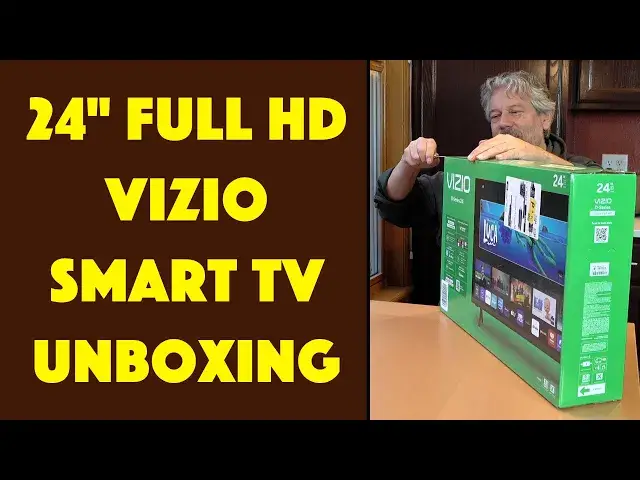
Turns it it's not true that bigger is always better with TV sets! Tech expert Dave Taylor unboxes and sets up the petite 24" Vizio D-Series 1080p FullHD FHD SmartTV - model D24fM-K01 - and finds that it's a great little TV. It's perfect for an RV, office, bedroom, even an Airbnb or a big rig. Full unboxing!
Check it out at Amazon:
24" D-Series: https://amzn.to/3U0DxoH
32" D-Series: https://amzn.to/3vzkKaM
Visit Dave's Q&A Web site at: https://www.AskDaveTaylor.com/
#vizio #fhd #television #tv #dseries #24inch #askdavetaylor
Show More Show Less View Video Transcript
0:00
A compact 24 inch HDTV
0:03
Let's unbox it and see what's inside. Dave Taylor here and I have big TVs, I have really big TVs, but every so often I want
0:20
to have something that's small and compact and stand alone. Fortunately Vizio makes a 24 inch TV that fits the bill and it's very inexpensive
0:32
It's perfect for an RV, a dorm room, it can double as a computer monitor, it has built
0:38
in speakers, that's what this is. This is the Vizio D Series, it's the 24 inch full HD smart TV model D24FM-K01
0:53
So this is the 2023 version of this TV, they have a 2022 version, obviously they keep refining it
1:02
The big change here is that they actually have what they call their thin frame design
1:06
which is new for 2023. What comes in 2024, we'll have to see
1:12
But this is full 1080p, 16 to 9 aspect ratio, two 9 watt speakers, two HDMI 1.4 with ARC
1:22
on the back, the thin frame design, LED backlight, a V gaming engine, so it's supposed to work
1:28
really well for gaming systems with a variable refresh rate and a super low lag time
1:35
It has the Vizio voice remote, Bluetooth audio so you can actually use this and listen with
1:40
your headphones or earbuds without bothering anybody, lots of stuff. But it's all in the box
1:47
So, unboxing tool, let's crack this thing open and see what's inside
1:55
And this is literally fresh off the truck, as they say, so I'm going to just open it
2:04
up and I'll learn what's in the box the same time you do
2:09
So that should get us going. And here we go. So right off the top, literally off the top, is instructions on how to unbox it
2:23
And it says that you need two people to move it around
2:29
And I'm pretty sure that's for larger TVs. I think a TV this size, one person can literally pick up and move around because it's less
2:37
than 10 pounds. Also on the top here is the remote control
2:43
Let's give that a quick peek. And this is the Vizio voice remote and it comes with two Duracell AAA batteries
2:52
So you see in this close up, it's a pretty simplified remote control
2:56
There's no number entry, but most people aren't entering numbers. They're just going to their favorite streaming service
3:03
Now, I should say, let me just push this to a side a little bit
3:06
I should say that the TV supports AirPlay and Google Chromecast, which is really one
3:12
of my favorite features is that you can just push anything off your computer or phone onto
3:18
a TV screen like this from Vizio. Also works with Alexa. It works with Google Home and it has what they call Vizio Smartcast, which is their
3:27
smart TV system. So you can get apps like Netflix and Disney Plus and YouTube and HBO Max
3:35
But it also includes Vizio Watch Free Plus, which gives you access to an impressive 260
3:42
different streaming channels. Now you might be able to get to those channels through other means too, but it's nice to
3:49
have it in Smartcast. Now this looks like one of the feet
3:55
There we go. And so I see that there's a screw. So the idea is you put the foot on and then you're going to actually screw it to affix
4:04
it to the TV. And if there's one on this side, then that means it's going to be one on the other side
4:11
too, I predict. And sure enough, here's the other foot. And now there is the usual polystyrene, which seems to be all the rage with companies and
4:24
doesn't look like there's anything else on that. So what we have is the TV
4:31
And you can see I'm literally holding it with one hand. So it's not very heavy
4:36
Let's just double check. I think that's everything that's going to be in the box
4:42
But let's just double check. That is indeed everything that's in the box
4:49
So we have the TV, we have the feet, we have the screws to affix the feet to the TV, and
4:54
we have the remote control. So now let's see what this screen looks like
5:02
It's kind of chonky in terms of its thickness, a little more than I expected
5:06
So you can see it's pretty thick, but the front, let me do it this way
5:14
That's very nice. It's a very nice screen with just a little bar on the bottom
5:18
And then the thin frame is this, that that screen goes all the way to the edge
5:23
So I like that it can stand up. That's very handy. And now I can turn it around and you can see the back
5:34
So there's those two HDMI and USB-A, a headphones jack, a 3.5 millimeter jack, which is interesting
5:43
because some of the reviews people have left say you can't plug in headphones
5:47
Well, that's where you plug in headphones. And this is a coax, so it must have a TV tuner built into it too
5:54
Now that coax you're going to use either for cable or possibly you could use an antenna
6:00
and there are some pretty slick indoor antennas nowadays. And you can just let this thing figure out what channels, if any, you get
6:08
It's not going to be hundreds, but you know, it might be, it might be dozens of channels
6:12
in pretty good condition. And then here, of course, we have the actual power cord
6:18
We'll get back to that in a minute because what we need to do is we need to put the feet on
6:23
So that looks like we have these holes and we have the feet
6:32
I'm going to use my unboxing tool to get that out. And I think, let's see, there's two holes here
6:46
So it just goes right in. And it's super easy that there are literally three holes on the bottom
6:53
You can see in this closeup, there's three holes on the bottom. And then the foot is going to take the two outer holes
6:59
And then this screw is going to take the inner hole. Now what I don't have, what I didn't anticipate is that I needed a screwdriver and this is
7:09
a Phillips screw. So I'll be back in just a second. I'm going to go get a screwdriver
7:14
All right, I have a screwdriver. So it's actually really nice to have such a small television to work with because you
7:21
can literally just hold it and it makes life really easy. So those two holes go on the outer, sorry, the two elements that stick out of the foot
7:31
go onto the outer holes. And then this is easily screwed in and it'll hold that foot
7:40
There we go. And then I'll do the same again on the other side
7:46
So I'm going to turn this around. But before I do that, let's get this out of its bag too
7:55
And to do that, I will again use my unboxing tool. And here's foot number two
8:04
And then we need the screw that's included. So really the only thing you need for this is you need to have a Phillips screwdriver
8:14
unless you're going to wall mount it. And there are four holes and those holes can go into a wall mount device
8:23
And I know that like on big rigs, on trucks, there are some trucks that have built in spots
8:30
for TVs and they are this set of dimensions. So that makes it super easy to work with
8:37
But I don't have a truck. So I'm going to just go ahead and put this on
8:43
And same again, just put the screw in the middle. And hmmm
8:54
That one's behaving a little differently. Oh, I see. Put the screw in the wrong place
9:01
And that's the excitement of unboxing because it's real. This is real time
9:06
And if you do something wrong, then everyone sees it. So sorry, I did that wrong
9:12
But this time I put it in the right place and that is much more what I expect
9:19
And it's easy enough to get that central screw in. And it doesn't have to be super tight
9:27
It's just enough to hold the feet on. And now we have a television
9:35
So let's move some of this out of the way. And here we go
9:45
Now I don't want to go through all of this and not turn it on
9:49
So let's do that one final step. I'm going to plug it in and turn it on and hopefully it'll power on and we'll see what happens
9:59
So let's see. Otherwise, I can tell you that the dimensions is that it is 21.2 inches by 14.3 inches and
10:14
it's 6.3 inches at its deepest. But I think that that 6.3 is actually the depth of the feet
10:23
So here we have it and it's powering on. And while we're powering on, I think I'm going to take some of these stickers off
10:34
There's that energy saver. It says your estimated yearly energy cost would be $7
10:41
If you had it on all the time for seven for an entire year, it would cost you $7
10:48
That's pretty painless. And then this is just protection to keep it from getting damaged in transit
10:58
It is going to immediately prompt me to hook up Wi-Fi, but choose a language for your TV
11:06
Now to do that, I'm going to have to get that remote going
11:10
So pull the remote out, grab the batteries. And I have plenty of Vizio remotes that look exactly like this one
11:21
So I'm very familiar with how it works. We should be able to slide the back out
11:27
There we go. And then we just have to put the batteries in
11:34
I like that they're Duracell. I feel like they're going to last longer
11:40
I mean, you shouldn't very frequently have to replace the batteries in your TV remote
11:45
Let's see, that goes that way. This one goes this way. Put the back back on
11:58
And, all right, so I can English. And we've chosen a language and pair the remote
12:08
I think that it already has. So microphone and mute at the same time
12:17
So microphone and mute. Oh, it already got it. So now I would have to hook up the Wi-Fi, and then it would probably update its firmware
12:29
And then I would be able to actually go and start working with the TV. But since this is an unboxing, this is really what I wanted to show you
12:36
And as you can see, all you need is that Phillips screwdriver
12:41
And you are ready to pull this out of the box. This is a one-person job
12:46
And, you know, be a little protective of the screen. But it's super easy
12:51
In less than five minutes, from a sealed box to having this ready to jump on my Wi-Fi and have me start watching TV
12:58
So I think there's a lot going for this. This is a really nice, easy, perfect bedroom TV
13:04
If you have an Airbnb, you could have this in a bedroom. People would be pretty thrilled to have it
13:09
And otherwise, that's really all I got here for this TV. Now, I know you're asking, well, what about the price
13:16
So, before we get to the price, I'm going to ask you to subscribe to my channel
13:21
And if you're going to subscribe, don't forget to click on that bell icon so you get notifications of new content
13:27
While you're at it, if this was a value, give me a thumbs up. Also appreciate that. Sweet
13:32
This is the Vizio 24-inch D-Series Full HD. So it's a full 1080p, not 720p
13:41
It's a full HD smart TV, model D24FMK01. And it is $159.99, minus $10 right now, to $149.99 on Amazon
13:56
But here's what's really crazy, is that if you want to upgrade to the 32-inch TV
14:02
the 32-inch model of this TV is less expensive than the 24-inch model
14:09
So the 24-inch model is $149.99. The 32-inch model is currently $140.99
14:18
So, unless you're looking for something that's as small as possible, which is what I was doing
14:23
then you might even bump it up a little bit and get the next size up for less money
14:28
Either way, solid option from Vizio. Easy, straightforward. You're going to pull it out of the box, and I know you can do everything I just did
14:38
and probably more gracefully. That's all I got. I need to get this thing programmed and online
14:43
So, I'll catch you in my next video
#TV & Video
#Online Video
#Consumer Electronics
#TV & Video Equipment
#Media Streaming Devices