Up next in 10



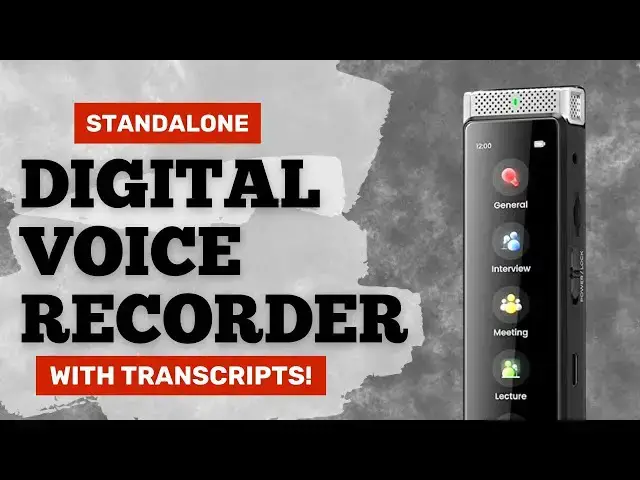
Your phone can record audio and you can generate a transcript by uploading it to one of many different services, but what if you need to retain complete privacy? Patient interviews or sessions, confidential meetings, even private chats with family members, none of those should ever go online. Enter the slick, dedicated Innioasis R1 Digital Voice Recorder. It can generate transcripts in six languages without being online and does a remarkably good job even in difficult recording situations.
Tech expert Dave Taylor spent some time with the Innioasis R1 and found that it did a very good job in a variety of scenarios, including an outdoor meeting with 25+ people in attendance. Includes various demos, including how to use ChatGPT to clean up and reformat transcripts on demand.
Check it out at: https://amzn.to/3NvHs9a
Visit Dave's Q&A Web site at: https://www.AskDaveTaylor.com/
0:00 Intro & Features
4:40 Hands on Demo
6:40 Interface with Computer
7:50 Transcript Cleanup with ChatGPT
9:11 Wrapup and Price
#voicerecorder #digitalvoicerecorder #innioasis #recorder #privacy #security #askdavetaylor
Show More Show Less View Video Transcript
0:00
there's a lot to like with this digital
0:01
voice recorder but mostly it's about
0:04
privacy let's check it
0:06
[Music]
0:12
out Dave Taylor here and I'm checking
0:14
out this this is the in Oasis R1 digital
0:18
voice recorder and it's a pretty cool
0:20
little device as you can see it is small
0:23
there's a buil-in microphone on the top
0:25
there are buttons on both sides if
0:28
you're a button person but it also has a
0:30
color touch screen so you can also
0:33
interact with it that way lots of nice
0:35
options what makes this really notable
0:38
is not only does it do a remarkable job
0:40
of recording voices even in noisy
0:42
environments but it has built in on
0:45
board no connection needed speech to
0:48
text transcripts and it can do those in
0:52
six different languages English German
0:54
French Italian Spanish and Polish now
0:57
why is that such a big deal because what
1:00
you don't want if you have for example
1:02
you're working with a client or a
1:04
patient and you have a recording and you
1:07
want a transcript well you don't want to
1:09
send that up to the cloud or up to some
1:11
data service because you don't know what
1:13
happens to that data you don't know if
1:14
they keep it for training AI or whatever
1:17
this is all on board no connection not
1:20
only is it no connection needed it
1:22
literally can't connect to the Internet
1:24
so that's really really a great feature
1:26
in my opinion now it can be voice Act
1:29
activated you can have scheduled
1:31
recordings when you turn on for
1:34
recording you can actually turn off the
1:35
screen so it's very subtle has the
1:38
built-in microphone but on the side it
1:41
actually has the ability for you to plug
1:43
in an external physical microphone so if
1:45
you have a 3.5 mm mic connection or you
1:48
can use a Bluetooth microphone or
1:50
speakers so you could use it for
1:52
playback using Bluetooth on a separate
1:55
speaker does have a tiny little built-in
1:58
speaker that's pretty good um storage
2:01
wise it comes with a 64 gig SD card and
2:05
then it actually has the ability to go
2:08
up to one terabyte of storage also has 8
2:11
gig on Device Storage so that is an
2:14
enormous amount of data space for voice
2:17
recordings they don't take a lot of
2:18
space so I've been experimenting with
2:21
this I went to a meeting last night
2:23
where we were outdoors and there was
2:24
music in the background as long as you
2:27
know as well as environmental noise and
2:29
other people people talking and I just
2:31
put this on a table didn't make a big
2:32
deal out of it and just pushed record
2:35
and I'll show you in a couple of minutes
2:37
exactly how that worked out but it was
2:39
remarkable it worked really well so
2:42
touchcreen or buttons then on the side
2:45
there's
2:46
USBC both for charging and for
2:49
connecting to computers and that's my
2:51
preferred way of accessing all of this
2:53
and again I'll show you that in just a
2:54
second and let's see so it has five
2:58
different modes that you can see here on
3:00
the front and they are General interview
3:04
meeting lecture and pocket recording
3:07
modes and they are different in terms of
3:10
like their um noise cancellation in the
3:13
background and the ability to pull
3:15
voices out of a noisy environment so I
3:17
used meeting when I was outside last
3:20
night and again you'll see or you'll
3:22
hear I should say it worked really well
3:25
so in terms of the battery it's an 1100
3:27
milliamp battery that they say can give
3:29
you around 25 hours of use and I think
3:33
it's less time if you're using that
3:35
transcript feature cuz you can also just
3:37
use it to record audio and do nothing
3:39
else and then it's just an audio
3:41
recorder and that will give you more
3:43
battery time but it's kind of cool to
3:44
have that transcript it's a really nice
3:46
feature if you don't want any random
3:49
person to pick it up and start looking
3:50
through all your recordings you can set
3:52
up a security pin and by the way on the
3:55
front here if I just swipe to the left
3:58
then this is a list of of the recordings
4:00
that I've made and I will just demo one
4:03
so let's just tap on one and let's see
4:07
what did I do I think I turned the
4:09
volume down have the translation on the
4:12
speech to text so this is actually
4:15
something I'm going to demo in a second
4:17
so notice you can view it sideways if
4:21
you want the text to be a little bigger
4:22
and you can actually go into settings
4:24
and make the text even bigger but what I
4:26
want to do is I want to give you a
4:27
couple of demos so first off let let's
4:29
get this front and center and let me
4:31
show you some of its features and then
4:33
we'll jump onto the computer we'll pull
4:36
off a transcript and we'll see what that
4:38
looks like and how to clean that up a
4:39
little bit more then I'll jump back on
4:41
camera as you can see the touch screen
4:44
is bright and Vivid it's super easy to
4:47
get to things like settings or to go
4:49
back and if you swipe to the right then
4:53
you actually get all of your recordings
4:55
so you can go back and you can listen to
4:57
the recording you can read the
4:59
transcript if you've turned that on and
5:02
you can actually delete them whatever
5:04
you need now I tend to actually access
5:08
these by plugging this into my computer
5:10
and I'll show you that in just a second
5:12
but for now let's go back and I'm going
5:15
to turn on a recording and we're just
5:17
going to do a general recording because
5:18
I want you to see how easy it is to work
5:21
with so I'm going to do
5:23
General and it's now recording and since
5:27
I have the translation on the
5:30
speech to textt then it will now
5:33
actually start showing me the transcript
5:36
now you'll notice it's not entirely up
5:40
to speed here with the transcript but
5:42
that's okay because it does catch up
5:45
eventually so you can just ignore it in
5:47
fact you could actually blank the screen
5:49
and I'll do that by just pushing that
5:52
screen button down and so it's still
5:54
recording and not only that but you see
5:56
that red light on the top you can turn
5:59
that off in the settings so you could
6:01
actually have it be recording and
6:04
generating a transcript and it looks
6:06
like it's turned off now let's get that
6:08
screen back
6:10
on and I'm just going to stop it by
6:13
pressing
6:15
save and so now you can
6:18
see that it's saving it to the SD card
6:21
sounds
6:22
good and voice recognition is not
6:25
complete H let's wait until it finishes
6:29
that up
6:30
so it'll keep chugging along for a
6:33
couple of seconds but now what I want to
6:35
do is I want to actually plug it into my
6:37
computer so you can see that part of the
6:39
demo so let's switch things around when
6:41
I plug it into my Mac I actually see two
6:44
devices one that is the recorder itself
6:48
and that gives you access to the
6:50
internal storage but then there's also
6:53
flash device which is the SD card and
6:56
you'll recall that the recordings I've
6:58
been making have been onto the external
7:01
device so if I go to General default so
7:04
here are three recordings I've made but
7:06
let's go back to meeting and default and
7:10
so here there's the AAC and we can just
7:14
listen to some of it let's hear how that
7:17
sounds introductions maybe Phil and I
7:19
will be in separate groups and we're
7:21
going to do make a little transcript of
7:23
the circles of the introductions so you
7:25
can hear pretty noisy environment but
7:28
then we go to the text
7:30
and the text shows you it's actually
7:33
pretty useful but I will note that
7:36
there's a lot of these little time marks
7:38
in here and that makes it really
7:41
difficult to read so this is where AI is
7:45
a great help so what I'm going to do is
7:48
I'm going to actually open it let's just
7:50
um let's see I'm going to open chat
7:53
GPT and then in chat GPT I can upload a
7:57
file so we'll upload
8:00
this file I have to find it let's see so
8:02
we're on flashd my recordings meeting
8:07
default date and text so we have that
8:11
and now I'm going to have a prompt that
8:15
says remove all the timestamps and other
8:18
info surrounded by brackets and do your
8:21
best to turn this into proper and well
8:23
formatted dialogue between a number of
8:25
speakers remove any ums and Oz and and
8:29
clean up basic grammar problems list the
8:32
results here you ready so now it's going
8:35
to actually think about it it's going to
8:37
read through that text and try to figure
8:39
out what's going on here and then
8:42
finally in just a second or two this
8:45
becomes a much more readable much more
8:48
useful transcript and so with this I can
8:52
now scroll down and see what's going on
8:55
and it becomes really kind of a
8:58
GameChanger to be able able to get this
9:00
quality of a transcript from a meeting
9:03
and again this was held Outdoors now let
9:06
me jump back and so we can talk a little
9:08
bit more about this device if I sound
9:10
enthused about this product it's because
9:12
I am it really is impressive when you're
9:15
using it in the field so in your office
9:18
if you want to take voice memos CU
9:20
you're thinking about a book you want to
9:22
write or maybe ideas for the next
9:24
product you want to develop or if you're
9:26
using it for interviews or you're
9:28
talking to patients or you're just in a
9:30
group meeting and you want to be able to
9:32
record it's really impressive and when I
9:35
was in that meeting last night I
9:37
actually had it sitting on the table and
9:39
some of the speakers were at least 15 ft
9:42
away and they were just talking in a
9:44
normal volume that you would use for a
9:47
large group so it really I was very
9:50
impressed it did a great job and that
9:51
transcript of course is very very
9:53
helpful so not much else to tell you
9:56
let's do a quick tour of all the buttons
9:59
and and I'll tell you on the left side
10:01
you have record previous play and pause
10:05
next volume up volume down and that T
10:10
mark button that lets you mark important
10:12
spots during the recording when you're
10:15
either recording it or during
10:17
playback on the right hand side you have
10:20
a 3.5 mm Jack for earphones or a
10:23
microphone the SD slot the lock and
10:27
power slider and USBC for charging and
10:31
data transfer not much else to cover at
10:33
this point I will say that in the box is
10:35
a user manual it's pretty small and
10:38
pretty skinny but you can sort of go
10:40
through it it's pretty easy to use and
10:42
there's a usba to USBC cable and that's
10:47
about everything it's really one to
10:49
check out if you really want to have a
10:51
secure and private digital recording
10:54
device that also can do transcripts this
10:57
is a really good option how good are the
10:59
transcripts they're pretty darn good of
11:01
course they're always going to be better
11:03
if someone's speaking clearly and
11:05
there's less background noise and that's
11:08
going to make a huge difference so if
11:10
two people are arguing and then they're
11:12
like talking simultaneously or something
11:15
that's going to be really hard for any
11:16
transcript or any speech to text system
11:20
but if you're just talking like I am
11:22
right now it would absolutely nail all
11:24
the words so that's everything I got I
11:27
think this is definitely one to check
11:28
out so we do need to talk price before
11:31
we get there I'm going to ask you to
11:32
subscribe to my channel click or tap on
11:35
that subscribe button hit the Bell icon
11:38
for notifications give me a thumbs up if
11:40
you found this of value excellent now
11:43
this let me swipe over this is the in
11:47
Oasis R1 digital voice recorder and it's
11:52
$999.99 currently discounted down to
11:56
$63.99 at amazon.com that's a pretty
11:59
darn good price this is not something
12:01
that everyone's going to need but if you
12:03
have the desire to record things and you
12:06
want to have all of these features then
12:09
this is definitely something to consider
12:11
and it's much less intimidating than
12:13
having a phone sitting between two
12:15
people cuz you don't know what the heck
12:17
software they're running so this makes
12:19
this nice easy and it's real easy to
12:21
work with so it's everything I got hope
12:24
to catch you in my next video
12:30
[Music]
#Voice & Video Chat