Up next in 10



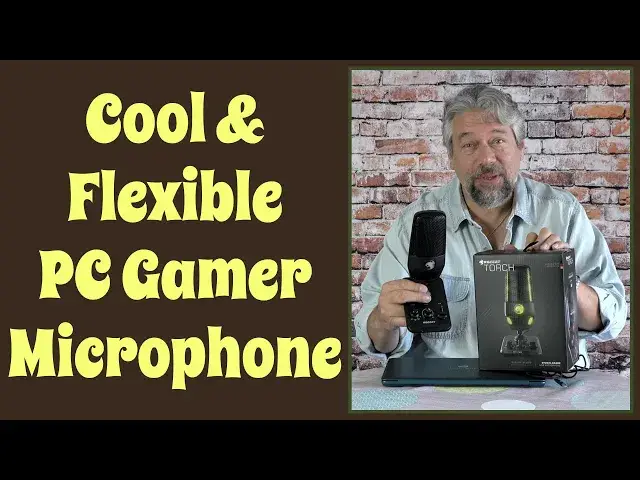
You don't have to be a gamer to appreciate the Roccat TORCH PC Gamer Microphone. Plug it into your PC and you'll instantly have way better audio for Zoom calls, recording your podcast, capturing your latest audiobook reading or, of course, gaming on your PC. But it not only sounds good, it looks cool too, with lots of smart interface feedback via the RGB lighting system. Controls? It's got plenty of 'em, including the ability to plug in a pair of headphones to monitor your audio, gain, and three different pickup patterns. The Roccat Torch USB Microphone is also compatible with boom arms if that's your preference.
Tech expert Dave Taylor offers up an extensive demo of different pickup patterns - cardioid, stereo, and whisper - along with gain, mute, and more - and explains where this would be a great addition to your PC setup. Even if you aren't a gamer.
Check it out at: https://www.roccat.com/
Check out Dave's Q&A Web site at: https://www.AskDaveTaylor.com/
#roccat #microphone #gamer #pcmic #roccattorch #torch #askdavetaylor
Show More Show Less View Video Transcript
0:00
You won't have to be a gamer to love this new PC microphone
0:03
Let's check it out. Dave Taylor here, and I'm checking out this
0:13
This is the RoCat Torch USB microphone, and it's pretty sweet. As you can see, it has color LEDs, it has controls on the front, there's all these various wires and things on the back
0:26
There's a lot this could do. I'll give you a close-ups. I'll even give you a demo. But for now, notice that when I change the pickup patterns, it changes colors
0:36
And when I adjust the gain, those sidebars go up and down
0:41
Pretty darn cool. Now, what's really cool is you can mute it without actually having to touch anything
0:47
So just put your hand over it and it'll actually go into mute mode, which is great
0:52
because you don't want to be like that guy who's busy talking to mom or talking to girlfriend or something
1:00
thing while everyone else is listening. So now that you mention it, Mom, I would like a cup of D
1:05
Thank you. Let me get back to my game. All right, everyone, I'm back in the game, right? So
1:11
dual condenser microphones, 24-bit audio with up to 48 kilohertz sampling, 20 to 20,000
1:18
kilohertz with max sound pressure level of 110 decibels. And there's three pickup patterns on the front
1:25
I'm going to give you a close-up of the whole thing while I work with it. But for now, you have
1:30
You can turn it off and then I can do cardio, stereo, and whisper
1:36
And whisper modes cool because it's for when it's really quiet. And you want to be working or like gaming or maybe on a Zoom call late at night
1:44
And so you're talking more quietly. This can compensate for that. Now, it also has, like I said, that quick mute gesture
1:51
And you can actually adjust how sensitive that is. If you're finding that you do this and it goes mute, you can dial it down a little bit, which is great
1:59
They also have what they call reactive RGB. In a dark room, this lighting is really pretty spectacular
2:06
And it's plug and play PC, no drivers needed, but I want to emphasize PC
2:12
I tried plugging this into my Mac and it was just dead as a doorknail So I asked Rock you know RoCat I like it doesn work on a Mac And they like dude PC microphone PC microphone
2:24
So plugged it into my gateway and it worked great. In fact, let's go ahead and I'm going to jump onto the PC
2:32
And what I'm going to do is I'm going to record some audio while I show you a close up of the control
2:38
So you can see and hear everything that's going on. So in just a moment
2:44
the audio is going to be from this microphone rather than from my little
2:48
labyrinth. So let's get that set up. Now you're hearing the audio from the
2:53
microphone and you can see that we have all these different settings. So
2:58
first off let me give you a demo of the mute. So watch here. I'm going to mute
3:03
and then I'm going to unmute. Obviously you did not hear me while I was muted
3:08
That is the entire purpose of this tool. So I'm recording this with audacity on the
3:13
PC a great little piece of software for this sort of task now there are three
3:18
different pickup patterns right now we have it set to whisper which is blue
3:23
and it has that symbol but let's go ahead and switch to cardioid so now
3:28
cardioid is green and you're hearing me talking and I'm about 18 inches from
3:33
the microphone and the gain is all the way up and then finally the third pattern
3:38
is stereo and that's purple and now you can hear me in stereo mode
3:43
Generally speaking, I think I actually like to leave it in cardio
3:49
That gives me mostly front facing audio, and that's exactly how I have it set up
3:55
And in terms of the gain, well, no surprise if I lower the gain, then my volume goes down
4:01
And check that out. And then I'll turn the gain back up so you can hear me
4:07
And that's something where basically, if you have people on the other end saying
4:11
did you swallow your mic? You sound terrible. Then just dial your gain down a little bit
4:16
And if people are saying you're really soft, move your gain up a little bit
4:20
It's pretty easy to work with. And that's about it. This controls volume on the headphones
4:26
that you can plug in to monitor what you're doing. And as you dial this up and down
4:31
obviously you not going to see any reaction on the microphone So that the full demo I think the sound is really good But that you know your question What do you think of the sound Anyway let me jump back on camera Pretty nice demo
4:44
really. And there's a couple more things I want to show you about this. Oops, just muted it. That's okay
4:48
So the first thing is, is that this is actually boom arm compatible because you can take this
4:53
microphone off the base. So the base they have, if I loosen it a little bit, it gives you a lot of
5:00
flexibility to get it to be at just the angle you want, which is great because you don't always want it to be at that same position
5:07
But on the back, you can see there's a very short wire that connects it to the very back of the unit
5:14
and there's a replacement wire in the box that's about six feet long
5:19
So you can take this, put it on your boomstand to have it just by your mouth, if that's what you prefer
5:24
and then use the longer wire to put it on to the base, and then you still have access to all of it
5:30
these controls. And then the other really long wire that I have here is the one that actually
5:35
connects it to your PC. Plenty long enough if you want to have your PC under your desktop
5:41
surface or something like that. Or if you're using a laptop like me, then obviously this is pretty
5:45
straightforward. Now, let me give you a tour of some of the interface elements. So first off
5:51
notice on the front that when it's hot, it says live and when I'm muted, it shows that it's
6:00
muted and unmute and then on the front you have the three controls of the pickup patterns and the
6:10
volume for the microphone there's a 3.5 millimeter audio jack so you can plug in and use that as a
6:17
sort of monitor which is really helpful so you can hear and you can use this as a whole self-contained
6:23
system and then there's gain and generally speaking i keep my gain pretty darn high but you
6:30
can fine tune that. If people are saying you're really, really breaking up, you sound really
6:35
terrible like you're like swallowed your microphone or something, then just turn the gain
6:40
down a little bit and you'll sound a whole lot better. Then on the back, the back is interesting
6:45
So left to right, there's that 3.5 millimeter headphone jack. There's the USBC plug for connecting
6:52
to your computer There another USBC plug that goes to the microphone itself Then that little switch lets you adjust the sensitivity of that quick mute sensor on the top of the microphone And finally you can adjust
7:08
the brightness of the LED. You step through various levels of brightness or off. So if you don't want
7:14
this swanky light up microphone and you just want a mic, you could do that too. So all in all
7:20
there's a lot to like here. Now, let me give you some dimensions. Then we'll
7:23
we'll talk about the price. So dimensions wise, let's see, we'll do it first in American
7:29
then we'll do it in European. So it's 5.4 inches by 3.7 inches by 8.2 inches, 17.6 ounces. It's
7:37
really pretty darn light. And if you prefer, that's 138 millimeters by 95 millimeters by 208 millimeters
7:44
and 500 grams. Okay, now, we just need to talk about the price, right? There's a lot to like here
7:51
This is a really cool microphone and a great upgrade for people on their PC
7:55
Honestly, if you use Zoom, if you want to record yourself singing
8:00
or if you're like a podcaster or doing audiobooks or something, you don't have to be a gamer
8:06
But of course, if you are a gamer, then RoCat really nails it because this is their world
8:11
And they get gaming and they get all the requirements you have for a microphone
8:16
with, of course, all the cool LED and everything. So how much is it cost
8:20
Well, hang on. Before we get there, I'm going to ask if you could subscribe to my channel
8:25
Click or tap on that little red subscribe button, and kaboom, we are connected, and I appreciate that
8:30
Great. This is the Rock Hat Torch USB microphone, and it's 9999 at rockat.com
8:39
Definitely worth checking out if you've been struggling with the microphone built into your PC or your screen or your laptop
8:46
This is a very worthwhile upgrade. and it's fun with all the different colors and stuff, right
8:51
So definitely one to check out. With that, I'll catch you in my next video
#Audio Equipment
#Gaming Reference & Reviews