Up next in 10



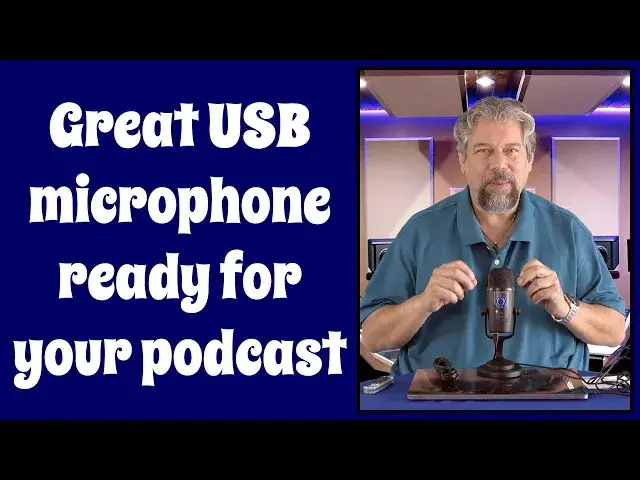
Tired of sounding faint and tinny due to the tiny microphone built into your laptop? Fed up wearing that big, unwieldy gamer headset just so your colleagues can hear you talk? Then you'll really like the MOVO UM300 USB Desktop Microphone. The size of a can of soda, it offers terrific sound and some smart design features that make it fun and easy to work with. It features both cardioid and omnidirectional pickup choices, and includes both USB-3.0 and USB-C cables for maximum portability, the MOVO UM300 can be a game changer with your audio and 10x if you're getting into podcasting. Heck, it's even remarkably affordable, as reviewer Dave Taylor explains after his demo...
Check it out at: https://amzn.to/3k8n2Ux
Check out Dave's Q&A Web site at: https://www.AskDaveTaylor.com/
#movo #microphone #usbmicrophone #askdavetaylor
Show More Show Less View Video Transcript
0:00
Is this your next desktop mic? Let's check it out
0:03
[♪ Music ♪ Dave Taylor here with this. This is the Movo UM300 Desktop USB Condenser Mic
0:17
and it's pretty nice looking. Let's go ahead and open it with my unboxing tool
0:22
Be careful with these sort of things, kids. Probably not optimal to have laying around
0:27
but really handy when you need it. So, let's see what's in the box
0:32
And right on the top we have a Movo sticker, for those of you that like stickers
0:39
And this is pretty common, is a happy, not happy brochure that tells you how to give them feedback
0:46
if you have any issues. And an instruction booklet. It's extremely thin
0:52
because this is really a plug-and-play device. Then, let's pull up the packaging
0:57
and we have two cables. One of which is, let's see, USB-C to USB-C
1:05
and the other of which is USB-C to USB-3 or USB-A, depending on what you want to call it
1:13
And then we have the microphone itself. So, let's see what this is
1:17
and I'm going to put this, and I'm going to just give this the boot because we don't need the box anymore
1:22
Okay, so this is the Movo UM300, and I'll flip it up
1:27
and you can see, it has controls here on the front. It has plugs on the bottom
1:34
It has the ability for you to tighten it so you can adjust it to your favorite angle
1:38
On the bottom, there is really nothing of note, which is fine
1:45
And let's see, so on the back, here's USB-C for connectivity. Obviously, that's what those wires are for
1:52
And then there's a headphone jack, so you can actually use that
1:56
to monitor your audio signal, which is important. And then on the front of the unit
2:02
there's a button on the bottom that lets you choose between cardioid and omnidirectional polar
2:07
in terms of where it's trying to pick up the signal. If you're using this for gaming
2:12
or for Zoom or Skype or something like that, you'll probably do it in cardioid form
2:17
and that gives you sort of a one side is going to get better pickup
2:21
than the rest of the environment. But omnidirectional will give you a 360
2:25
so if you're sitting and you want to put this in the middle of a table and have a conversation with grandma
2:30
when the kids are sitting everywhere or running around, then that's going to be your best choice
2:35
So, the dial part is actually pretty interesting because it gives you gain control
2:41
and it gives you headphone volume and you can just push it and that gives you a mute feature
2:46
Very important to have mute. Know when you've muted. That's important. And that volume, of course, is for the headphones
2:53
so you can use your headphones as a monitor and then dial them down
2:57
so that you actually can hear well. Generally, you're going to be doing that
3:01
if you're doing recording or something like that. If you're using this for, say, gaming
3:06
then your headphones are going to be connected to the game system, not connected to the headphones
3:11
Has a built-in windscreen and then it's actually, the specs are pretty impressive
3:16
So, it records 48 kilohertz at 16-bit for 20 to 20,000 hertz of frequency response
3:22
So, you're going to get a good, rich sound, hopefully, and we're going to do a demo
3:27
in just a minute. So, let me just give you the rest of the sort of specs here
3:31
So, comes with these two cables, comes with the microphone. That's everything
3:36
No carrying bag. Well, I guess it does come with a sticker
3:39
Two-year warranty. Works with Mac, Windows, Linux, Chrome OS, Android. Anything you can plug in an external microphone
3:46
this should work and hopefully should work well. So, having said that
3:51
let me go ahead and plug it into my Mac and then we'll go into Audacity
3:57
and I'll actually show you the waveform on Audacity and let you hear what the microphone is doing
4:04
and then I'll come back on camera. We're in Audacity, which is a great piece of open-source audio editing software
4:10
It's available for Mac and Windows. I use it a lot. A ton of podcasters use this
4:16
It's really worth knowing. Anyway, let's make sure I have chosen the correct microphone input
4:21
I have chosen that it is in stereo and let's make a recording
4:26
This is a demonstration of the Movo UM300 microphone in cardioid pattern
4:32
and I'm sitting so that my mouth is about 10 inches away from the microphone
4:37
You can see by the rich waveform that it's picking up a lot of audio frequency
4:42
So, let's stop and hear what it sounds like. At this point, I'm not using the Movo microphone
4:49
I'm using the Mac's built-in microphone so you can hear the difference
4:53
but all of the audio you heard during that recording was actually what I recorded
4:59
So that was actually the Movo audio microphone demo. So, really pretty cool
5:05
Now, let me jump back on camera. I thought that was pretty good. What did you think
5:09
So, let me tell you just a tiny bit more about the microphone. So, now that it's plugged in
5:14
I can show you, hopefully it's still plugged in and powered up, is the bottom button switches between the two modes
5:20
as I said, and then the top button, by default, is adjusting the volume on the headphones
5:26
But if you push and hold, that blue light will eventually turn purple
5:31
and once it's purple, and I can't see, there we go, so it's purple, so now I'm adjusting the gain on the microphone
5:38
and then if I just do a short push, then it's hopefully red
5:42
and so now it's muted. So, a push lets you mute and unmute
5:47
but a push and a hold lets you alternate between volume control for the headphones
5:51
that are plugged into the bottom or gain control on the microphone
5:56
I would say this is a pretty solid contender for a nice desktop microphone
6:01
It has really nice looks, comes with a nice long set of cables
6:05
They don't have an adapter. They actually have two separate cables. Well done
6:09
One of which is for people that have the old USB-A or USB 3 connection
6:15
and others for people whose devices have USB-C. Either way, you're covered
6:19
and I think the audio quality speaks for itself. Well, I was speaking
6:24
but you know what I mean. So the only thing we need to talk about
6:27
is we need to talk about the price. But before we get to the price, I'm going to ask if you could subscribe to my channel
6:33
Really appreciate when you do that. A click or a tap on that subscribe button
6:36
and boom, we're connected. So this is the Movo UM300 Desktop USB Condenser Microphone
6:45
and it is $59.95 at Amazon.com. Definitely worth checking out if you want to up your audio game on your Zoom calls
6:54
on your video gaming, or your computer gaming obviously, or you just want to have better quality
7:00
because maybe you want to go into podcasting or something. This is a really solid option
7:05
So, one worth checking out and I'll catch you in my next video
#Consumer Electronics
#Audio Equipment
#Virtual Reality Devices